Managing Sanctioned Apps
 Updated 6 months ago
by
admin
Updated 6 months ago
by
admin
Identifying which SaaS applications your organization should allow is an important step in securing your environment and controlling Shadow IT/AI.
The Sanctioned App condition is available with Cloud Application Security and enforced through Web Security rules. It allows you to distinguish between applications that are explicitly approved and those that are not. By identifying sanctioned and unsanctioned application traffic, you can enforce policies to control access and reduce risk.
Setting an app as Sanctioned
Setting an app as Sanctioned identifies it as approved for use in your Filter Rules. This designation allows Web Security rules to treat the application as trusted and apply policies accordingly.
- Navigate to Security Modules -> Cloud Application Security -> App Catalog
- Search for the app by name or locate it in the tree
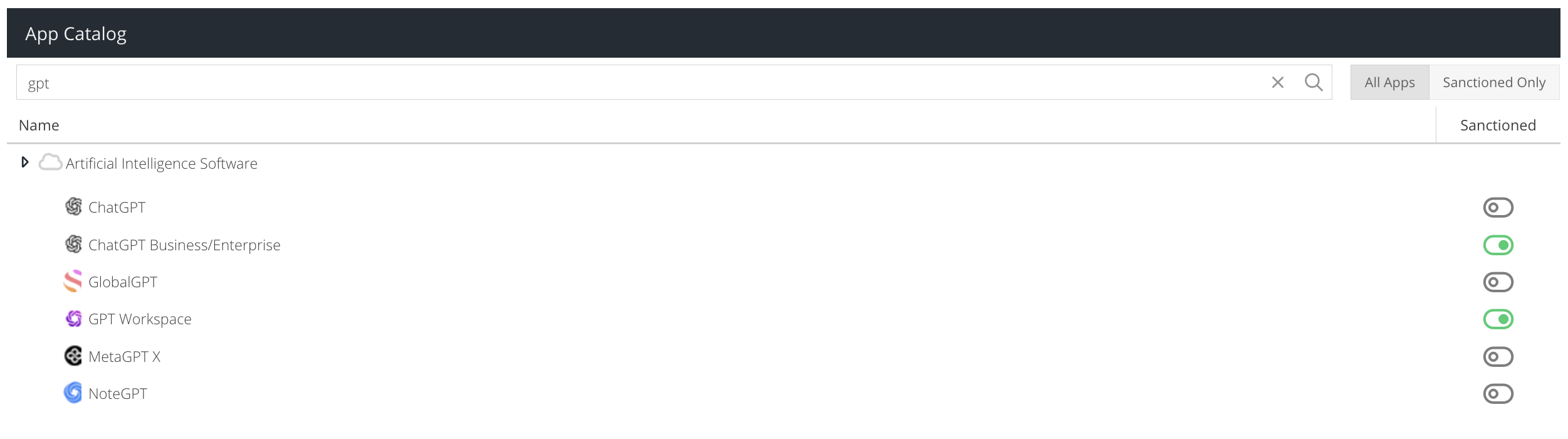
- On the right hand side, click the Sanctioned toggle so that it turns green.
- Repeat the process for other apps you would like to mark as sanctioned.
- TIP: Alternatively, use the Analytics -> Cloud Activity (Inline) report to identify app usage and then click the App Catalog icon to manage the sanctioned status

Controlling Sanctioned & Unsanctioned Apps
Once you have marked at least one app as sanctioned, you can apply security controls to sanctioned apps or to apps that do not appear on your sanctioned list.
- Navigate to Security Modules -> Web Security -> Filter Rules
- Create a new rule or edit and existing rule
To allow all traffic to Sanctioned Apps:
- Drag the Sanctioned App condition into the Selected Conditions column and configure it, by selecting some or all of the apps you have chosen to be sanctioned.
- Drag the Allow action into the Selected Actions column
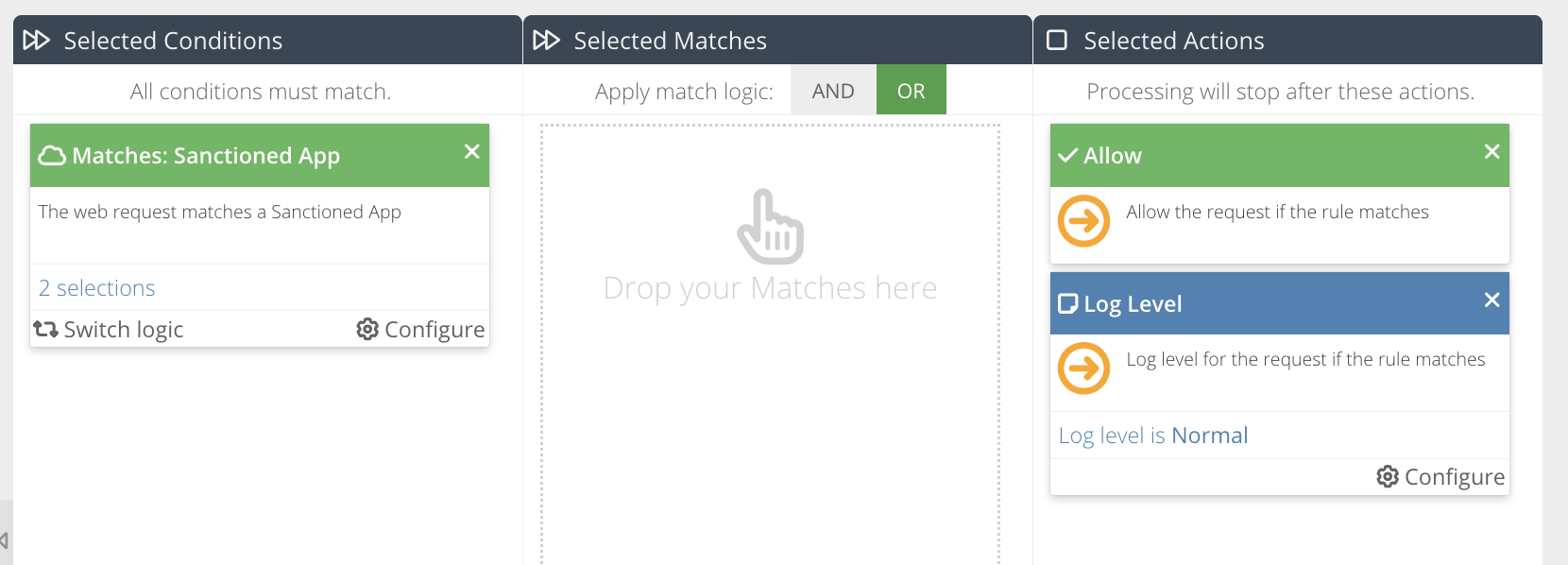
- Position the rule above any existing rules that are used to block app activity. This ensures your preference to allow Sanctioned Apps triggers first
- User generated actions for your chosen Sanctioned Apps will be allowed and activity will be recorded in the Cloud Activity (Inline) report for analysis.
To block all traffic to Unsanctioned Apps:
- Drag the Sanctioned App condition into the Selected Conditions column and configure it by selecting all of the available apps
- Click Switch Logic to invert to a Does Not Match condition
- Drag the Template action into the Selected Actions column and select the template to use
- Drag the Block action into the Selected Actions column
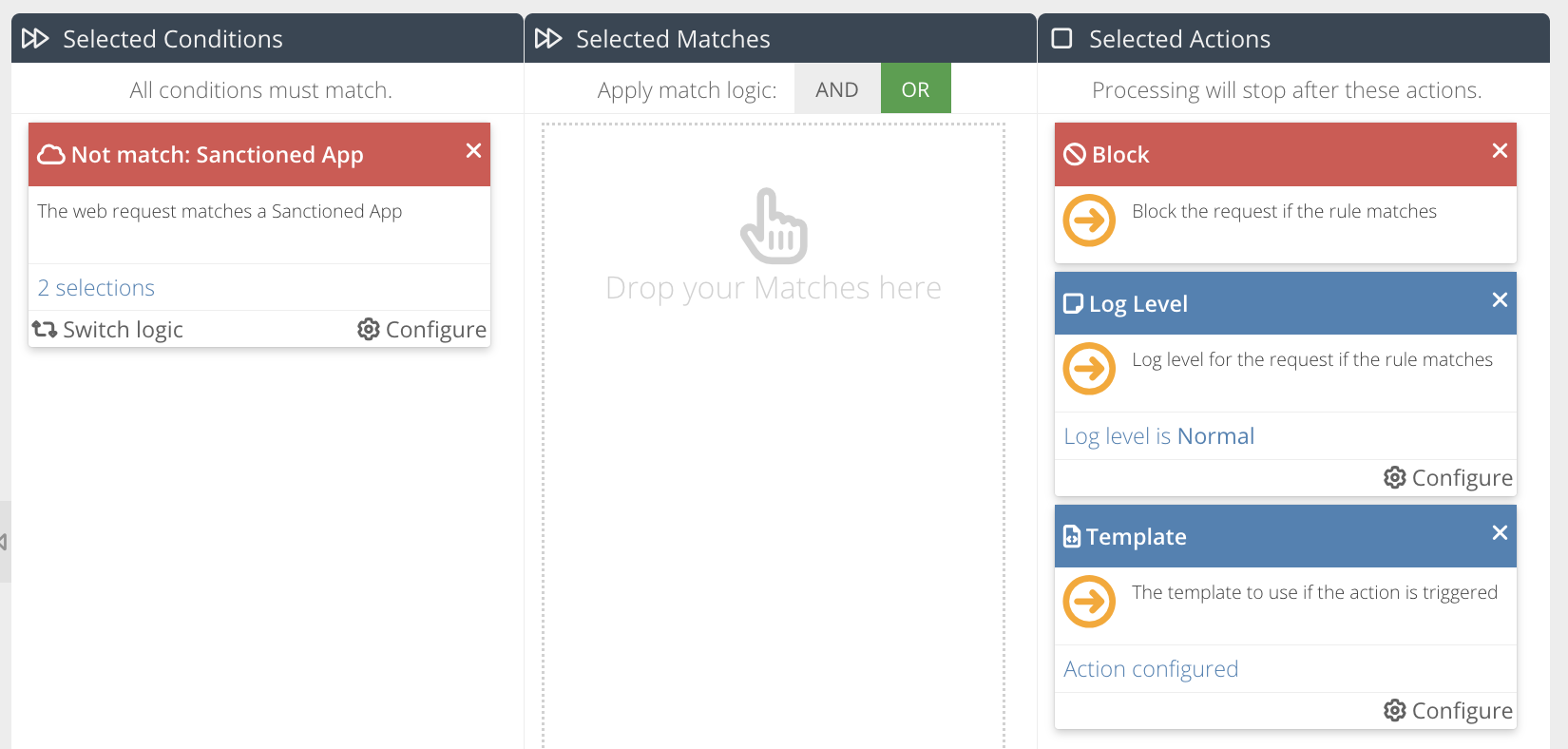
- Position the rule after any rules that are used to allow Sanctioned Apps. This ensures the rule logic does not conflict
- Any user generated actions to App Catalog apps will be blocked unless they are to apps marked as sanctioned
Reviewing App Usage
- Navigate to Analytics -> Cloud Activity (Inline) and run a report

- App activity will be identified with a shield icon in front of the App Name.
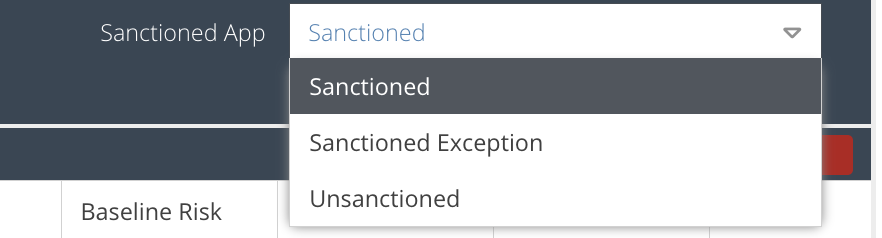
Icon colour | Designation | Description |
Green | Sanctioned | This application is approved for use and complies with company security policies. |
Orange | Sanctioned Exception | This application is approved, but a policy exception or negate rule is affecting how it is evaluated. Review Filter Rule configuration for details. |
Red | Unsanctioned | This application is not approved and may present security or compliance risk. Consider adding the app to your Filter Rules. |
- To refine the results further, expand the Filters panel and use the Sanctioned App filter to show only results that match the type of designation you are searching for (see table above).