SAT - Create a Mail Flow Connector for SAT Delivery to Office 365.
 Updated 7 months ago
by
admin
Updated 7 months ago
by
admin
If the TrustLayer SAT solution is sending directly to your Exchange Online environment, then please follow the steps below.
Step-by-Step Guide.
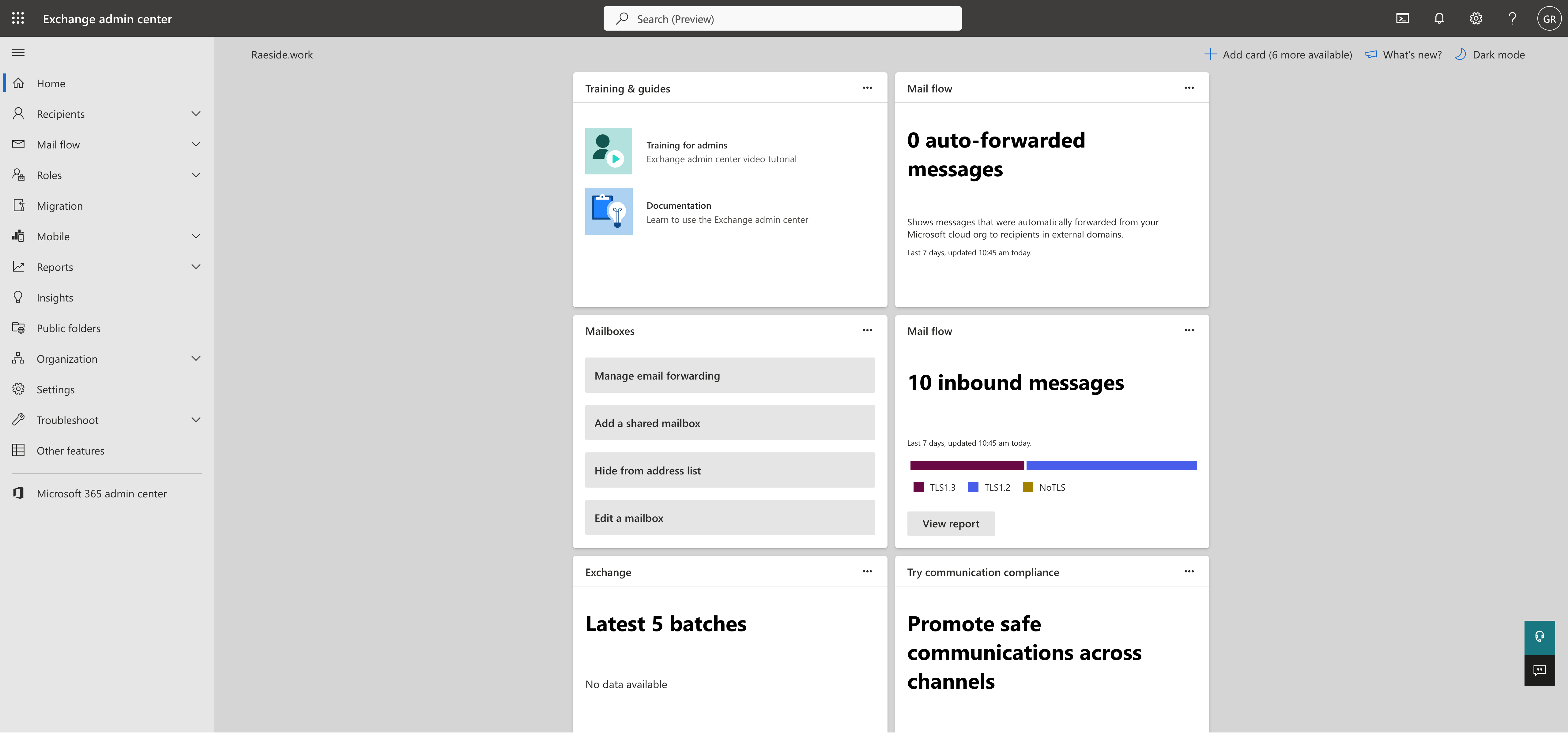
Access your Exchange Admin Console:
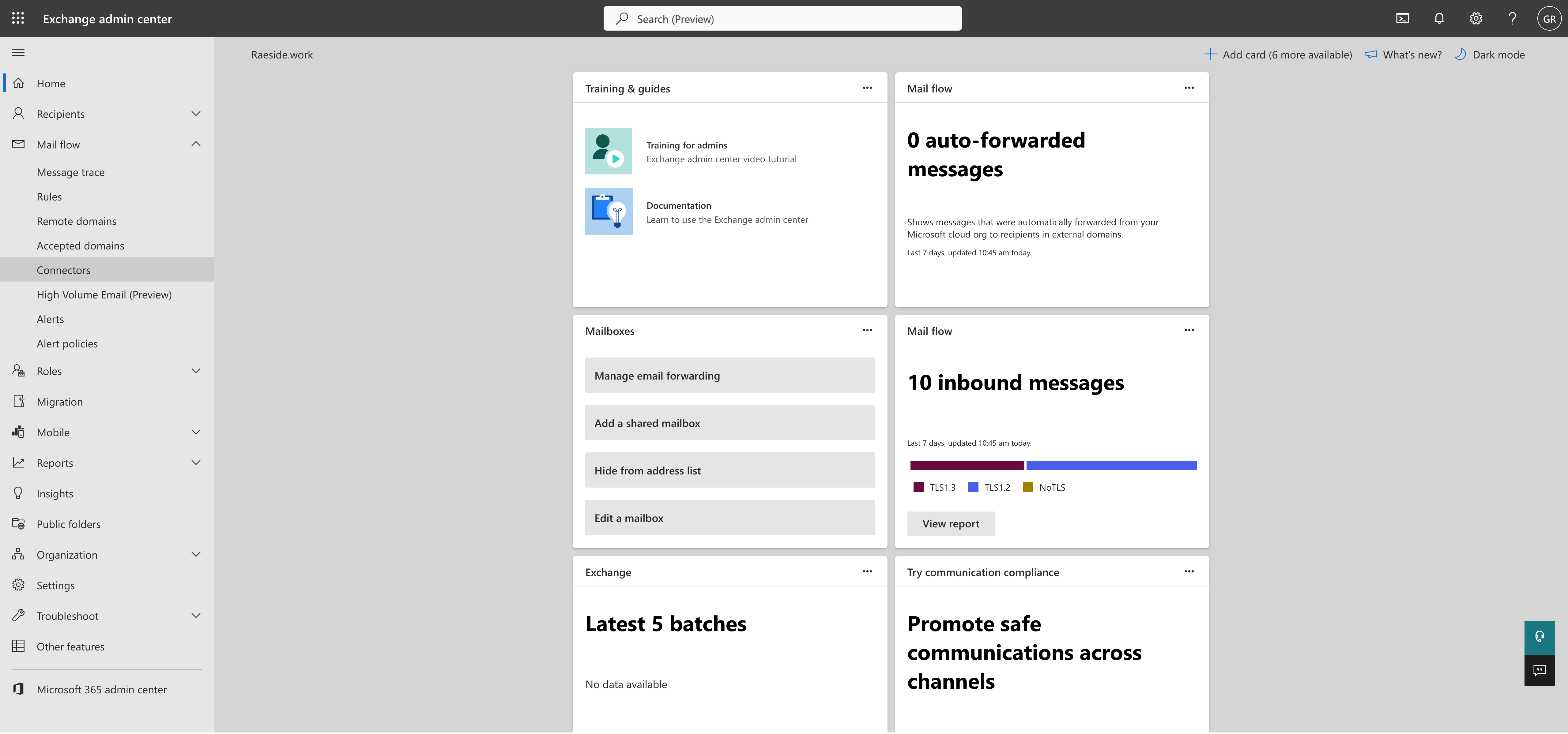
Select Connectors:
Navigate the Mail Flow, Connectors.
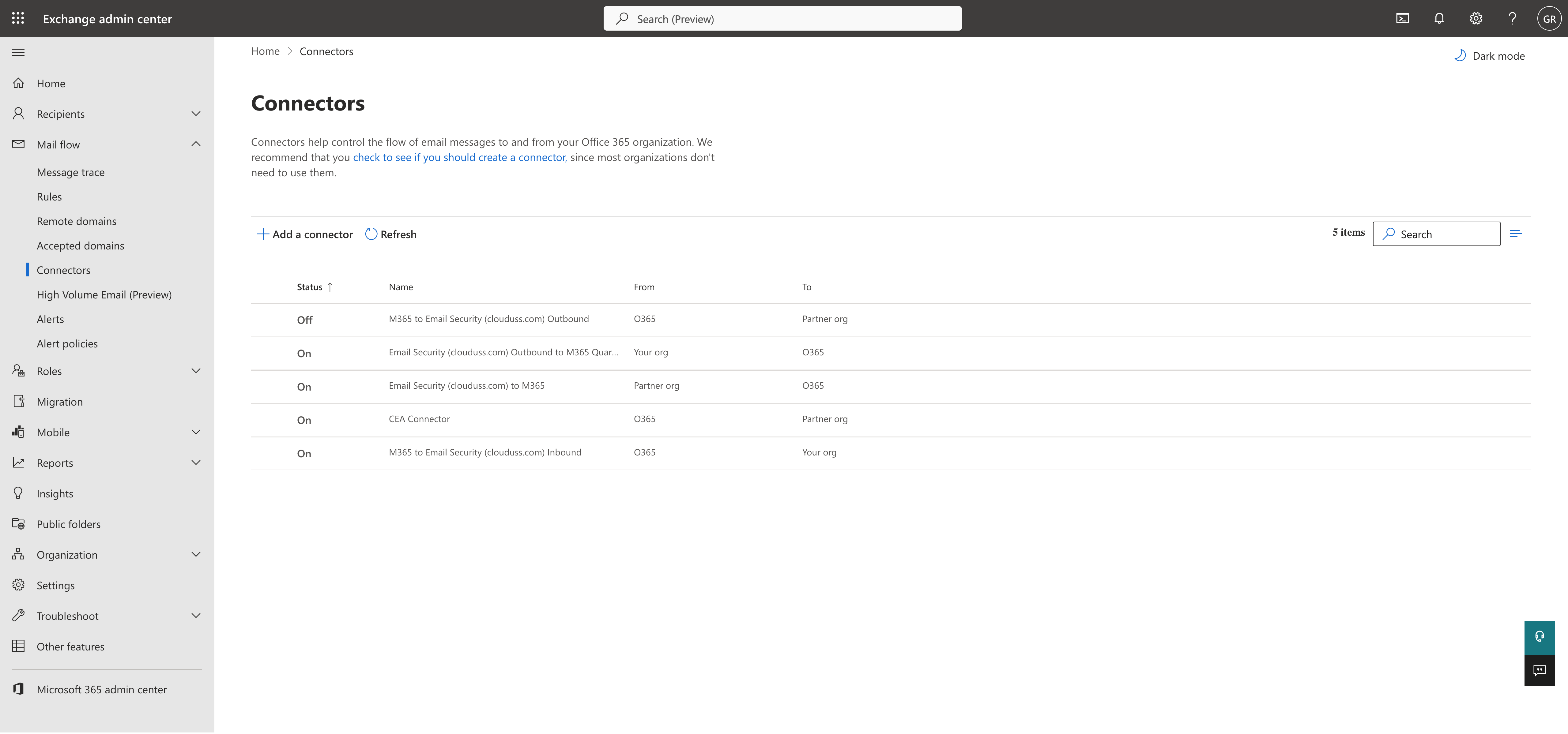
Add a connector:
Select the Add a connection icon.
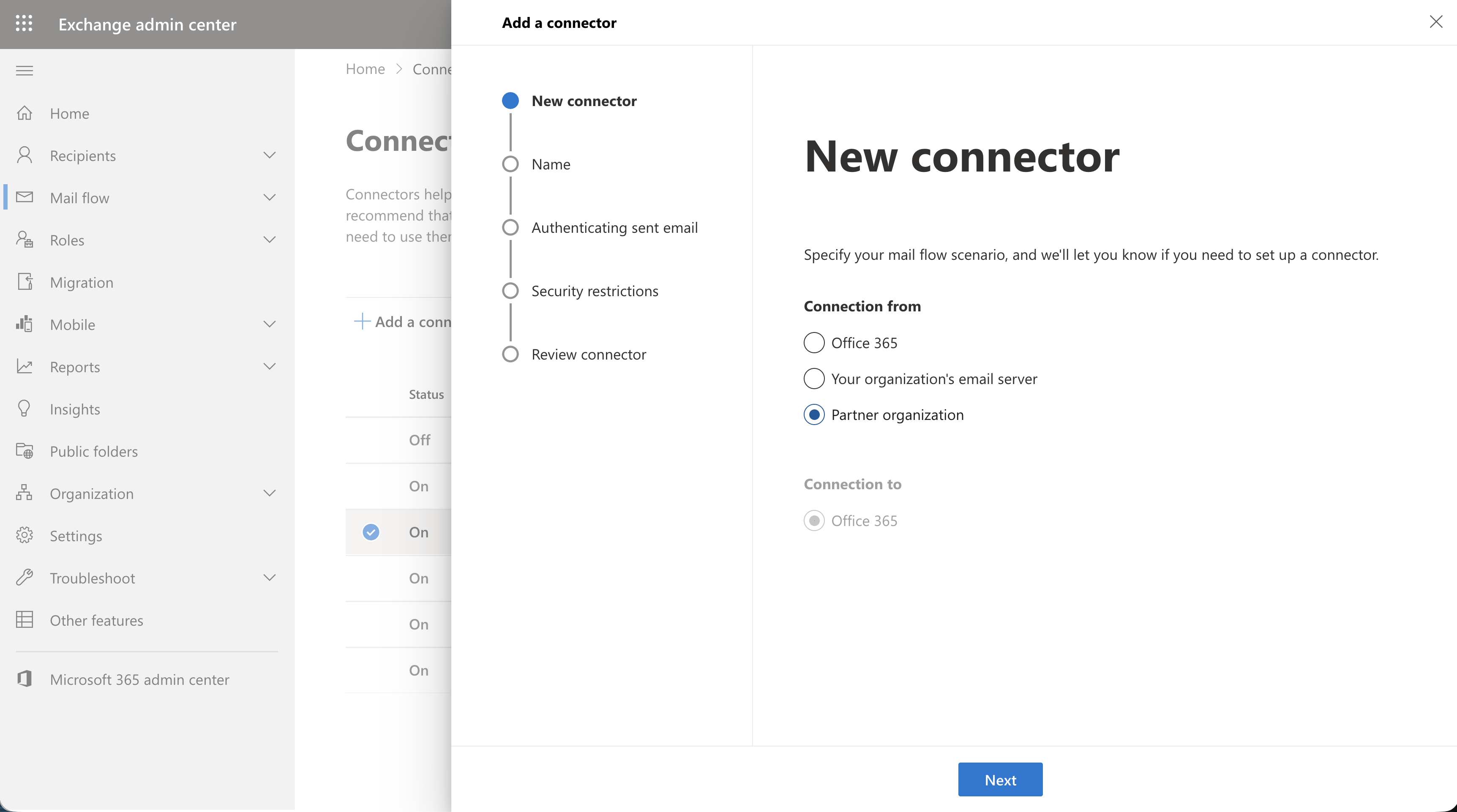
Connection from:
Select "Partner organization" as the Connection from, then select Next.
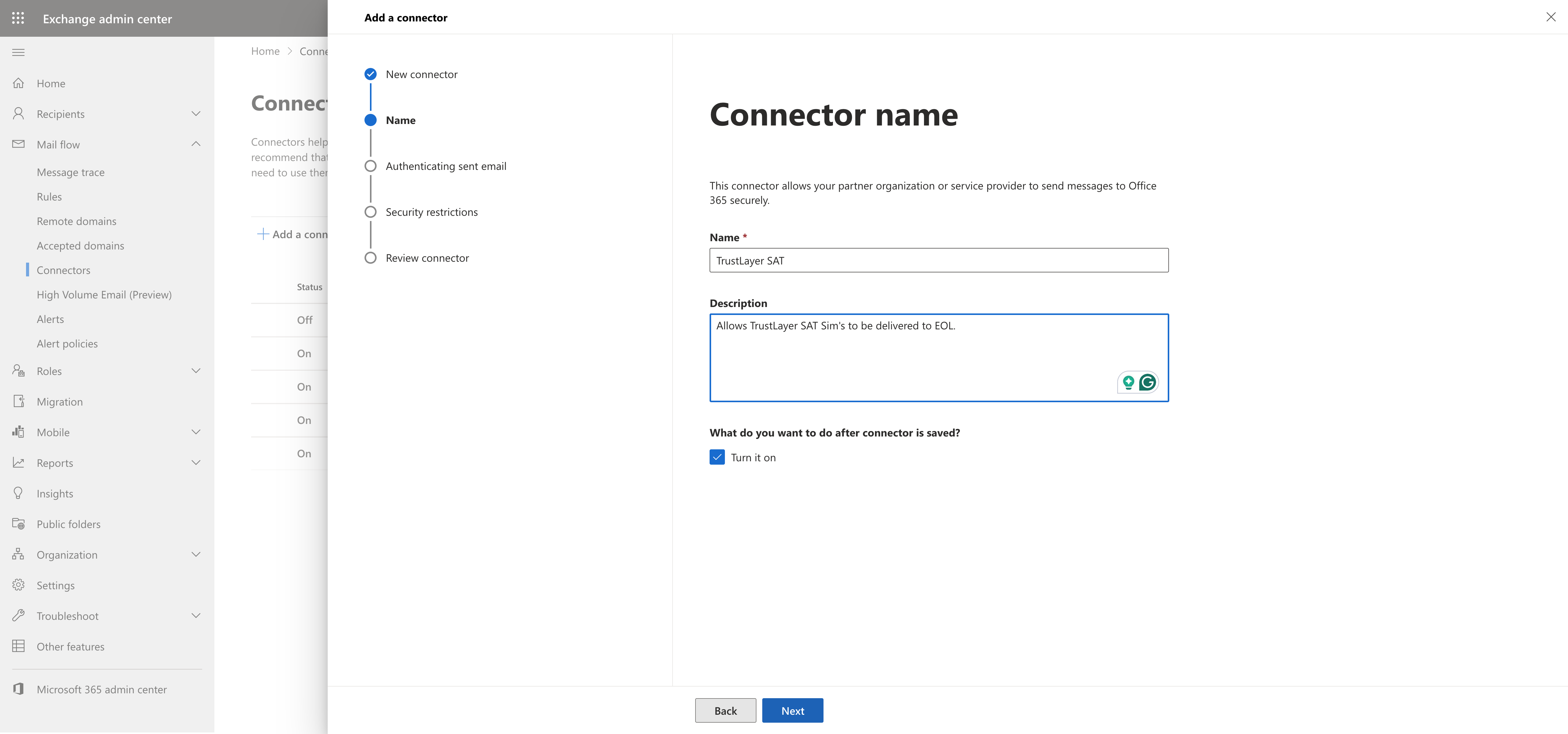
Connector Name:
Add a Rule name and description, then select Next.
Authentication sent email:
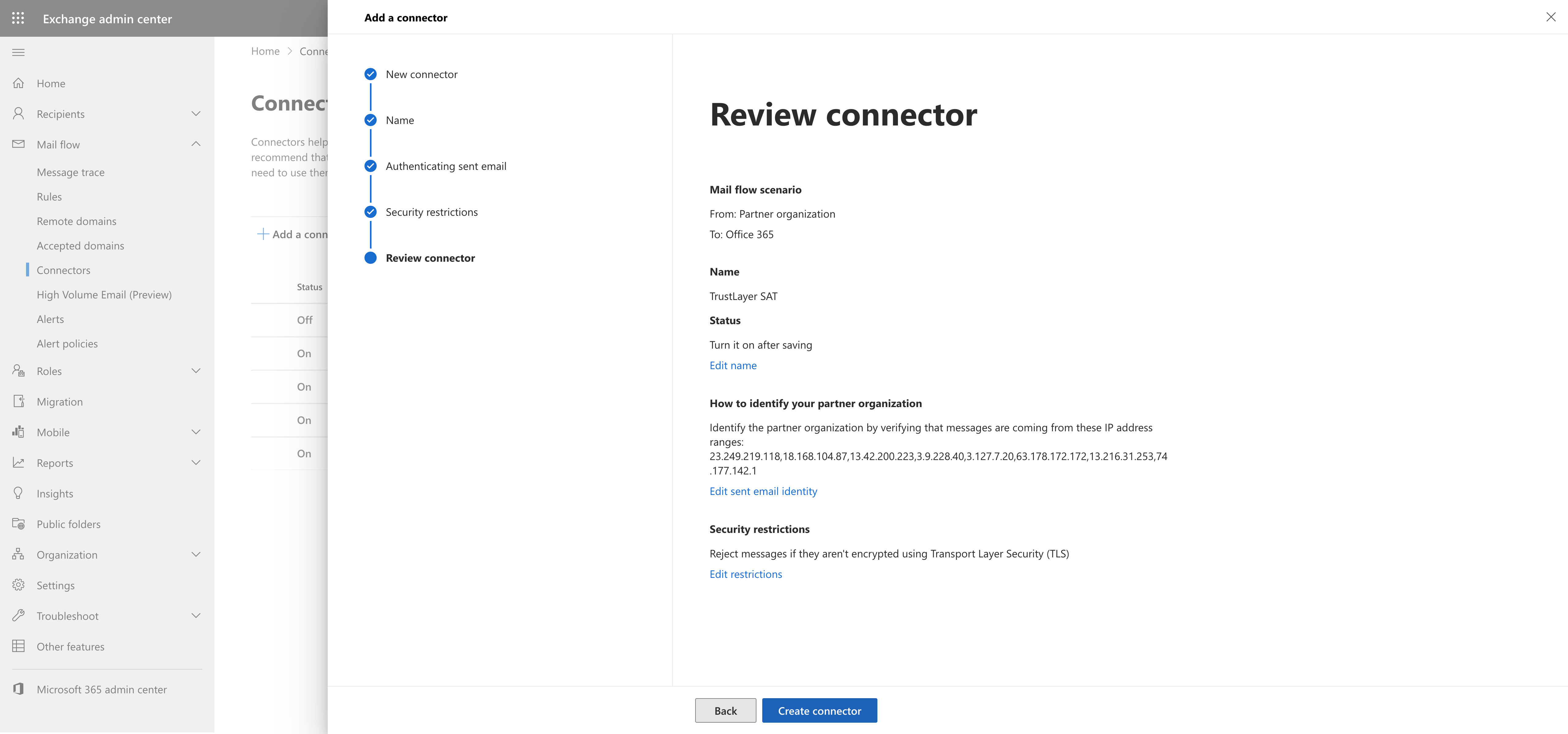
Select by verifying that the IP address of the sending service matches option:, add the address listed below, your configuration should match the list below. Then select Next to complete this step.
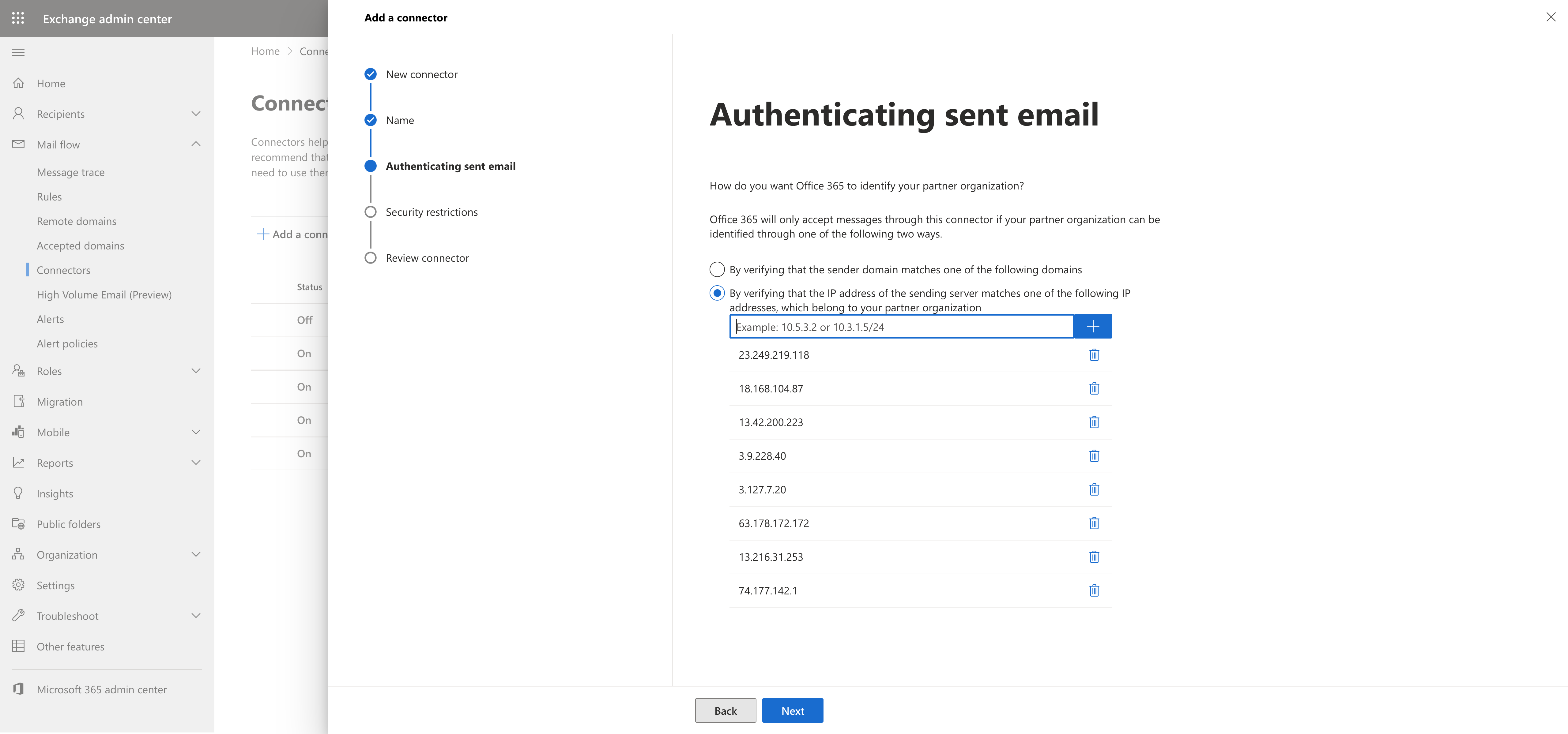
Sending IP: 8 Sending IPs
23.249.219.118
18.168.104.87
13.42.200.223
3.9.228.40
3.127.7.20
63.178.172.172
13.216.31.253
74.177.142.1
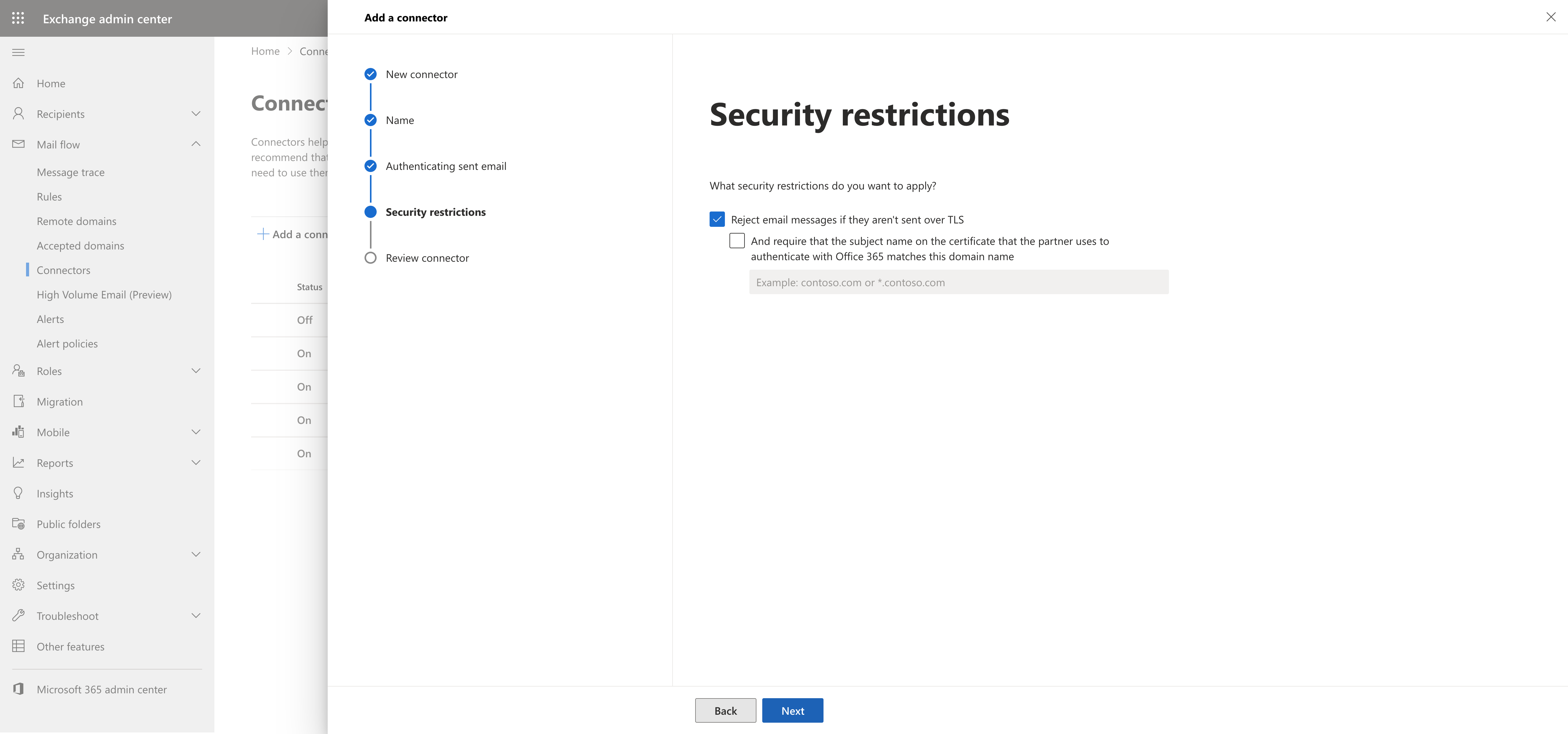
Security restrictions:
Accept the defaults, then select Next to complete this step.
Review Connector:
Review the settings, then select Create Connector to complete this step.
Complete Connector setup:
Select Done to create this connector.
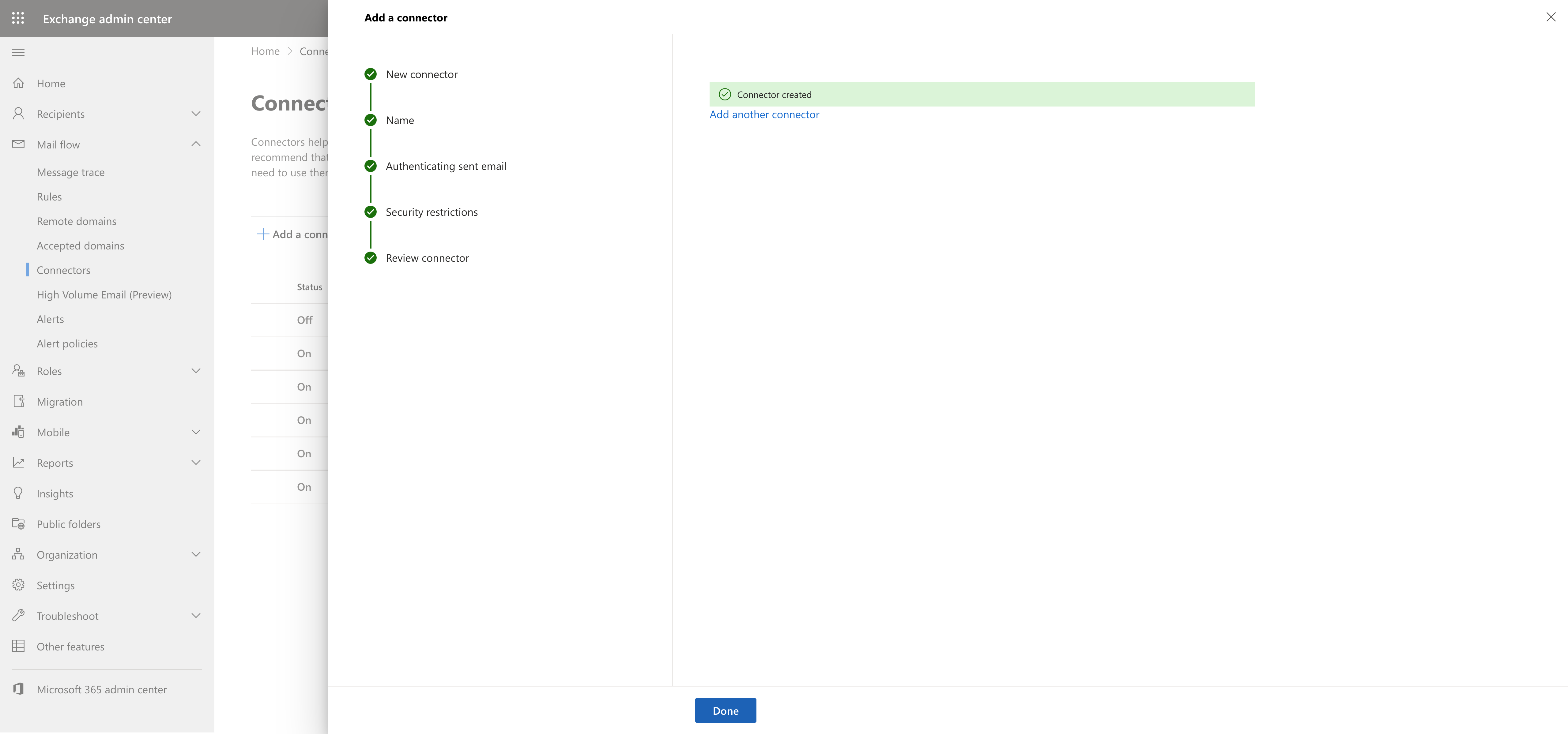
Finished:
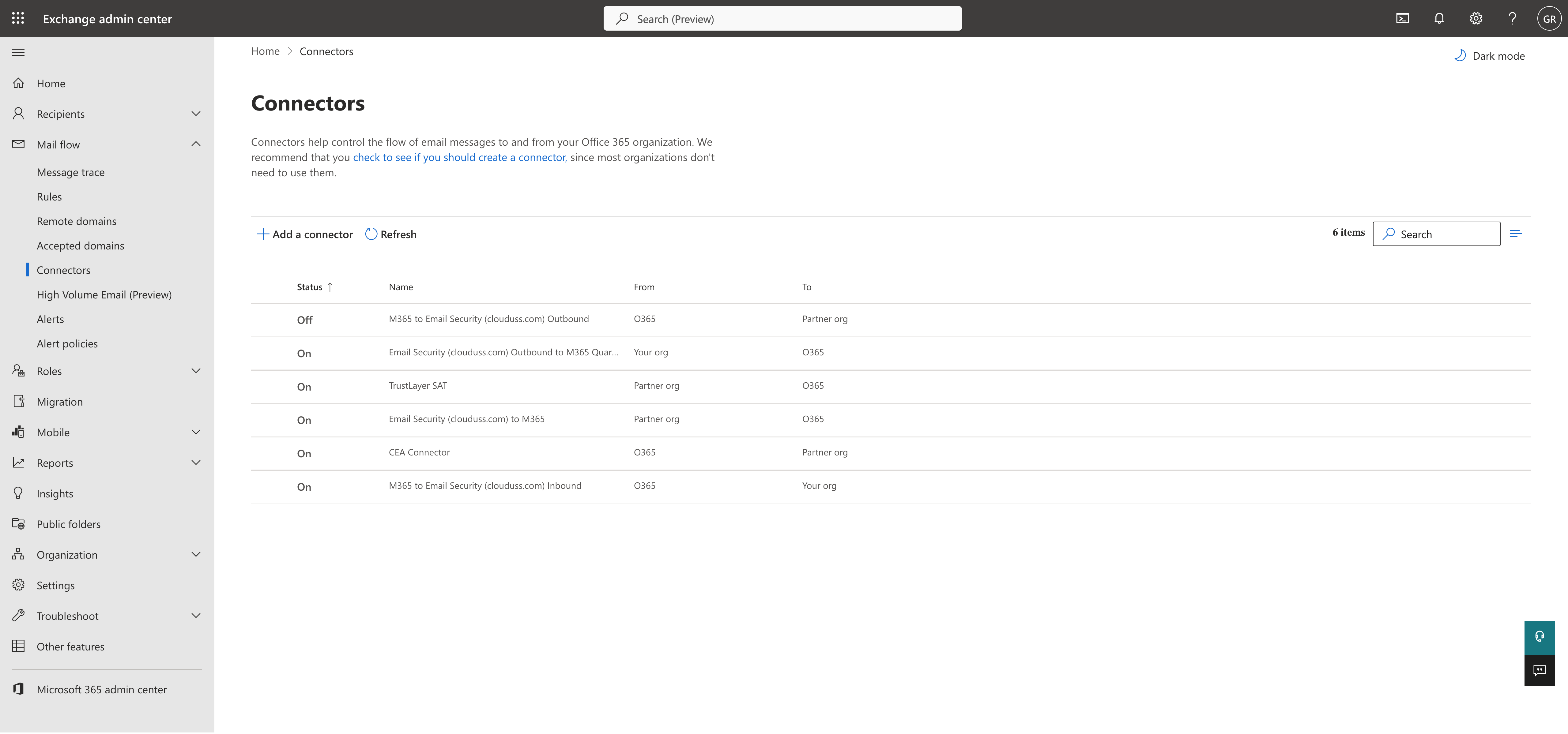
Confirm the connector has been created and is enabled.