Deploy the Hosted Gateway Cert for iOS devices via inTune.
 Updated 4 months ago
by
admin
Updated 4 months ago
by
admin
This article explains how to deploy the SSL inspection / private relay CA certificate that iOS needs to trust before the USS Mobile app can intercept HTTPS traffic.
Step 1 — Download the Certificate
On your PC, open the URL in:
https://<yourteantname>-gateway.clouduss.com/certs/ios/
This should download a.cerfile automatically, or show a page with a download link. Save the file to your PC.
https://<yourteantname>-gateway.clouduss.com/certs/ios/ You can find this on your USS configuration.Step 2 — Convert to the Right Format (if needed)
Intune needs the certificate as a DER-encoded .cer file. If what you downloaded is already a .cer file, go straight to Step 3. If it's a .pem or .crt, convert it on your Mac:
Open Terminal and run:
openssl x509 -in downloaded-cert.pem -outform DER -out trustlayer-ca.cer
Step 3 — Create a Trusted Certificate Profile in Intune
- Go to Intune → Devices → Profiles → Create → New policy
- Platform: iOS/iPadOS
- Profile type: Templates → Trusted certificate
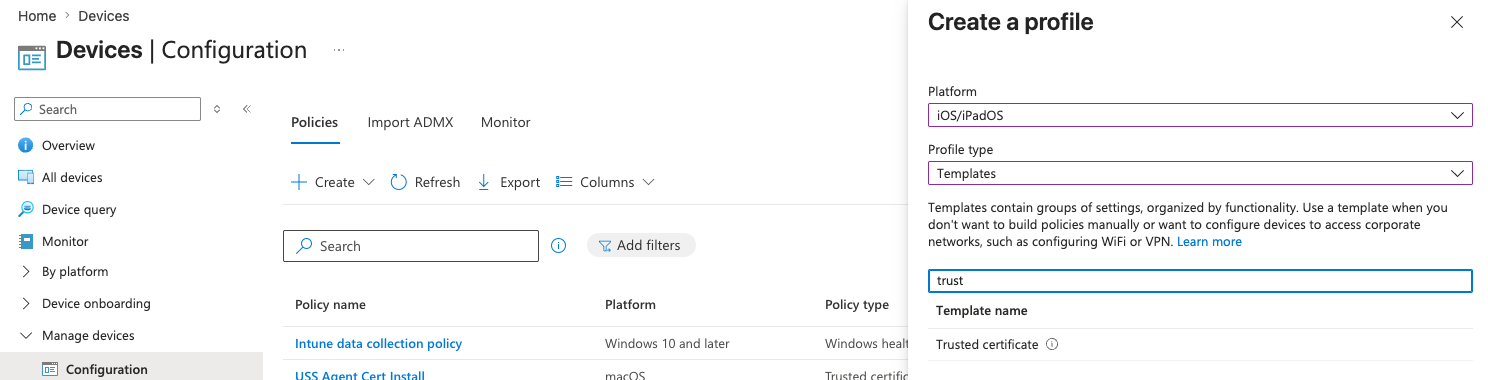
- Click Create
- Give it a name — e.g. USS Hosted Gateway CA Certificate
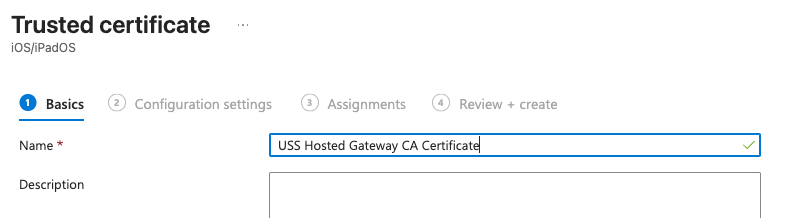
- Upload the
.cerfile - Destination store: Computer certificate store — Root
- Click Next → Assignments
- Assign to the same group as your USS Mobile app
- Click Next → Review + create → Create
Step 4 — Set the Deployment Order
This is the critical bit — the certificate must be trusted before USS Mobile installs and starts intercepting traffic. Intune doesn't have a strict sequencing mechanism, but you can enforce ordering by:
Using an Assignment Filter or just timing:
- Deploy the certificate profile first on its own
- Wait until it shows as Succeeded on the device in Intune → Devices → your device → Configuration profiles
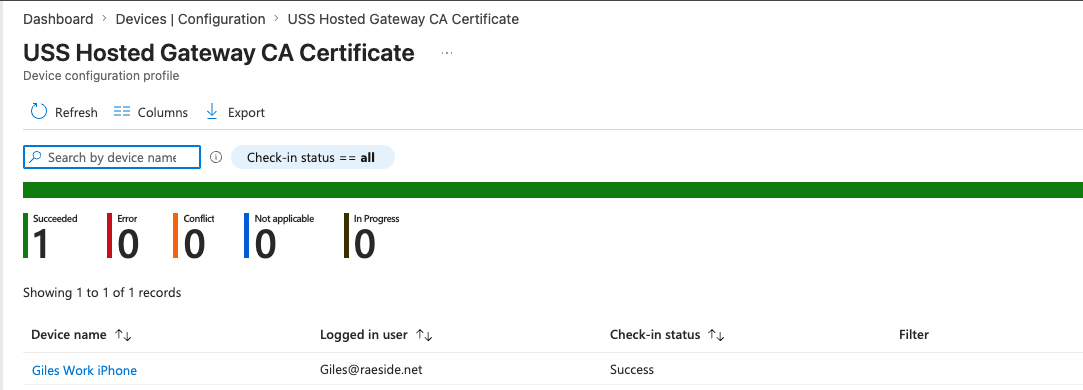
This is the safest approach for a single device. For larger rollouts, you'd use an Enrolment Status Page (ESP) on supervised devices to block app install until profiles are applied, but for your current unsupervised setup, manual sequencing is the practical option.
Step 5 — Verify on the iPhone
After the profile deploys, confirm the cert is trusted:
Settings → General → VPN & Device Management → Configuration Profiles — you should see the TrustLayer CA profile listed alongside the clouduss.com entries.
To confirm it's in the trusted root store: Settings → General → About → Certificate Trust Settings — the TrustLayer CA should appear here, and you need to manually toggle it to full trust (green). iOS requires this extra step for root CA certificates installed via MDM on unsupervised devices.
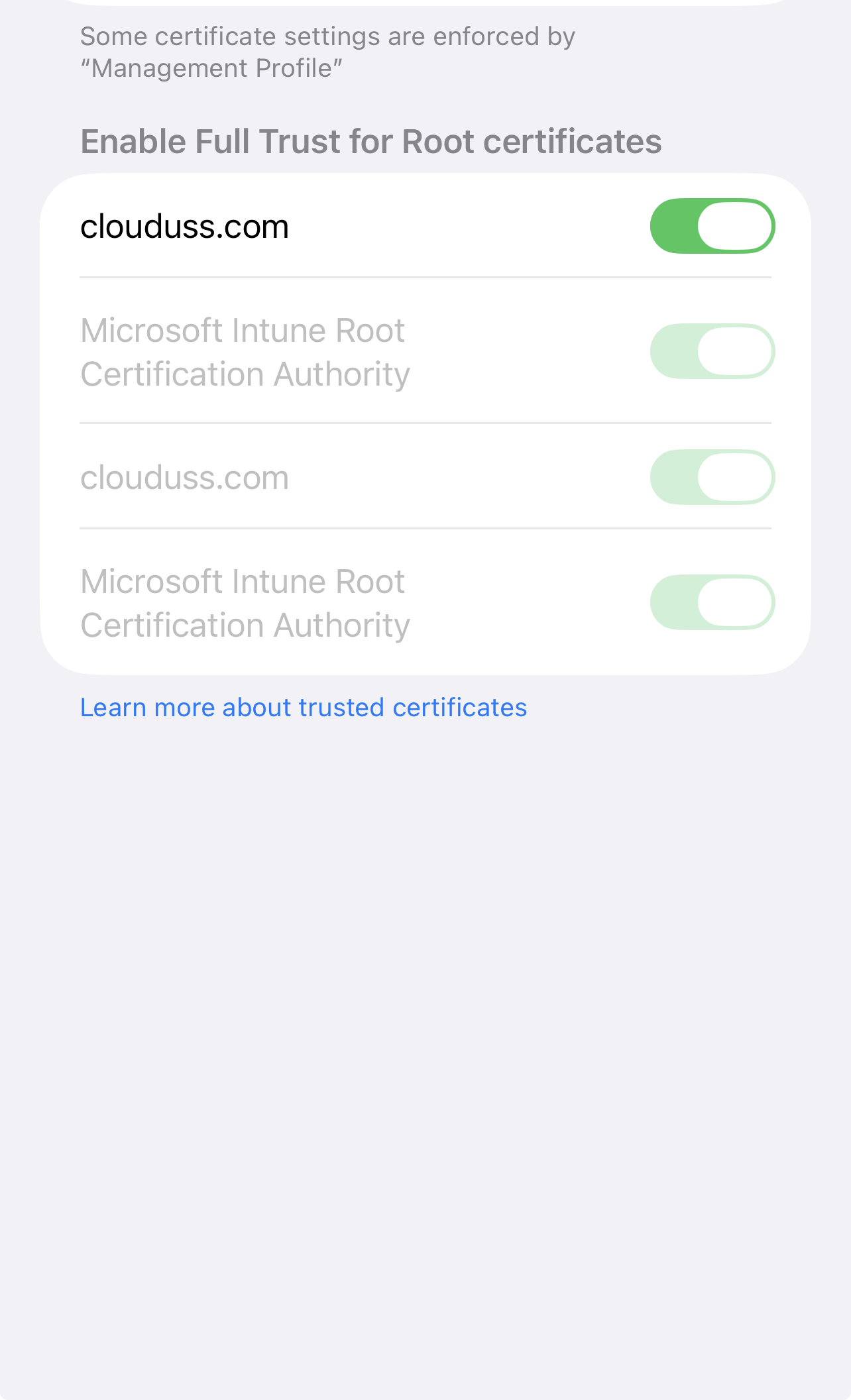
Once the cert is trusted and you've confirmed it in Certificate Trust Settings, then assign USS Mobile as Required in Intune, and it should install and authenticate cleanly.