Message Scripting for Connector Mode
 Updated 2 months ago
by
admin
Updated 2 months ago
by
admin
Message Script Studio allows you to extend standard email security rules with custom detection logic for email headers, bodies, attachments, and context. By integrating AI guidance, templates, and validation, it simplifies the creation of advanced Message Rules tailored to your organization’s needs.
Open Message Script Studio
- Visit the Security Modules -> Email Security.
- Click Message Scripting.
- The Message Script Studio will open in a new tab.
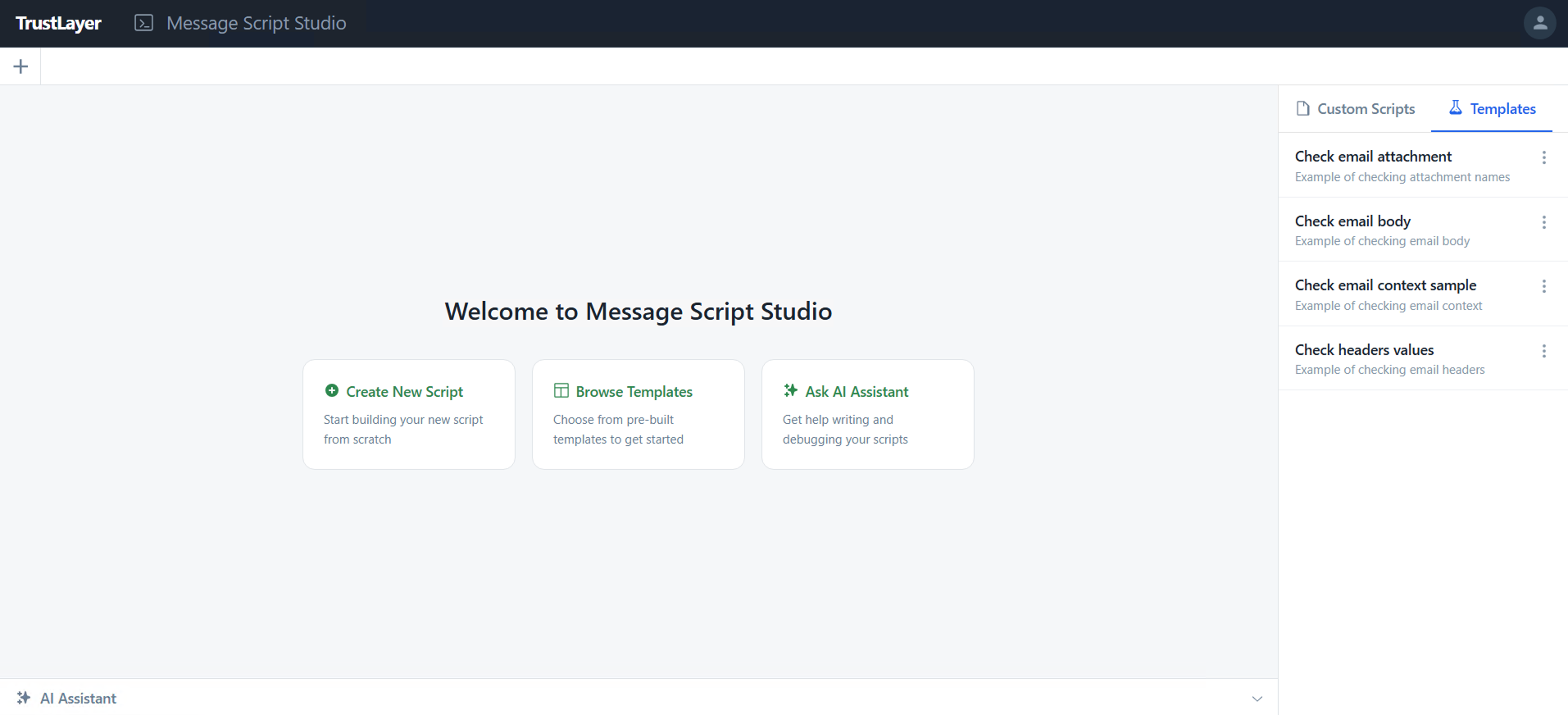
Create Script
- Open Message Script Studio.
- Click the Plus button in the tab menu.
- A new script will be opened in the Script Editor.
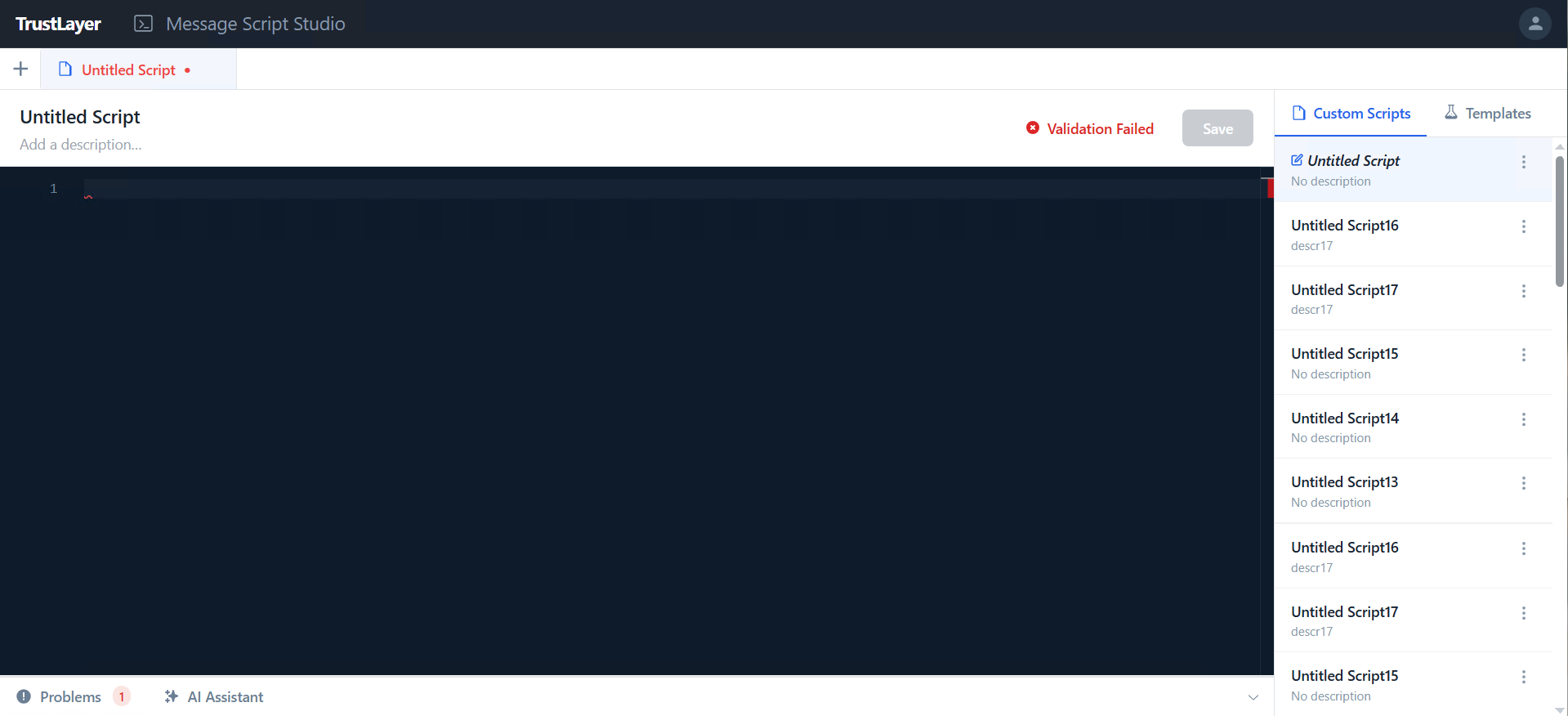
- Add a unique name by clicking on the Name at the top of the Script Editor.
- And a description if needed.
Edit Script
- Open Message Script Studio.
- Find the script in the sidebar menu and click it.
- The script will be opened in the Script Editor.
- Make necessary changes and click Save.
- If your script is already used in the rules, all changes will be immediately applied.
Please note that there is no full version history, but you can undo unsaved changes if needed:
- Find the script in the sidebar menu.
- Select More Options by clicking the 3-dots.
- Select Undo changes.
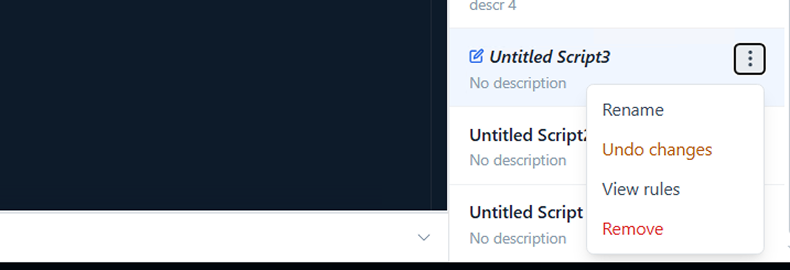
- The script will be reverted to the previously saved state.
Validate Script
All syntax issues are automatically checked and highlighted in the Script Editor and the Problems tab.
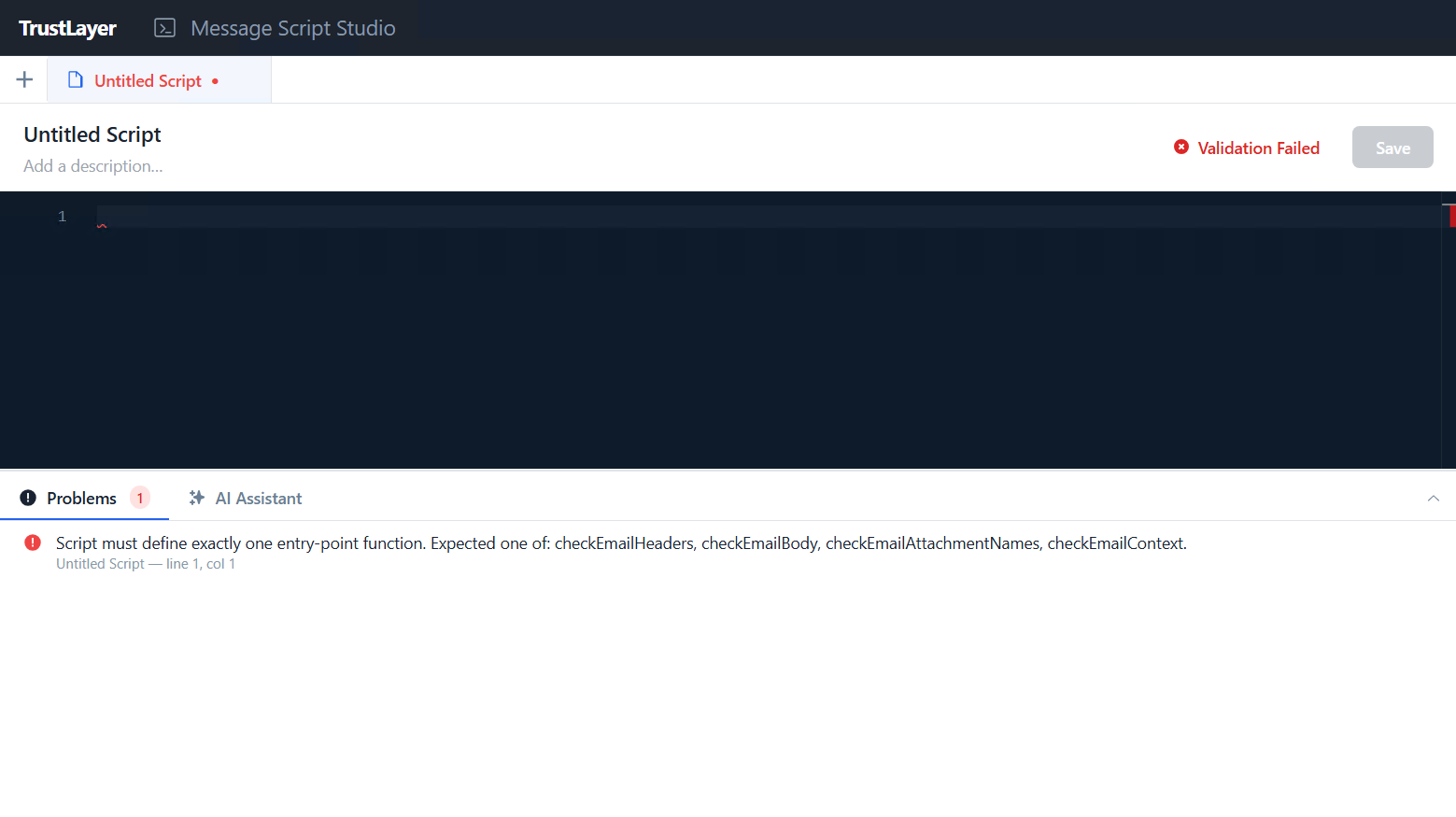
However, some other issues may be validated during the saving process:
- Once you have finished editing, click Save.
- If any major issues are found, they will be highlighted, and the script will not be saved.
Use Templates
We added several templates to help you understand how the scripts work.
- Open Message Script Studio.
- Switch to the Templates in the sidebar menu.
- Click a template to open it in Script Editor.
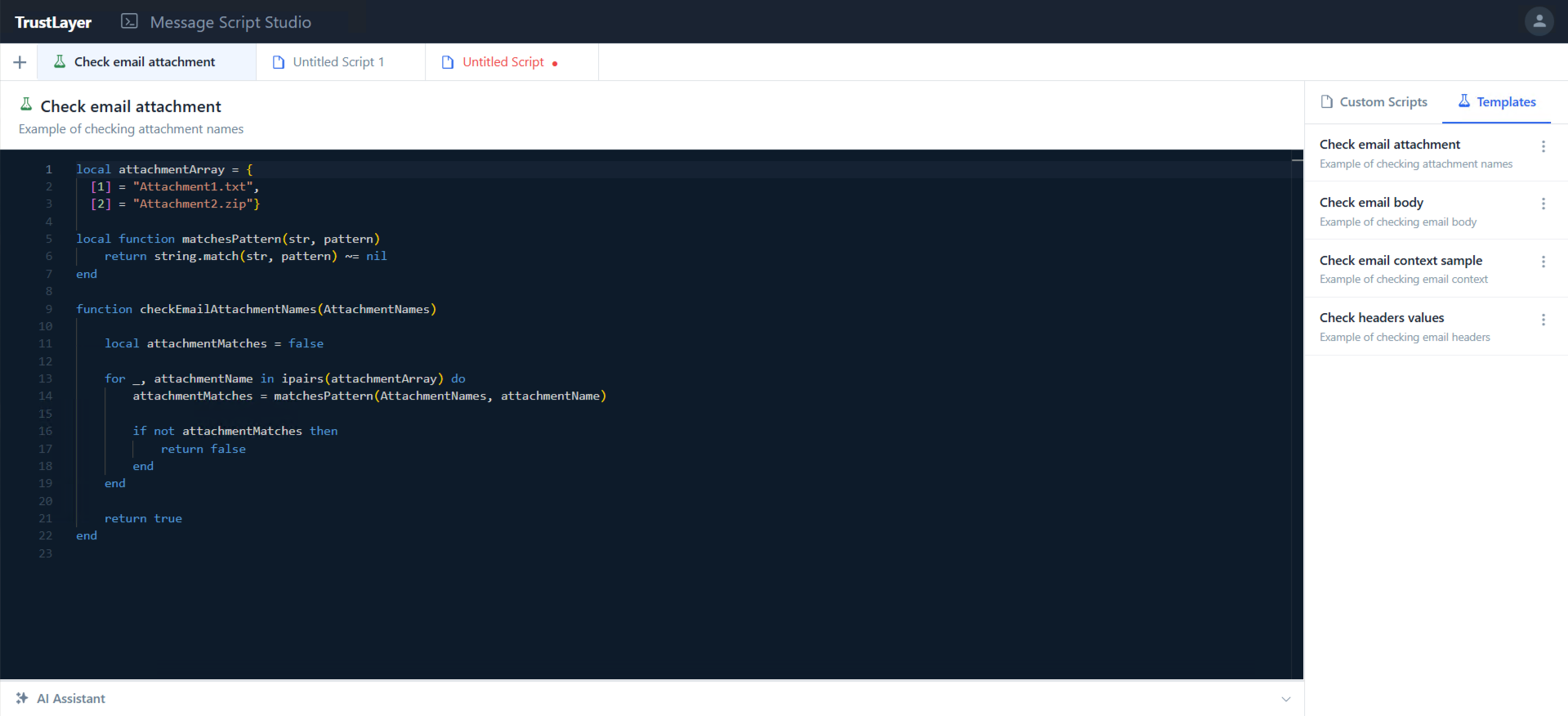
- Copy the code and paste it into your script if needed.
Use Script in Message Rules
- Navigate to Email Security -> Message Rules.
- Click on + to create a new rule.
- Add the Execute Script condition and configure it for Matches -> one of the saved scripts.
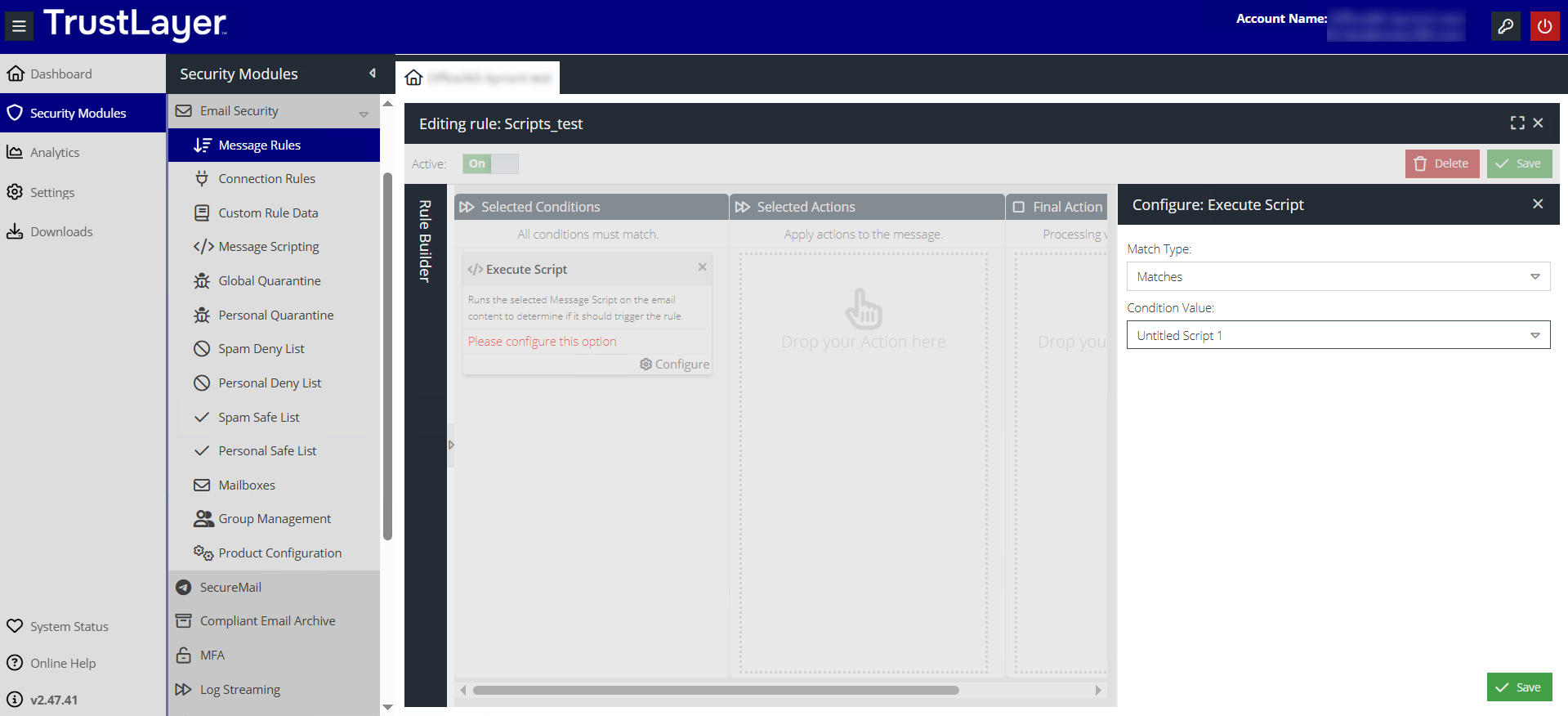
- Add other conditions and actions if required.
- Save the rule.
View Rules
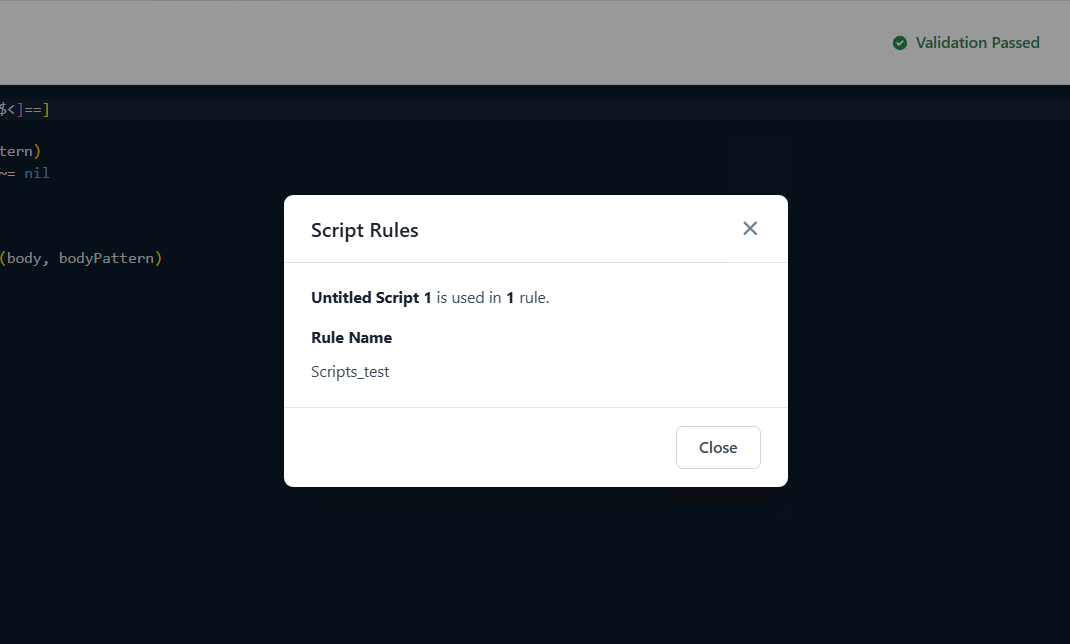
To check whether the rule is already used in any rule:
- Open Message Script Studio.
- Find the script in the sidebar menu.
- Select More Options by clicking the 3-dots.
- Select View rules.
Remove Script
- Open Message Script Studio.
- Find the script in the sidebar menu.
- Select More Options by clicking the 3-dots.
- Select Remove.
- If your script is already used in the rules, you will see the warning.
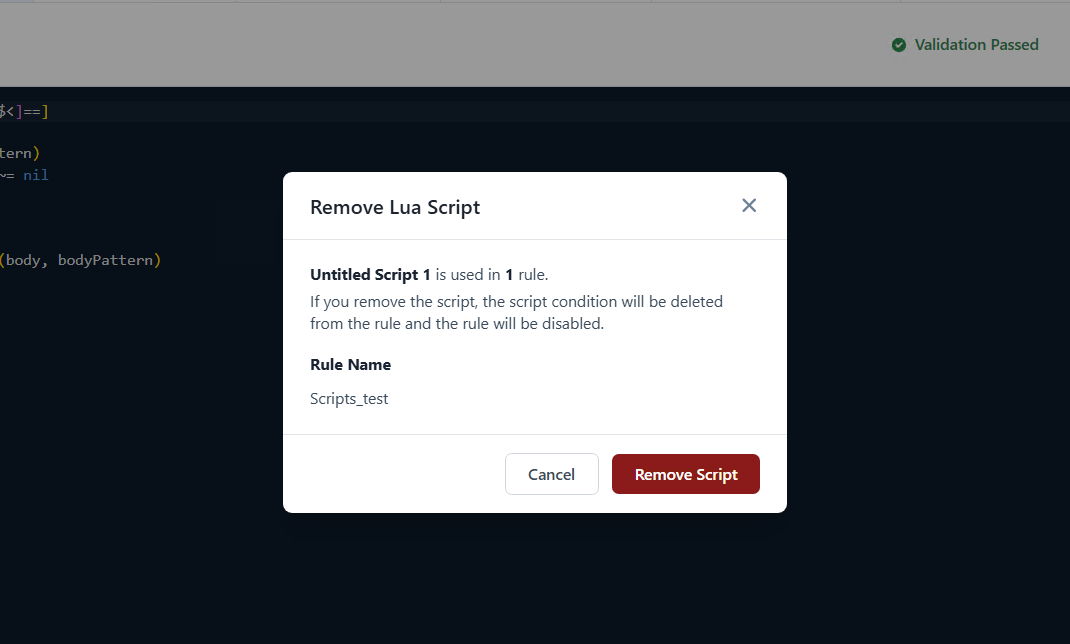
- You can still remove the script, but all those rules will be disabled and need to be reconfigured.
Use the AI Assistant
Use our AI Assistant to understand, validate, and improve your scripts, without requiring deep Lua expertise.
Open Chat
- Open the AI Assistant tab at the bottom of the Script Editor.
- Enter a prompt to start a chat.
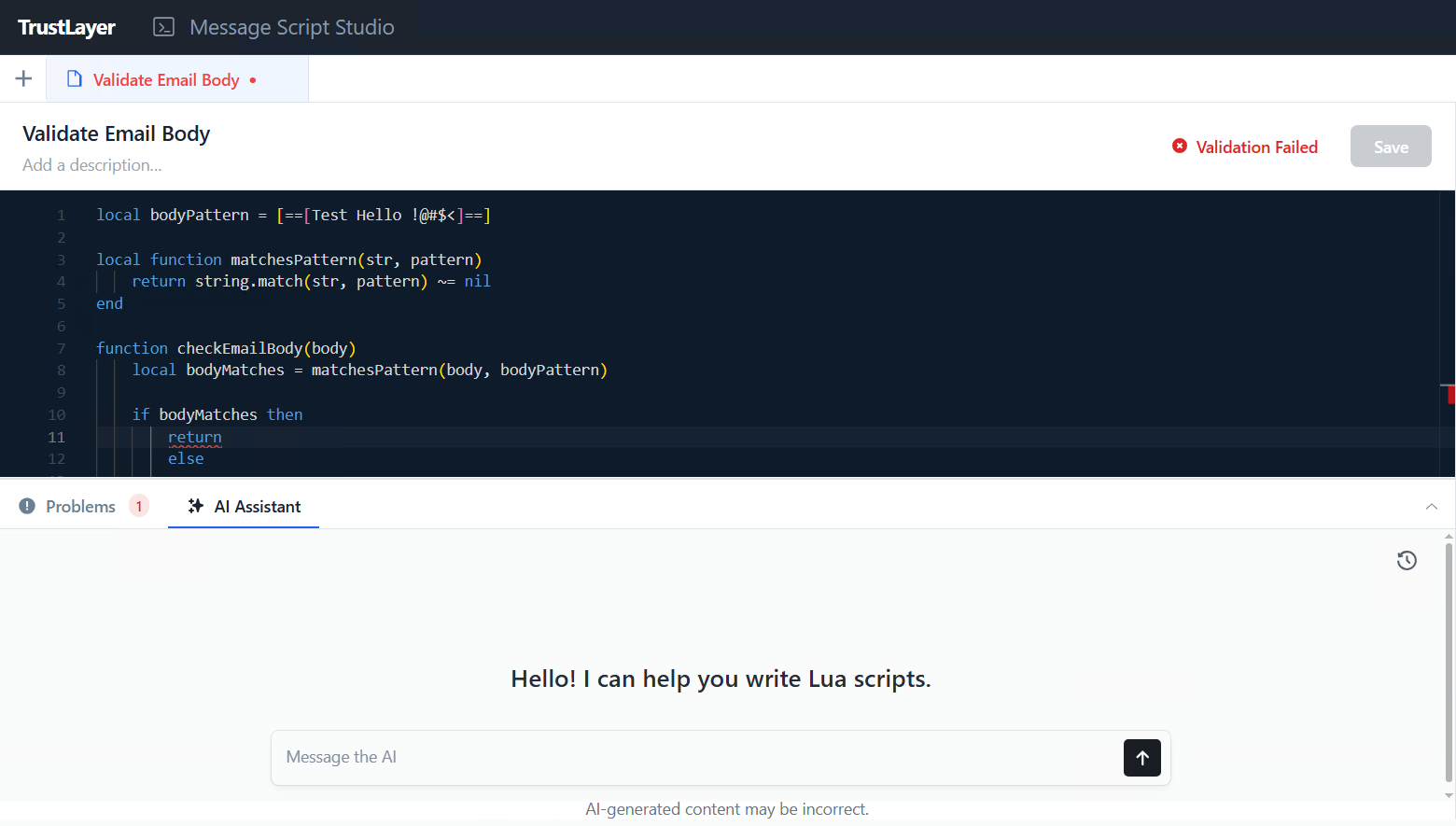
Manage Your Chat History
- Click the History button located in the top-left corner of the chat. You will see a list of all your conversations.
- Find the conversation you’d like to reopen and continue from where you left off.
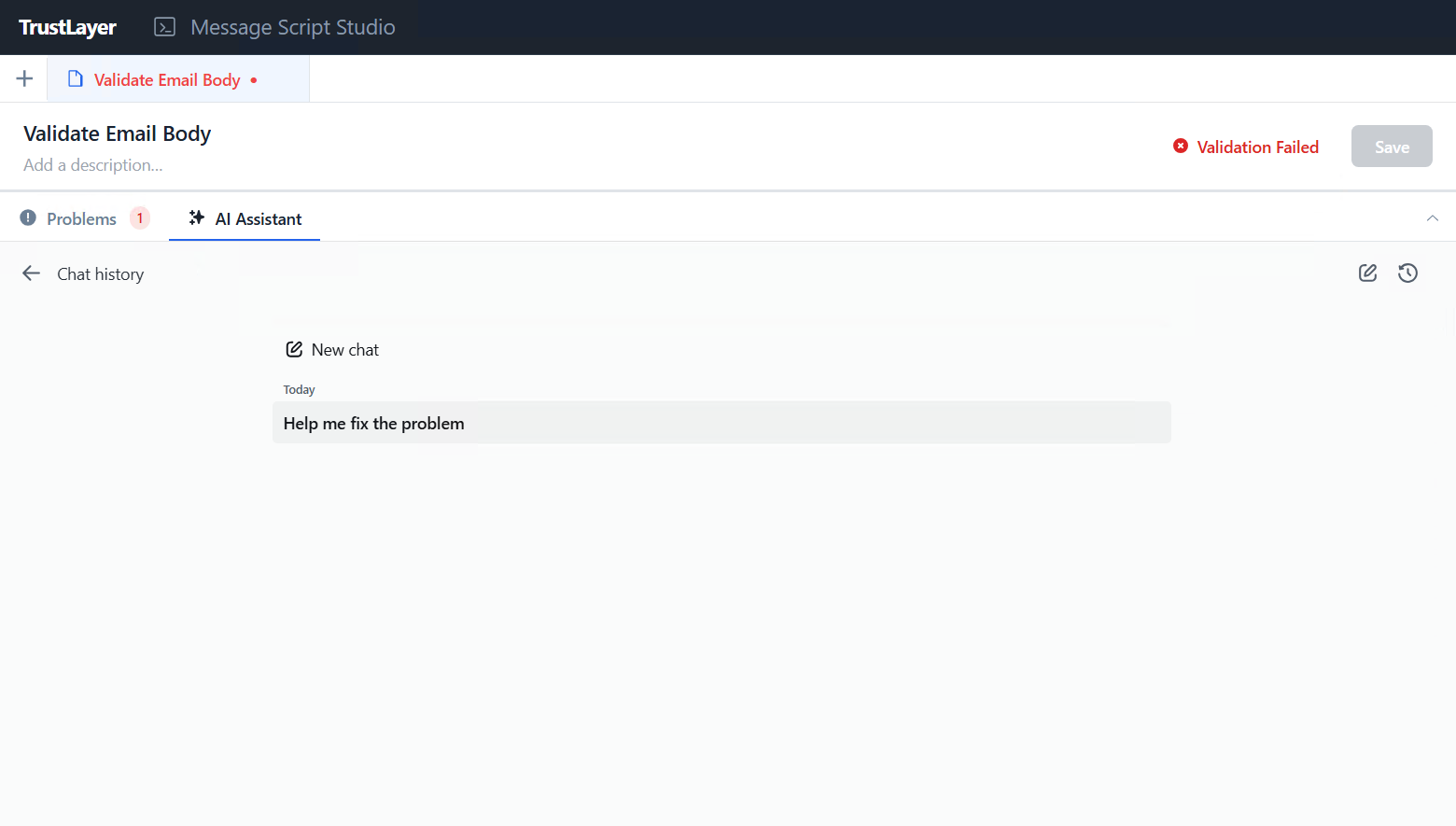
Manage Conversations
To rename a conversation:
- Select More Options by clicking the 3-dots.
- Select Rename.
- Enter a new name in the text field.
To delete a conversation:
- Select More Options by clicking the 3-dots.
- Select Delete.
- You will see a modal asking you to confirm the request
- Select Delete to confirm and proceed.
- Select Cancel to close without deleting.
Capabilities
Scripting Editing
- Write me a script that validates that the email body is not suspiciously short or empty.
- I need to detect potentially harmful attached file formats. How could this be done via a script?
Lua Syntax Explanation
- How to execute a block of code a number of times?
- How can I check if a string is empty?
TrustLayer‑Specific Rules Guidance
- Which functions do I need to use?
- What should be the result of the script?
Validation, Errors, and Fix Suggestions
- What does this error mean?
- Help me fix all found problems.
Script Requirements
To save and use a script in TrustLayer, it must meet the following requirements:
Choose One Entry Point
Every script must contain exactly one of these functions:
checkEmailHeaders(headers)- to analyze email headerscheckEmailBody(body)- to analyze email body contentcheckEmailAttachmentNames(names)- to analyze attachment file namescheckEmailContext(context)- to analyze structured email context
Use a Single Parameter
The entry-point function must accept exactly one parameter.
Always Return True or False
The script must return a Boolean value on every possible execution path.