WS - USS Mobile App Deployment via Intune for Android — Personal / BYOD Deployment
 Updated 4 months ago
by
admin
Updated 4 months ago
by
admin
- USS Mobile App Deployment via Intune for Android — Personal / BYOD Deployment
- Part 1 — Before You Start: Prerequisites
- Part 2 — Deploy the Hosted Gateway CA Certificate
- Part 3 — Deploy the USS Mobile App
- Part 4 — How USS Mobile Configures Itself
- Part 5 — Compensating Controls for VPN Enforcement (Optional)
- Troubleshooting
USS Mobile App Deployment via Intune for Android — Personal / BYOD Deployment
This guide covers deploying the USS Mobile app to a personally-owned Android device via Microsoft Intune Company Portal. This method does not require wiping the device and is suitable for BYOD scenarios.
Because the device is not fully managed, the VPN cannot be technically locked — users can in theory disable it. Part 5 of this guide covers compensating controls to enforce USS Mobile usage through policy instead.
Part 1 — Before You Start: Prerequisites
- The Android device must have Company Portal installed from Google Play and be enrolled in Intune.
- Intune must be connected to Managed Google Play. To check, go to Intune → Tenant administration → Connectors and tokens → Managed Google Play. Status must show as Active.
- The user must have a Microsoft 365 / Entra ID work account to sign in to Company Portal.
To verify the device is enrolled, go to Intune → Devices → Android → Android devices and confirm the device appears in the list.
Part 2 — Deploy the Hosted Gateway CA Certificate
The Android device needs to trust the TrustLayer SSL inspection certificate before USS Mobile can intercept HTTPS traffic.
Step 1 — Download the Certificate
On your PC, open the following URL — replacing <yourtenantname> with your CloudUSS tenant name:
https://<yourtenantname>-gateway.clouduss.com/certs/android/
This will download a .cer file. Save it to your PC.
Step 2 — Create a Trusted Certificate Profile in Intune
- Go to Intune → Devices → Android → Configuration → Create → New policy
- Platform: Android Enterprise
- Profile type: Trusted certificate
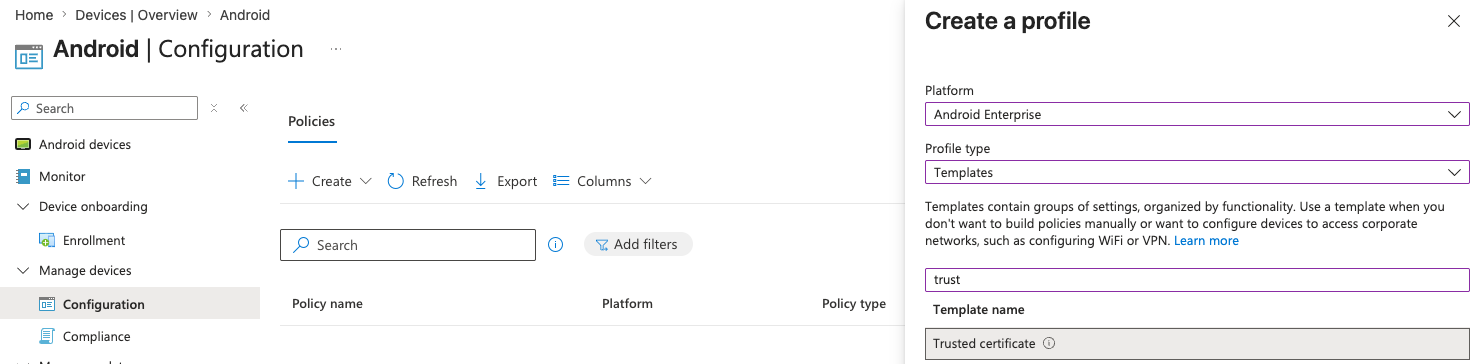
- Click Create
- Give it a name — e.g.
USS Hosted Gateway CA — Android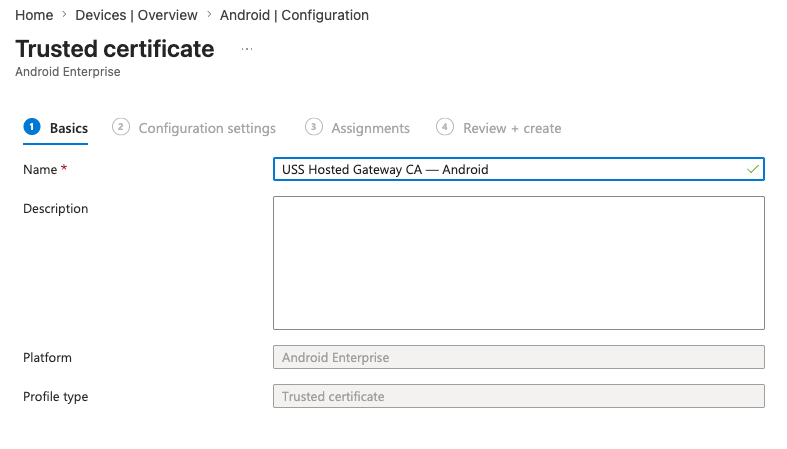
- Upload the
.cerfile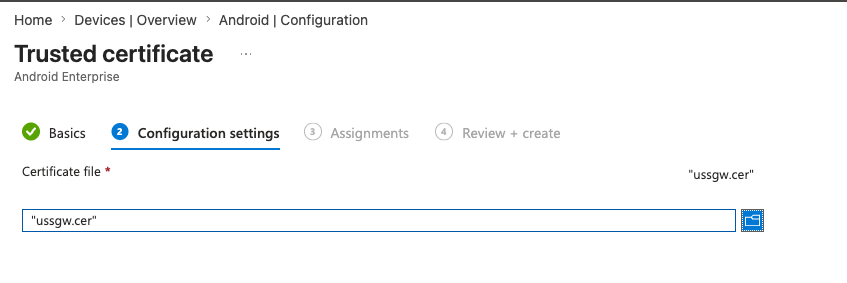
- Click Next → Assignments
- Assign to the group containing your Android device or user
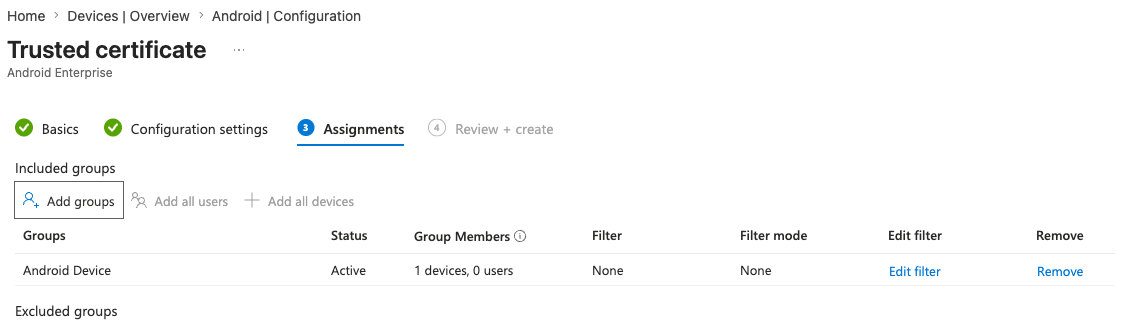
- Click Next → Review + create → Create
Note: Unlike iOS, Android does not require the user to manually enable full trust for the certificate. Once the profile is applied via Intune, the certificate is automatically trusted in the Work Profile certificate store.
Step 3 — Verify the Certificate Deployed
Allow 5–15 minutes for the profile to apply, or force a sync by opening Company Portal → Devices → tap the device → Check Status.
To confirm the cert has deployed, go to Intune → Devices → Android devices → [your device] → Configuration profiles and check the status shows Succeeded.
Part 3 — Deploy the USS Mobile App
Recommendation: Ensure the certificate profile from Part 2 shows as Succeeded on the device before proceeding with the app deployment.
Step 1 — Add USS Mobile via Managed Google Play
- Go to Intune → Apps → Android → Add
- App type: Managed Google Play app
- Click Select
- Search for USS Mobile by TrustLayer
- Select the app and click Approve
- Click Approve again to confirm permissions
- On the Approval settings screen, accept the default and click Done
- Click Sync to make the app available in Intune
- Click Next → Assignments
Step 2 — Assign the App
- Under Required, click Add group and select the group containing your Android device or user
Note: Assign as Required rather than Available. Required causes Intune to install the app silently without user interaction. Available only adds it to the Company Portal catalogue for optional install.
- Click Next → Review + create → Create
The app will install automatically on the device within 15–30 minutes. To speed this up, open Company Portal → Devices → tap the device → Check Status.
Part 4 — How USS Mobile Configures Itself
Once installed, USS Mobile handles its own VPN and relay setup automatically. After the user authenticates via SSO:
- USS Mobile contacts the TrustLayer CloudUSS service
- It installs its own VPN configuration directly on the device
- All HTTP/HTTPS traffic is then routed through TrustLayer enforcement points
Note: Do not create a separate VPN profile in Intune alongside USS Mobile, as it will conflict with the app's own VPN configuration.
Verify USS Mobile is Working
Open a browser on the Android device and attempt to visit a blocked category site. You should see the TrustLayer Access Blocked page, confirming web filtering is active.
Part 5 — Compensating Controls for VPN Enforcement (Optional)
On personally-owned Android devices, Intune cannot technically prevent a user from disabling the USS Mobile VPN. The following controls provide a policy-based alternative that creates a strong incentive to keep USS Mobile running.
Intune Compliance Policy
- Go to Intune → Devices → Compliance → Create policy → Android Enterprise
- Profile type: Personally-owned work profile
- Configure minimum requirements such as:
- Minimum OS version: Android 10.0 or later
- Require device to not be jailbroken/rooted
- Click Next → Assignments
- Assign to the group containing your Android device or user
- Click Next → Review + create → Create
Conditional Access in Microsoft Entra ID
- Go to Entra ID → Security → Conditional Access → New policy
- Under Users, select the relevant user or group
- Under Cloud apps, select Exchange Online, SharePoint Online, and Microsoft Teams
- Under Conditions → Device platforms, select Android
- Under Grant, select Require device to be marked as compliant
- Enable the policy
If a user disables USS Mobile and the device falls out of compliance, they will lose access to corporate email and apps until the issue is resolved. This provides a strong operational incentive to keep USS Mobile active without requiring full device management.
Troubleshooting
Issue | Resolution |
Managed Google Play not available in Intune | Go to Intune → Tenant administration → Connectors and tokens → Managed Google Play and complete the binding |
Certificate profile shows 0 devices | Check the device/user is a member of the assigned group in Entra ID |
USS Mobile not appearing in Managed Google Play search | Sync Managed Google Play — go to Intune → Apps → Android and click Sync |
App not installing after 30 minutes | Force a sync via Company Portal; check the device appears in Intune → Devices → Android devices |
TrustLayer block page not appearing | Confirm the CA certificate profile shows Succeeded on the device; check USS Mobile VPN is active in Android Settings → Network → VPN |
USS Mobile VPN not connecting | Ensure the CA certificate was deployed before the app; check the user's USS account is active in the CloudUSS dashboard |