Bypass Categories - Console
 Updated 2 weeks ago
by
admin
Updated 2 weeks ago
by
admin
Bypass Categories are similar to Custom URL Categories, except that they're used by agents to ignore something; for example, a domain, an IP range, a system process or SSL Interception. Bypasses are a powerful way to mitigate against applications that do not support proxying and to relax filtering where appropriate. Browse supports a large number of Bypass types, but there are variations between desktop agents and gateway agent support, which are described in this section.
Bypass Type | Behaviour | Agent support | Example |
Bypass destination domain completely | Do not intercept HTTP or HTTPS traffic destined for the given domain | Windows, Mac, Gateway |
|
Bypass destination IP/CIDR completely | Do not intercept HTTP or HTTPS traffic destined for the given IP or CIDR | Windows, Mac, Gateway |
|
Bypass File Extension | Do not intercept HTTP or HTTPS traffic that has the specified file extension | Windows, Mac |
|
Bypass Executable/Process Name | Do not intercept HTTP or HTTPS traffic that is generated by the given executable or process (case sensitive, exact match) | Windows, Mac |
|
Bypass destination domain for SSL Interception | Do not intercept HTTPS traffic destined for the given domain | Windows, Mac, Gateway |
|
Bypass destination IP/CIDR for SSL Interception | Do not intercept HTTPS traffic destined for the given IP or CIDR | Gateway |
|
Bypass source IP/CIDR completely | Do not intercept HTTP or HTTPS traffic originating from the given IP or CIDR | Gateway |
|
Bypass source IP/CIDR for SSL Interception | Do not intercept HTTPS traffic originating from the given IP or CIDR | Gateway |
|
Bypass source IP/CIDR for user authentication | Do not authenticate HTTP or HTTPS traffic originating from the given IP or CIDR | Gateway |
|
Bypass user authentication for destination domain | Do not authenticate HTTP or HTTPS requests destined for a particular domain | Gateway - explicit proxy |
|
Bypass source MAC address for user authentication | Do not authenticate HTTP or HTTPS traffic originating from the given MAC address | Gateway ( |
|
Bypass HTTP Header | Do not intercept HTTP or HTTPS traffic if the specified HTTP header is matched | Windows, Mac |
The key e.g. Content-Type can contain The value e.g. application/json can contain |
Bypass with Proxy Exception | Add the bypass pattern to the macOS proxy exceptions list | Mac |
To bypass both the base domain and all sub-domains, add both patterns You cannot exceed 70 patterns or 650 characters across all patterns, whichever limit is met first. |
Bypass types and behaviour. In the console, each type appears in the Bypass Type list as: Domain – All, IP/CIDR – All, File Ext, Process, Domain – SSL, IP/CIDR – SSL, Src IP/CIDR, Src IP/CIDR – SSL, Src IP/CIDR – Auth, Auth – Domain, Auth – MAC, HTTP Header and Proxy Exception.
Managing Bypass Categories
In the console, go to Browse ⟶ Categories and open the Bypass tab.
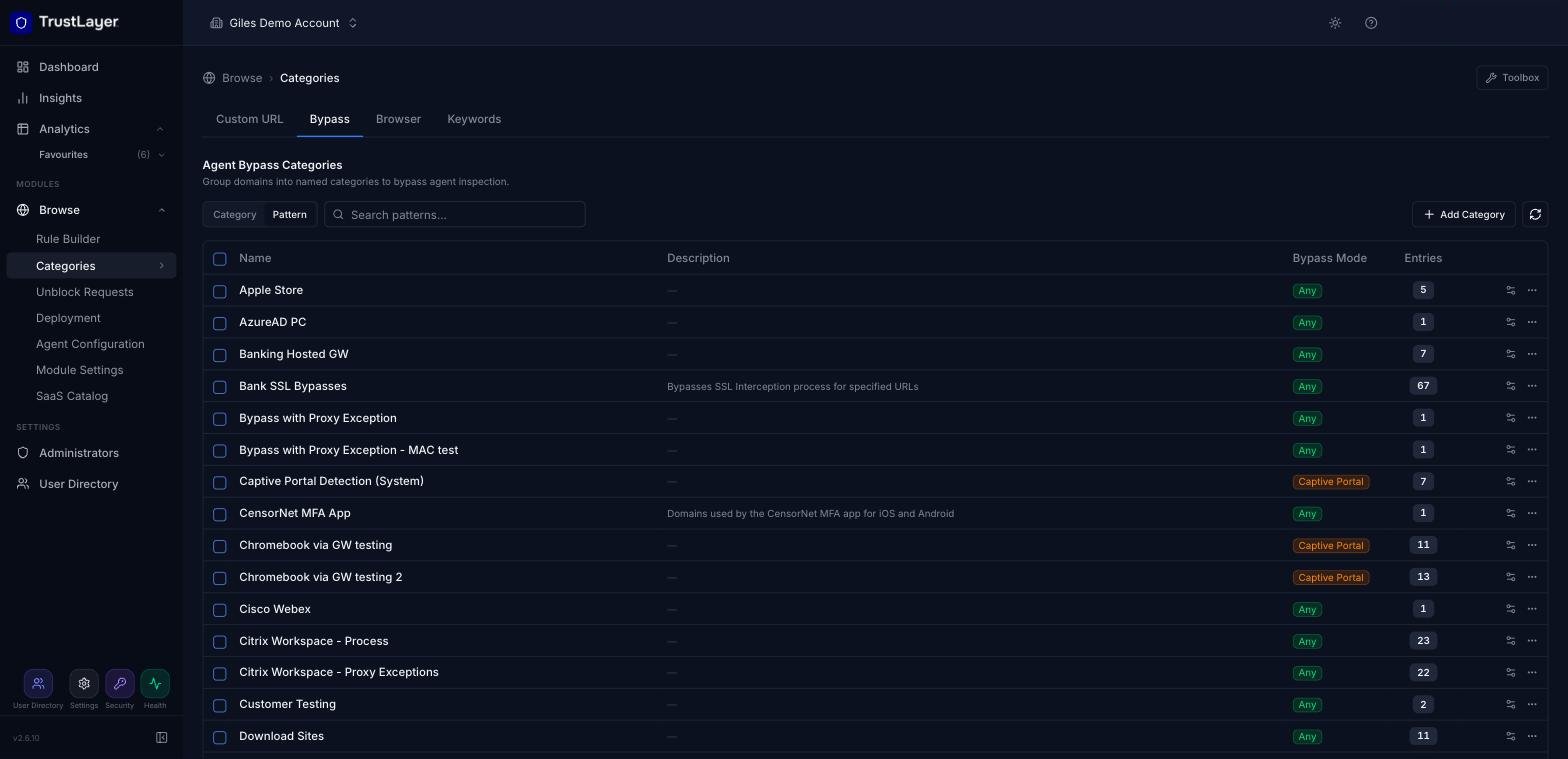
The list shows each Bypass Category with its description, Bypass Mode and number of entries. Click the settings icon at the end of a row to see the bypass patterns in that category.
Searching
Use the search box above the list. Select Category to search category names, or Pattern to find the categories that contain a matching bypass pattern, then press Enter. Clear the search to return to the full list.
Adding a new Bypass Category
Click Add Category. In the new row, enter the details below and click the green + to save.
Name
A name for the new bypass category, plus an optional description.
Bypass Mode
The Bypass Mode decides how and when the bypass applies on a USS Gateway:
- Direct Proxy: applies to direct connections to the proxy on port 8080 (for example via a browser configuration or WPAD).
- Captive Portal: applies to transparently proxied connections (for example Captive/Guest portal, WCCP, gateway mode).
- Hosted Gateway: applies to traffic through the Hosted (Mobile) Gateway, which supports the same bypasses as the USS Gateway.
- Any: applies in all of the above modes.
- None: the bypass is not applied to the USS Gateway.
Renaming and deleting Bypass Categories
Click the ⋯ menu at the end of the category's row and select Rename or Delete category.
Managing Patterns
In a Bypass Category, patterns are domains, IP addresses or ranges, processes and so on, as described in the bypass types table above.
Adding Bypass Patterns
- Click the settings icon at the end of the category's row. The Bypass Patterns panel opens, listing each pattern with its Bypass Type and description.
- Click Add Pattern, fill in the new row and click the green +.
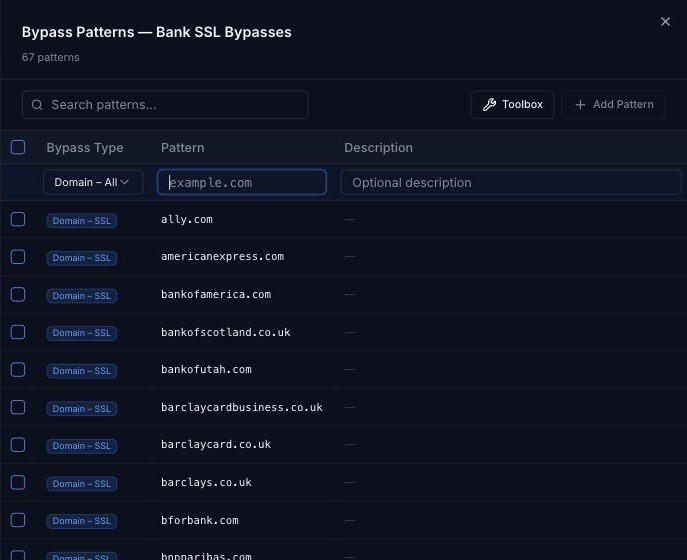
Bypass Type
The bypass type to use, as described in the bypass types table above.
Pattern
The pattern to match against. Its format depends on the bypass type (see the table above).
Description
An optional comment or description for the pattern.
Deleting Patterns
Hover over the pattern in the Bypass Patterns panel and click the delete (bin) icon at the end of its row.
Editing Patterns
Click a pattern in the Bypass Patterns panel to edit it in place, then press Enter to save it.
Using Bypasses in Agent Profiles
Bypass Categories are applied through Agent Configuration profiles to bypass filtering for particular domains, IP ranges or processes. Go to Browse ⟶ Agent Configuration, open the profile and select the Bypass Categories section. For example, you might add your company intranet to a bypass so that it is never filtered.