Getting Started with Cloud Application Security - Console
 Updated 2 weeks ago
by
admin
Updated 2 weeks ago
by
admin
Complete the Web Security Getting Started guide first. Cloud Application Security uses the same agents and Rule Builder.
This guide covers the SaaS Catalog, SaaS Activity reporting, and creating a rule to block an application action.
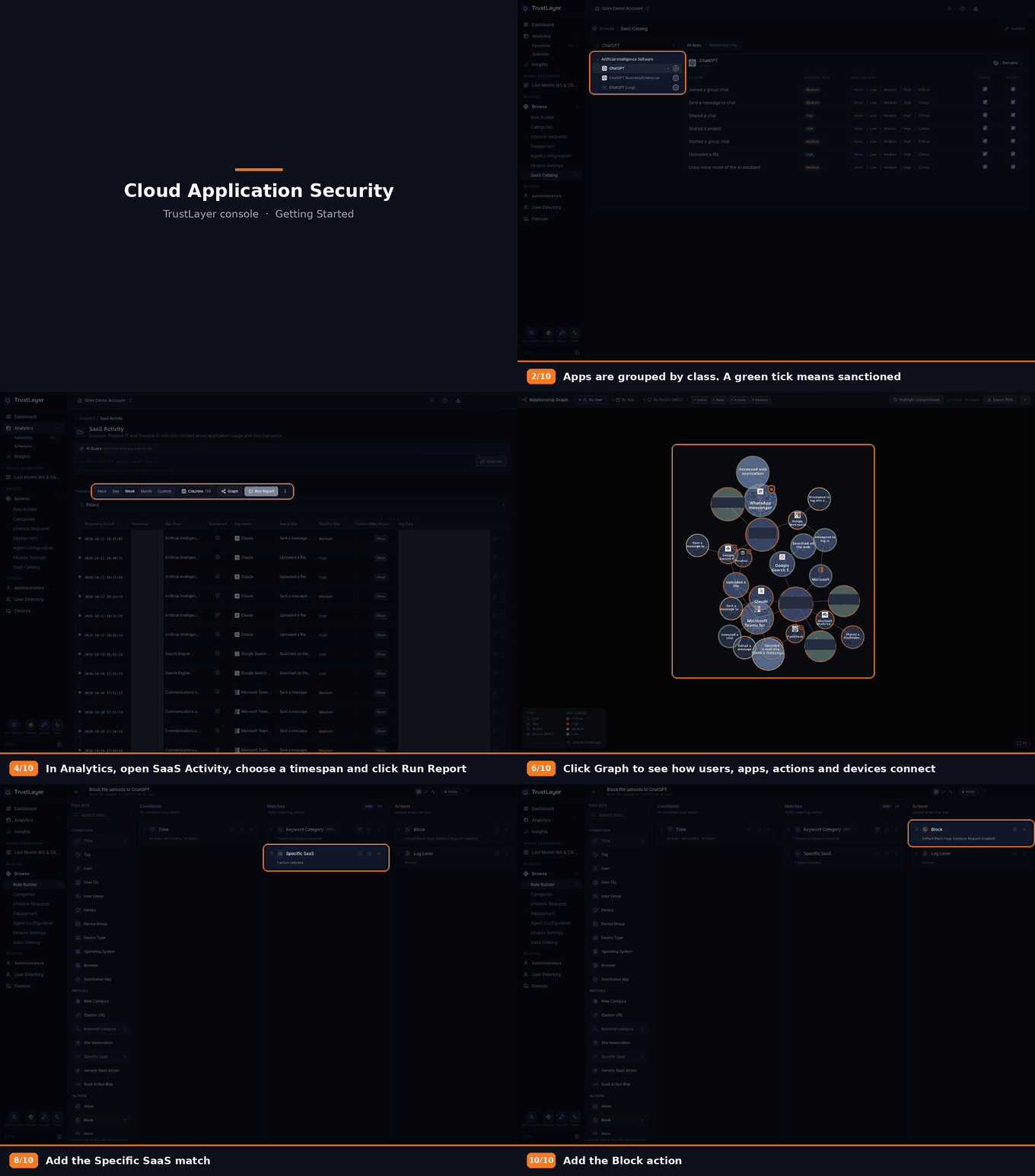
1. Explore the SaaS Catalog
- Click Browse ⟶ SaaS Catalog.
- Search for an app, or open a class (for example Artificial Intelligence Software). A green tick shows the app is sanctioned.
- Click an app to see its actions, their Baseline Risk and Custom Risk, and whether each action is tracked and active.
For more information, see SaaS Catalog.
2. Report on SaaS activity
- Click Analytics and open SaaS Activity.
- Choose a Timespan and click Run Report. The results show which apps and actions are being used, by whom, and their risk.
- Click Graph to see how users, apps, actions and devices connect, and click Highlight Unsanctioned to spot Shadow IT.
- Click the ⓘ icon on a row for full details, or the ⋮ button and Manage App to open the app in the SaaS Catalog.
The AI Observability and Unsanctioned SaaS widgets on the Dashboard give a quick overview. For more information, see Activity Reports.
3. Block an application action
For example, to stop files being uploaded to ChatGPT:
- Click Browse ⟶ Rule Builder and click Create Rule. Name the rule and choose Block as the final action.
- In the rule editor, add the Specific SaaS match from the Toolbox and click its settings (sliders) icon.
- Search for the app and tick the action, for example ChatGPT ⟶ Uploaded a file. Click Done.
- Make sure the Block action is in the Actions column.
For more information, see Rule Builder.