Browser Categories - Console
 Updated 2 weeks ago
by
admin
Updated 2 weeks ago
by
admin
Browser Categories are collections of browsers and version number patterns that you create. They are used with the Browser condition in the Rule Builder to control which browsers must be in use for a rule to match. Typically, they are used to block vulnerable or unsanctioned browser versions from connecting to the Internet.
Managing Browser Categories
In the console, go to Browse ⟶ Categories and open the Browser tab.
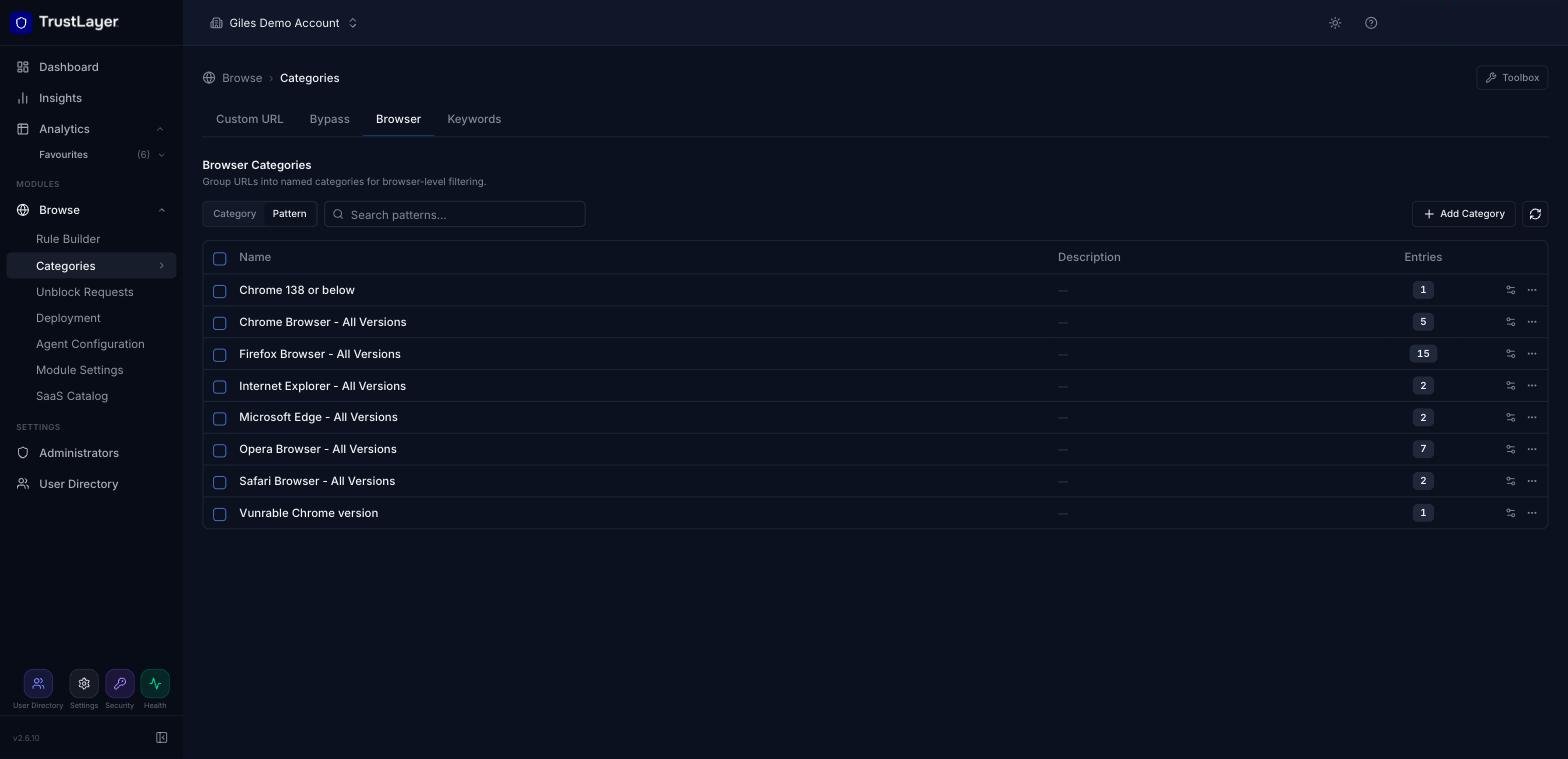
The list shows each Browser Category with its description and number of entries. Click the settings icon at the end of a row to see the browser patterns in that category.
Searching Browser Categories
Use the search box above the list. Select Category to search category names, or Pattern to find the categories that contain a matching browser pattern, then press Enter. Clear the search to return to the full list.
Adding a new Browser Category
Click Add Category, enter a name (and optional description) in the new row, and click the green + to save.
Renaming and deleting Browser Categories
Click the ⋯ menu at the end of the category's row and select Rename or Delete category.
Managing Patterns
In a Browser Category, a pattern is a specific browser together with a version number and an operator.
Adding Browser Patterns
- Click the settings icon at the end of the category's row. The Browser Patterns panel opens, listing the existing patterns.
- Click Add Pattern, fill in the new row and click the green +.
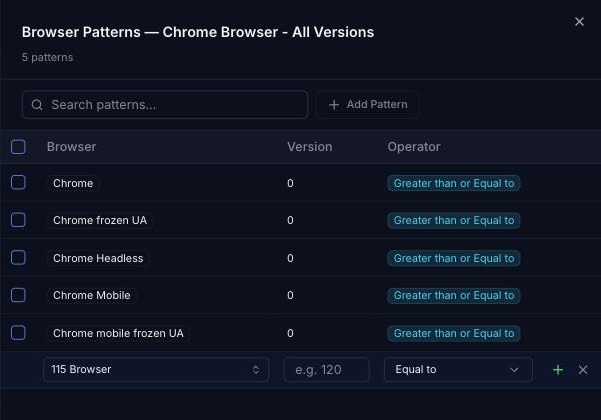
Browser
Select from the list of pre-defined browser names.
Version
Enter the numeric or string representation of the browser version number. Version numbers can be long and complex, for example 88.0.705.9, and come from the User Agent header the client sends. Be as specific as possible if you want exact matching, but use the highest (major) version number, e.g. 88, for greater-than or less-than matching.
Operator
How the browser's version is compared with the version in the pattern:
- Less than
- Less than or Equal to
- Equal to
- Greater than or Equal to
- Greater than
Deleting Patterns
Hover over the pattern in the Browser Patterns panel and click the delete (bin) icon at the end of its row.
Editing Patterns
Click a pattern's version number in the Browser Patterns panel to edit it in place, then press Enter to save it.
Using Browser Categories in Rules
Add the Browser condition to a rule in the Rule Builder and select your Browser Categories. For example, you might block browsers that are end of life or have known vulnerabilities.