What's new in the TrustLayer Console
 Updated 12 seconds ago
by
admin
Updated 12 seconds ago
by
admin
- What's new, and what it means for you
- A dashboard that shows where to look first
- Insights: build the dashboards you need
- AI Query: ask a question in plain English
- Relationship Graph: see how users, apps and devices connect
- Visual Rule Builder: see how a policy makes its decision
- SaaS Catalog: control cloud apps action by action
- Deployment and directory health in one place
- Clearer names
- What per-action control looks like in practice
- Console and dashboard side by side
- Getting started
The TrustLayer Console (console.clouduss.com) is the new home for managing and reporting on TrustLayer security. It's available now as an early release. It runs on the same platform as the existing dashboard and uses the same login, so your policies and data appear in both. You can move across at your own pace.
For a complete list of everything the console adds, see What's new in the TrustLayer Console: full feature list.
At a glance
What you get with the new console:
- Every module in one place: Browse, Mail, Archive, Awareness and Posture side by side.
- AI and shadow IT up front: the opening dashboard shows which AI services and unsanctioned cloud apps your users use.
- Ask in plain English: AI Query turns a question into report filters for you.
- See the connections: the new Relationship Graph links users, apps, actions and devices.
- Dashboards you build yourself: add the charts that matter to you in Insights.
- Policies you can see: the visual Rule Builder shows how each rule reaches its decision.
- Health checks in one view: agent and gateway deployment status, directory sync status, and live service status and announcements.
Everything from where you are
The biggest change is how you work, not just what you can see. In the dashboard, a task often means opening several separate screens. In the console, everything related to a policy or device is one click from where you already are:
- In a rule: see that rule's live web activity, preview and change its block page template, and check its version history, all without leaving the rule.
- In an agent profile: choose its bypass categories and edit the patterns inside them, and create a new tag on the spot.
- In the deployment list: change a device's configuration profile, open its full details, or export the list.
- In a report: go from any event straight to the rule that made the decision, add the site to a URL category, or request reclassification.
- Anywhere in Browse: the Toolbox looks up or adds a URL without leaving the page you're on.
The result is fewer clicks, fewer screens to learn, and less chance of changing the wrong setting.
What's new, and what it means for you
A dashboard that shows where to look first
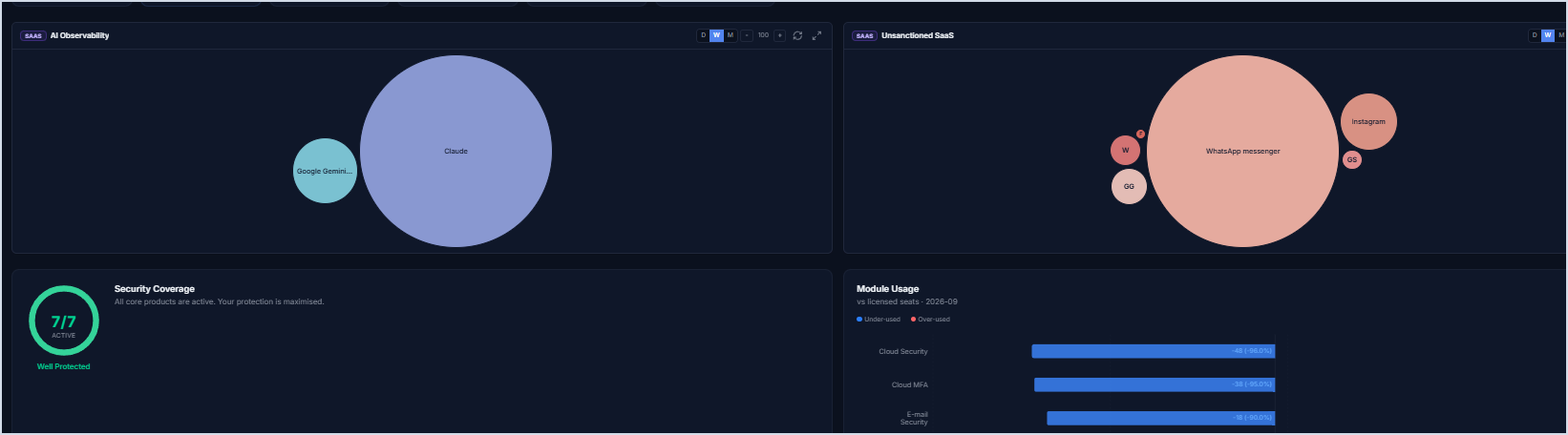
The opening dashboard brings together AI Observability, Unsanctioned SaaS, Security Coverage and Module Usage. Service Status and Service Announcements sit underneath them. You can see at a glance which AI tools and unapproved apps are in use, whether every product you own is active, and how many of your licensed seats are used. You don't need to run a report first.
Insights: build the dashboards you need
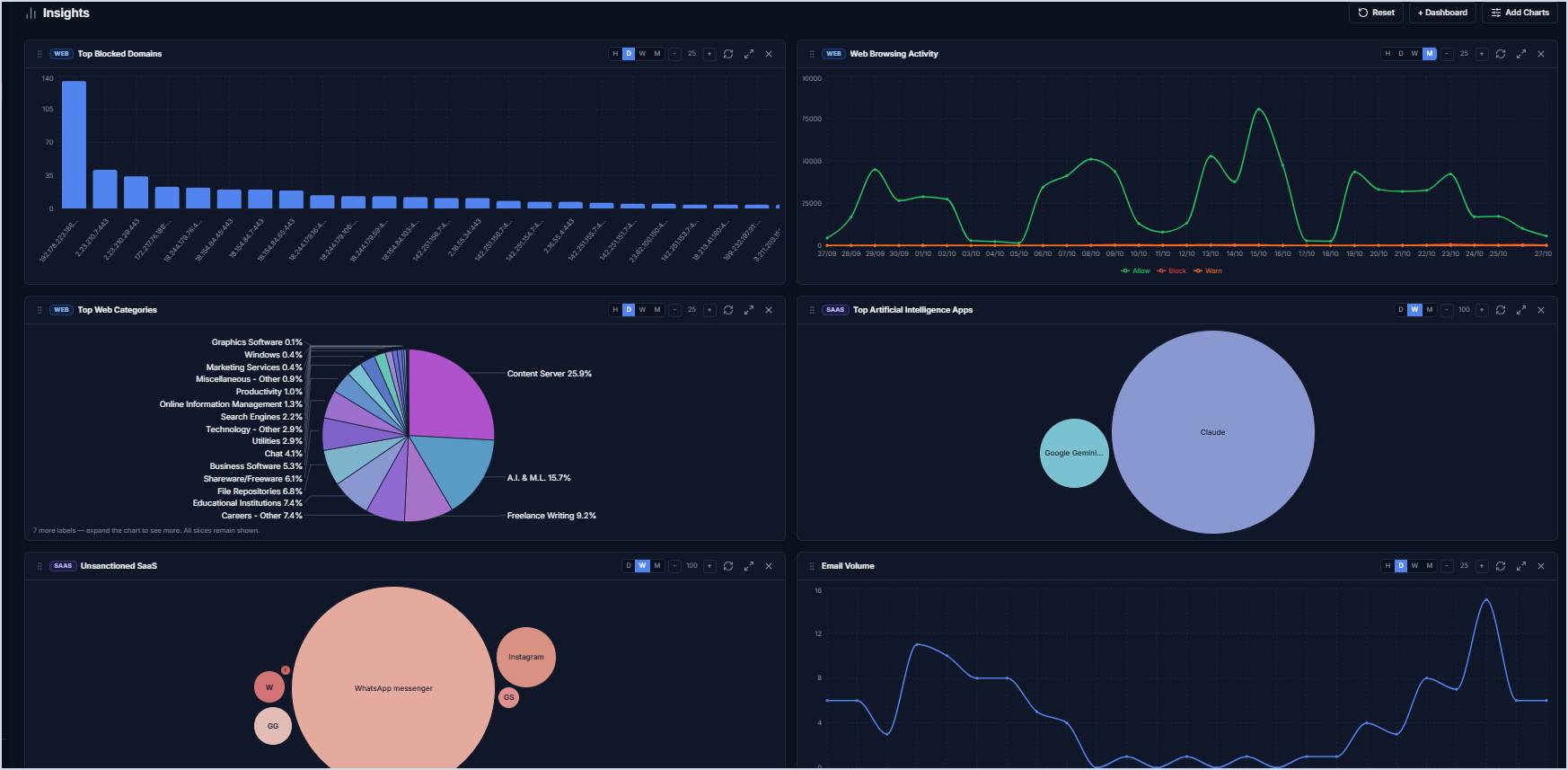
Choose the charts that matter to your team and arrange them on your own dashboards. Options include top blocked domains, browsing activity, web categories, AI apps, unsanctioned SaaS and email volume. Each chart has its own time range. Save a set of charts as a named dashboard and it gets its own shortcut in the side menu, so a security lead and an IT manager can each go straight to the view they need.
AI Query: ask a question in plain English
Type a question such as "who was blocked from file-sharing sites yesterday?" AI Query builds the filters for you. You review them, then run the report. Investigations are faster, and anyone on the team can run reports without first learning every filter.

Relationship Graph: see how users, apps and devices connect
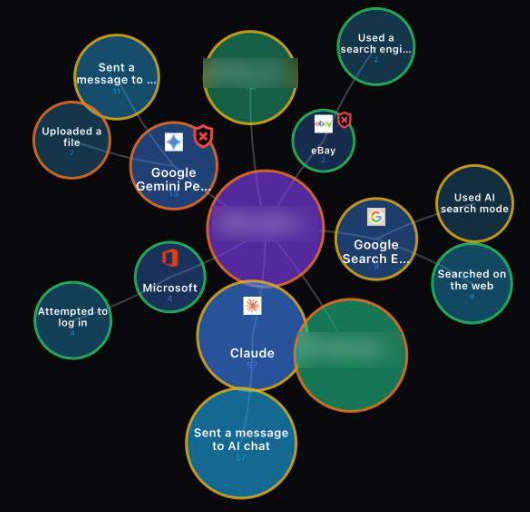
This is new. Opened from a SaaS Activity report, the Relationship Graph draws the links between users, cloud apps, actions (such as "Uploaded a file") and devices. You can view it by user, by app or by device, highlight unsanctioned apps, and export a PNG for reports or reviews. It shows patterns that are hard to see in a table, such as several users uploading files to the same unapproved AI tool.
Visual Rule Builder: see how a policy makes its decision
Each rule is drawn as a flow, from Conditions to Matches to Actions to the outcome. It's easier to check what a rule does, to explain it to colleagues or auditors, and to spot a rule that's broader than intended.

SaaS Catalog: control cloud apps action by action
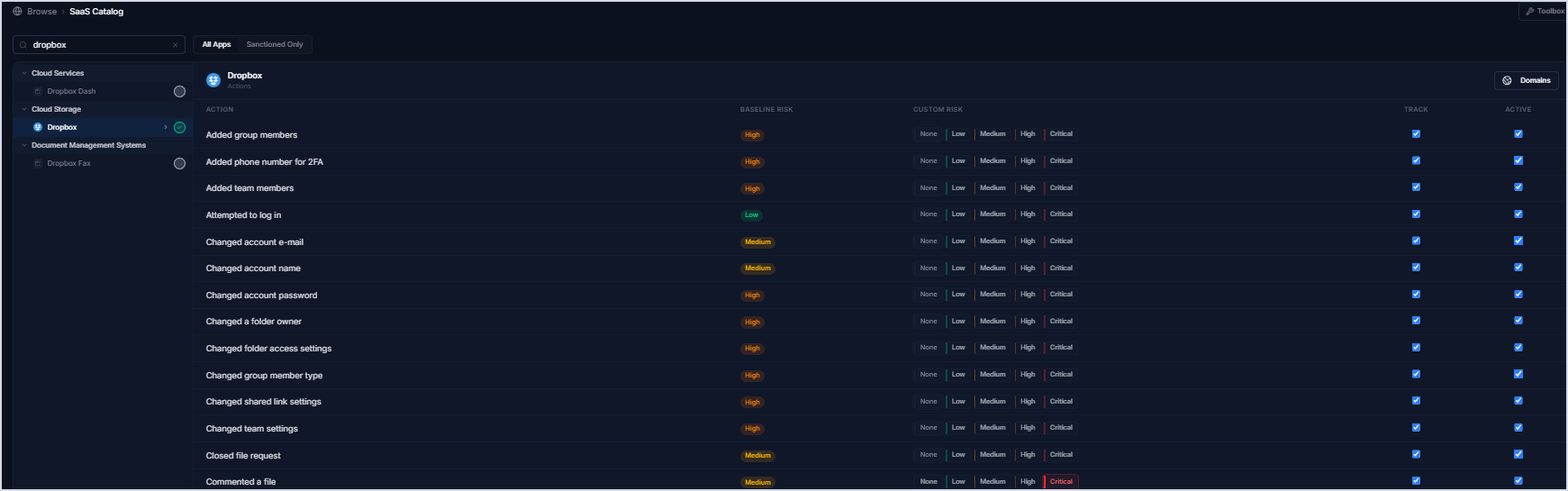
For each app, the catalog lists the individual actions it can track, such as logins, sharing, file uploads and admin changes, with a baseline risk rating for each. You can set your own risk level, and choose which actions are tracked and active. Your policies can then control what people do inside an app, rather than simply allowing or blocking the whole app.
Deployment and directory health in one place
- Deployment (Browse → Deployment) lists every Windows and Mac agent, gateway, hosted gateway and Chromebook. It shows each one's version, configuration profile, last check-in and connection status, so stale or out-of-date installs are easy to spot.
- User Directory shows each identity source (Microsoft Entra ID, Google Workspace and on-premises directories) with its last sync time, object counts and health. When a user or group is missing from a policy, you can check the source first.
Clearer names
The console uses the same names as trustlayer.co.uk. For example, the module previously called Cloud Security is now called Browse.
What per-action control looks like in practice
With per-action control, you don't have to choose between banning a useful tool and allowing everything it can do. For example:
Goal | How the policy works |
Let staff use ChatGPT but stop file uploads | Block only the ChatGPT action "Uploaded a file". Chats, voice and everything else carry on as normal. |
Allow ChatGPT only with company accounts, and block other AI sites | Block ChatGPT logins that don't use your company email domain, allow ChatGPT's own sites, then block the rest of the AI & ML category. |
Stop personal Microsoft 365 logins on company devices | Block Microsoft logins unless the account uses your company domain. This prevents data being moved to personal OneDrive or Outlook accounts. |
The console's AI Observability and Unsanctioned SaaS charts show which of these policies you need. The Relationship Graph and Analytics then show whether they're working.
Console and dashboard side by side
Both portals run on the same platform, so a rule you create in one appears in the other straight away. The console is an early release and doesn't yet do everything the dashboard does, so the dashboard isn't going anywhere for now.
Dashboard (dashboard.clouduss.com) | Console (console.clouduss.com) | |
Login | Your existing USS login | The same login |
Web Security and CASB policies | Yes | Yes, the same rules, shown in both |
AI and unsanctioned SaaS on the home page | No | Yes |
Seats used vs licensed, and module coverage | No | Yes |
Your own chart dashboards | No | Yes, saved as Insight Dashboards |
AI Query (plain-English reports) | No | Yes |
Scheduled reports | No | Yes |
Relationship Graph | No | Yes |
Rule flow view, version history and per-rule activity | No | Yes |
SaaS Catalog risk settings | Sanctioned or not, per app | Baseline and custom risk for each action |
Stale agent clean-up and CSV export | No | Yes, 7 to 90 days, with bulk removal |
Automatic device discovery | No | Yes |
Email Security and IDaaS configuration | Yes | Not yet |
Log Streaming and Role Builder | Yes | Not yet |
Status | Current, full features | Early release |
Getting started
- Go to console.clouduss.com and sign in with your existing USS login.
- Start on the dashboard and set the time range you're interested in.
- Use the console for Web Security and CASB. Changes show in the dashboard too, so you can switch between them as you like.
- Keep using the dashboard for Email Security, and for anything not yet in the console.
The modules you see depend on the services your organisation subscribes to. Step-by-step console guides are on help.clouduss.com under USS 2.5, alongside the existing dashboard guides. You can also chat with TrustLayer Support from inside the console. Tell them which portal you use, so they can send you the right steps.