WS - Rules Engine Concepts - Console
 Updated 2 weeks ago
by
admin
Updated 2 weeks ago
by
admin
At the core of Browse is a flexible Rules Engine, managed in the Rule Builder (Browse ⟶ Rule Builder), that determines how to control and monitor web activity. An understanding of the Rules Engine is important to get the most out of Browse.
Rule types
The Rules Engine processes your users' web activity according to the Rules in the Rule Builder (previously Filter Rules).
Active Rules are applied to all web traffic captured by the deployed Agents for the given Unified Security Account.
Rules
Rules consist of
- Conditions: ways to identify web traffic
- Matches: what you're looking for in identified web traffic
- Actions: what to do with matched web traffic
Feature Control Rules
Just like a Filter Rule, a Feature Control Rule has Conditions and Matches. A Feature Control Rule is specific to a third-party web application, and can be used to permit, limit or deny features of that third-party application.
Rule Conditions
Rules normally have at least one Condition, and can have several. In the Rule Builder, conditions are the tiles in the Conditions section of the Toolbox: Time, Tag, User, User OU, User Group, Device, Device Group, Device Type, Operating System, Browser and Sanctioned App.
User (Active Directory Username)
The web traffic request must originate from at least one of the selected Directory Users. The user identity format detected—either SAM (Security Account Manager) or UPN (User Principal Name)—is determined by the User Identification setting in the Agent Configuration Profile. If a Gateway is used, the system defaults to the SAM account name obtained via Kerberos authentication.
SAM Format Resolution
For a captured SAM value (e.g. DOMAIN\user.name), the following resolution process applies:
- The system identifies a User Directory with a NetBIOS domain matching the
DOMAINportion. - Within that directory, it searches for a user object where the
sAMAccountNameattribute matchesuser.name. - If no matching domain is found, the system searches across all directories and selects the first user object with a matching
sAMAccountName, if one exists.
UPN Format Resolution
For a captured UPN value (e.g. user.name@domain.com), the following resolution process applies:
- UPN match
- The system identifies a User Directory with a NetBIOS or tenant domain matching
domain.com - It searches for a user object where the
userPrincipalNameattribute matches the captured UPN.
- The system identifies a User Directory with a NetBIOS or tenant domain matching
- Proxy address fallback
- If no UPN match is found, the system searches for a user object where the value appears in the
proxyAddressesattribute, selecting the first match if available.
- If no UPN match is found, the system searches for a user object where the value appears in the
- SAM fallback
- If both UPN and proxy lookups fail, the UPN is converted to SAM format.
- The system then attempts to resolve it using the SAM process described above.
Proxy address fallback
- If no UPN match is found, the system searches for a user object where the value appears in the
proxyAddressesattribute, selecting the first match if available.
SAM fallback
- If both UPN and proxy lookups fail, the UPN is converted to SAM format.
- The system then attempts to resolve it using the SAM process described above.
User OU (Active Directory Organisational Unit)
The web traffic request must originate from a user who is a member of at least one of the selected Organisational Units. The OU membership will be determined by the Active Directory Username resolution described above.
User Group (Active Directory Security Group)
The web traffic request must originate from a user who is a member of at least one of the selected Security Groups. The Security Group membership will be determined by the Active Directory Username resolution described above.
Browser
The web traffic request must originate from a browser that matches one of the patterns in the selected Browser Categories.
Device
The web traffic request must originate from either an IP address or MAC address of the selected device.
Device Group
The web traffic request must originate from either an IP address or a MAC address of a device belonging to the specified Device Group.
Device Type
The web traffic request must originate from one of the selected Device Types.
Operating System
The web traffic request must originated from one of the selected Operating Systems.
Sanctioned App
The web request must match an App Action from an App marked as Sanctioned. See Managing Sanctioned Apps.
Tag
The web traffic request must be tagged with one of the selected Tags. Tags are created in Browse ⟶ Module Settings ⟶ Tags and applied to agents via Agent Configuration profiles (Tag Web Requests With).
Time
The web traffic request must have a timestamp that lies within the selected day of the week, day of the month, month, or specified time period(s). Times are stored in the system as UTC however the USS endpoint agent or network gateway captures the end-user timezone offset, which is used to calculate their local time and apply time periods to them correctly.
Rule Matches
In the Rule Builder, matches are the tiles in the Matches section of the Toolbox: Web Category, Custom URL, Keyword Category, Site Geolocation, Specific SaaS, Generic SaaS Action and SaaS Action Risk.
Matches for rules
Web Category
The requested URL must be categorised in at least one of the selected web categories.
Custom URL
The requested URL must match a pattern found in at least one of the selected Custom URL categories.
Site Geolocation
The destination of the request must be located in one of the selected countries. The match uses the geolocation of the destination site, as in the old dashboard.
Keyword Category
The requested URL (or App Action Value, if the Cloud Application Security product is installed) must match a pattern in the selected Keyword Categories.
Read more about Keyword Categories
If the Cloud Application Security product is licensed, additional Matches will also be available:
Specific SaaS
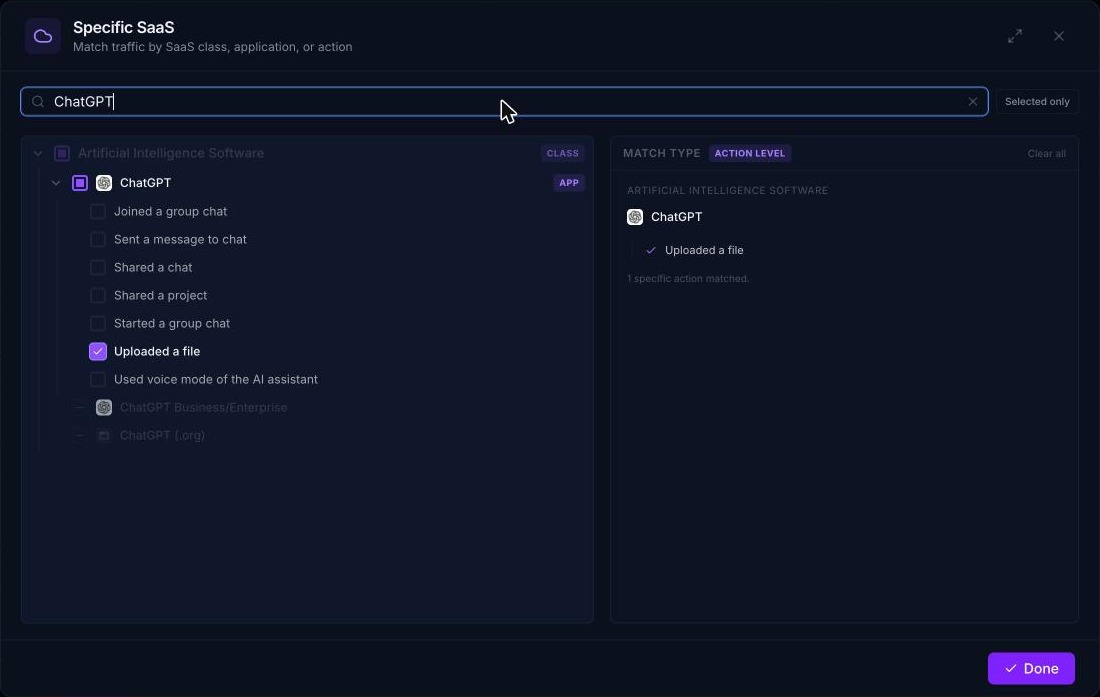
In the new Rule Builder, the Specific SaaS tile replaces the separate Specific Class, Specific App and Specific Action matches. Configure it to tick a class, one or more apps, or individual actions; the panel shows the resulting Match type (for example Action Level). See CASB - Blocking File Uploads to ChatGPT for an example. The descriptions below explain each level.
Specific Class
The requested App Action Value must be for an App that belongs to at least one of the selected Cloud Application classes (from the SaaS Catalog). A class is essentially a grouping of apps by their type. For example, File Storage, Cloud CRM or IaaS.
Specific App
The requested App Action Value must be associated with at least one of the selected Apps from the App Catalog.
Specific Action
The requested App Action Value must be associated with at least one of the selected actions from Apps in the App Catalog.
Generic SaaS Action
The App Catalog contains thousands of actions across hundreds of apps, so to make this more manageable the actions are grouped into what is known as Generic Actions.
The requested App Action must be for at least one of the selected generic Cloud Application actions. Generic Actions apply across all apps in the App Catalog, rather than specific Apps. Examples of Generic Actions are uploading a file or posting a public message.
SaaS Action Risk
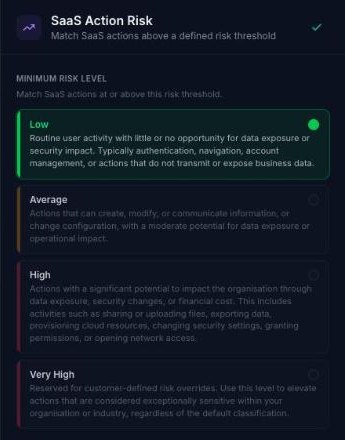
Previously Cloud Risk Level. The request must be for a cloud application action at or above the selected Minimum risk level:
- Low: routine activity with little or no opportunity for data exposure, such as authentication or navigation.
- Average: actions that create, modify or share information, or change configuration.
- High: actions with significant potential impact, such as sharing or uploading files, exporting data or changing security settings.
- Very High: reserved for custom risk overrides, for actions your organisation treats as exceptionally sensitive.
Matches for Feature Control Rules
Google Safe Search
If the request is for a Google search engine result, enforce the strict Safe Search feature to block adult content. This will override the user's own preference settings.
Yahoo Safe Search
If the request is for a Yahoo! search engine result, enforce the strict Safe Search feature to block adult content. This will override the user's own preference settings.
Bing Safe Search
If the request is for a Bing search engine result, enforce the strict Safe Search feature to block adult content. This will override the user's own preference settings.
YouTube Safe Search
If the request is for a YouTube video search result, enforce the strict Safe Search feature to block adult content. This will override the user's own preference settings.
Network based enforcement may also be required through DNS. Please see this article for details.
YouTube for Schools
If the request is for a YouTube video search result, insert the YouTube For Schools header with the given token. This will cause the search to be executed as if it came from a YouTube For Schools account.
X-Youtube-Edu-Filter token to be able to correctly configure this Match.Google App Domain
If the request is for Google Apps, restrict the request to the specified domain.
X-Google-Apps-Allowed-Domains token to be able to correctly configure this Match. This token can simply consist of the domain(s) to which you want to restrict access. For example, mydomainname.com.Rule logic
Rules can consist of multiple Conditions, Matches and match values. When more than one option is chosen, the Rules Engine uses the following logic to determine the correct way to proceed.
Rule logic for Conditions
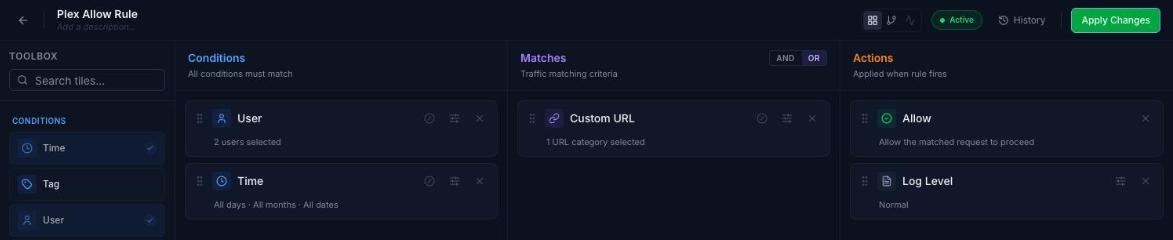
Conditions use AND logic, which means that each Condition added to the Rule must be true. However, the options selected within each Condition use OR logic (meaning that the option will match if one or more of the selections are true.
Rule logic for Matches
In contrast to Conditions, Matches can use either AND or OR logic, depending on your requirements. Matches use OR logic by default. Use the AND / OR toggle at the top of the Matches column to change it.

Rule Actions
Rule Actions determine what should happen if the Conditions and Matches in the Rule are true.
When you create a rule you choose its Final action (Allow, Block, Warn, Redirect or Quota). You can add more actions, or change them, by double-clicking or dragging tiles from the Actions section of the Toolbox onto the Actions column. The block or warning page shown to users is chosen in the settings of the Block, Warn and Content Scan tiles; there is no longer a separate Template action. The available actions are:
Allow
Allow the web request to proceed.
Block
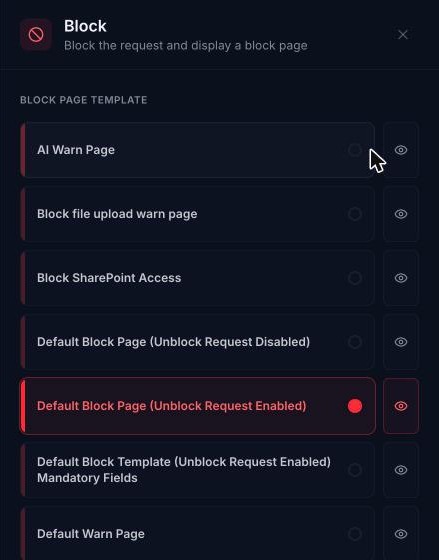
Stop the web request. The user is shown the block page template chosen in the Block tile's settings (Block page template). Templates are managed in Browse ⟶ Module Settings ⟶ Templates.
Quota
If the user's Time Quota has not been exceeded, the web request is allowed to proceed, and the user's Time Quota is reduced accordingly. If the user's Time Quota has been exceeded, the final Action is automatically switched to a Block action.
Click the settings icon on the Quota tile to configure it.
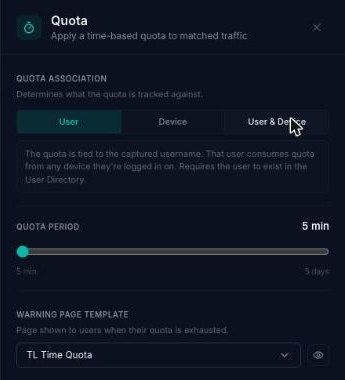
Quota association
Determines what the quota is tracked against:
- User: the quota is tied to the captured username. That user consumes quota from any device they're logged in on. The user must exist in the User Directory.
- Device: the quota is tied to the captured device (based on MAC address). Any user making a web request from that device consumes the same quota. The device must exist in Devices.
- User & Device: the quota is tied to the captured username and the captured device. Quota is only consumed if both are present, as described above.
Quota period
Use the slider to set the quota period, from 5 minutes to 5 days.
Warning page template
The page shown to users when their quota is exhausted. Click the eye icon to preview a template.
Warn
The web request is stopped, and the user is instead shown the Warning page template chosen in the Warn tile's settings. If the template contains the placeholder text $WARN$, a Continue button will be available, so that the user can still access the blocked content if they deem it acceptable.
The Warn action can also be configured to require a password before the user is allowed to proceed.
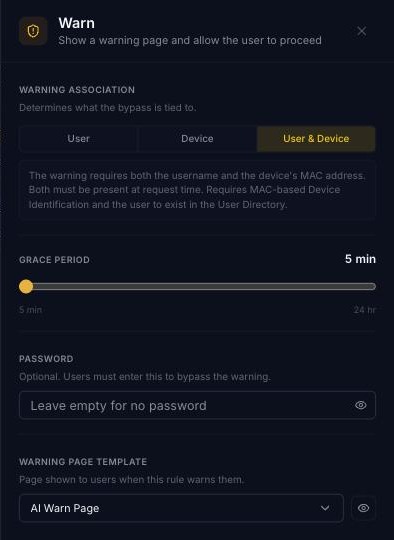
Warning association
Determine exactly when the warning template is shown:
- User only: the warning is associated with the captured username. This user will be able to use the warning feature if they are logged in on other devices. The user must be synchronised from Active Directory.
- Device only: the warning is associated with the captured device (MAC address). Any user making a web request from that device will be able to use the warning feature. Requires Address Type (Module Settings ⟶ General) to be set to MAC Address.
- User & Device: the warning is associated with the captured username and the captured device. The warning feature will only be available if both username and MAC address are present. Requires Address Type (Module Settings ⟶ General) to be set to MAC Address. The user must be synchronised from Active Directory.
The default option is 'User & Device'.
Grace period
How long the user can access the target site after pressing Continue, set with the slider from 5 minutes to 24 hours.
Password
If a password is entered into this field, a user will not be allowed to proceed beyond the Warning page until the correct password is entered.
If you don't require a password, just leave the Password field blank.
Redirect
Stop the web request, and redirect the user to the specified URL.
Log Level
Choose the level of priority against which you want this web request to be logged. The default Log Level is 'Normal'.
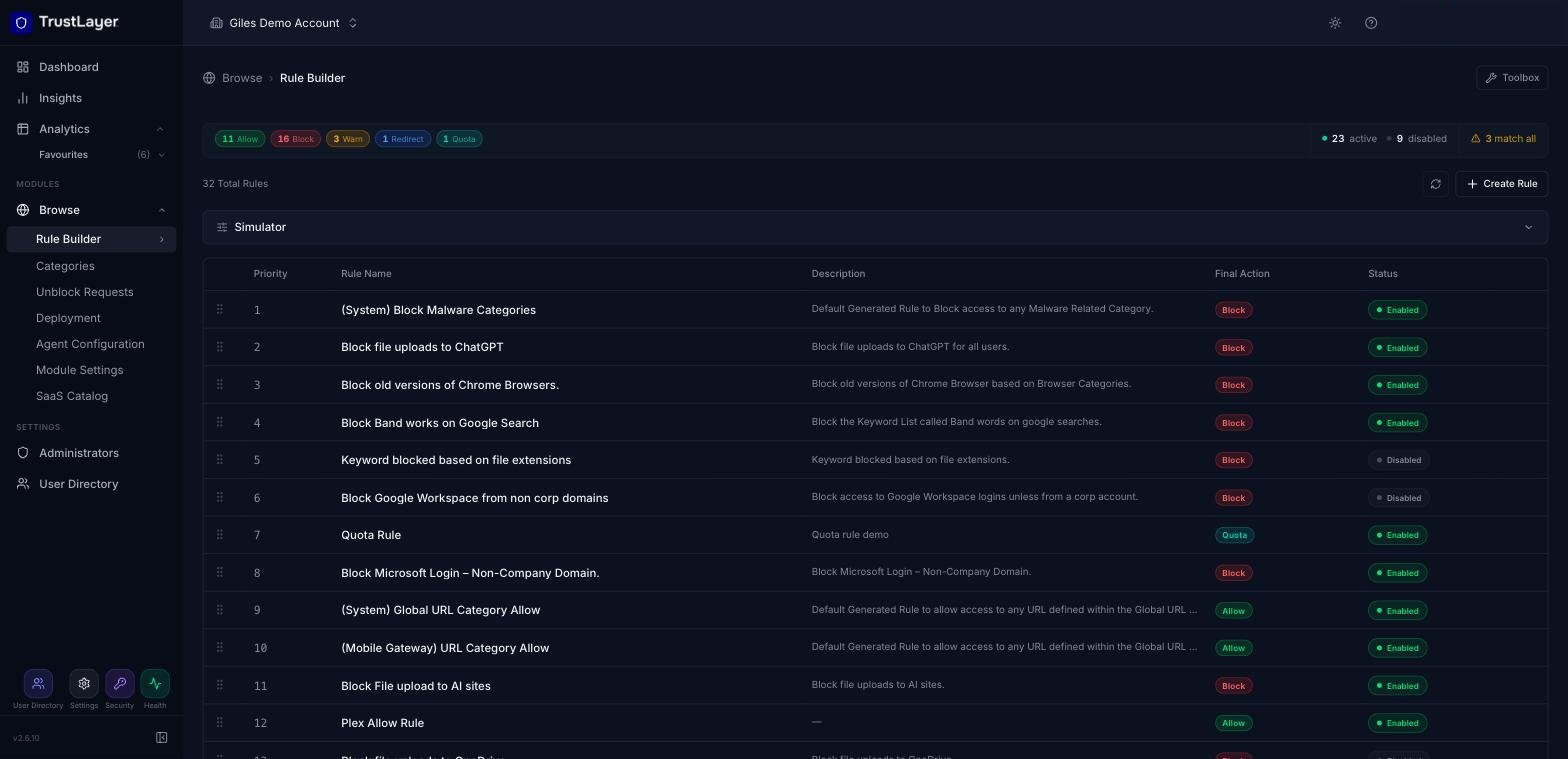
Rule Priority
The Rules Engine executes each Rule in turn, in the order they appear in the Rule Builder, from top to bottom. Change the order by dragging a rule by its handle (⋮⋮).
Content Scan
Use the Content Scan tile to choose types of content that agents and gateways should detect. On the MIME Types tab, select MIME categories or individual MIME types. (A DLP tab is marked as coming soon.)
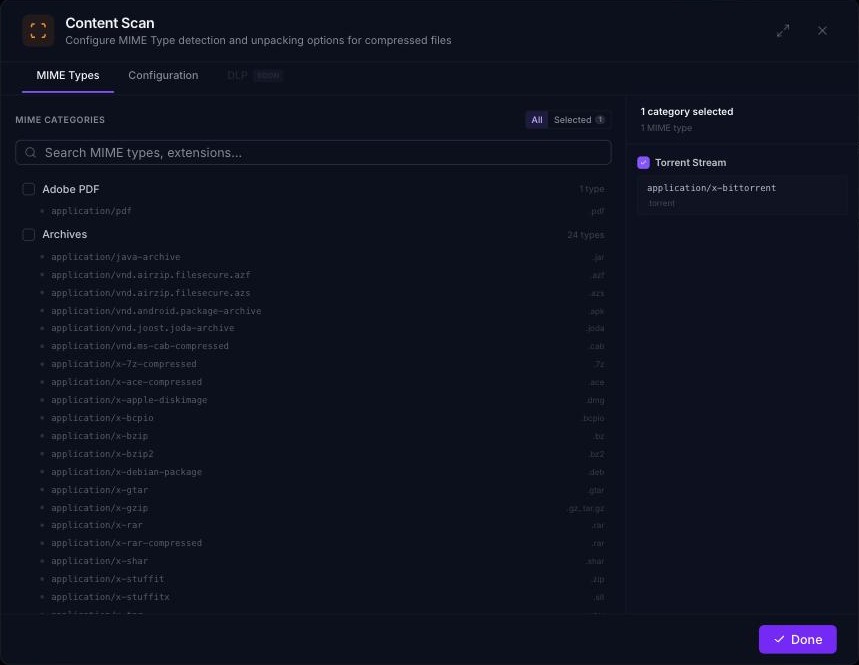
In addition, it is possible to enable automatic unpacking of archives to scan for MIME types within them. The unpacking engine supports the same archives as is listed in the "Archives" MIME type category.
On the Configuration tab, choose the Block page template shown when content scanning blocks a request, and turn on Enable archive unpacking if required.
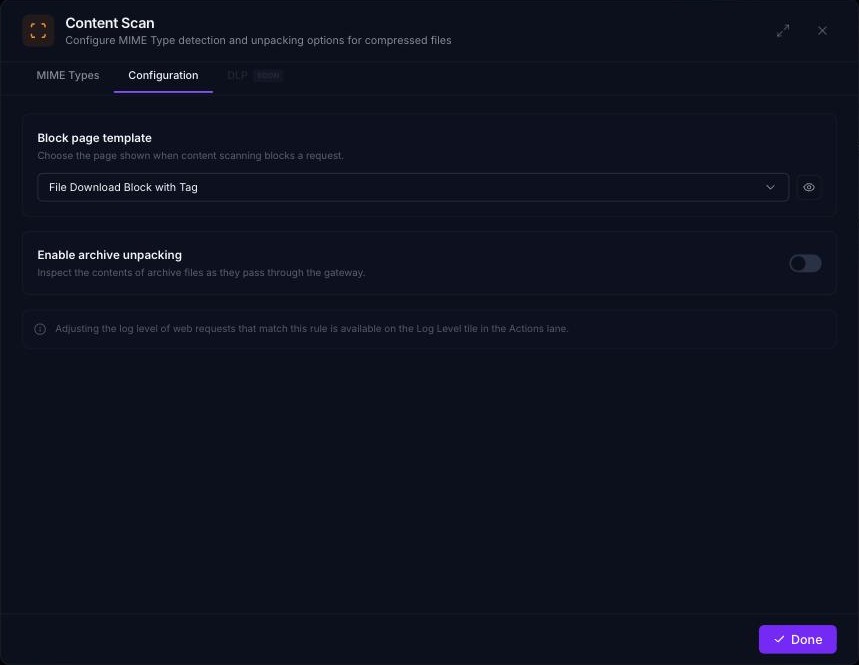
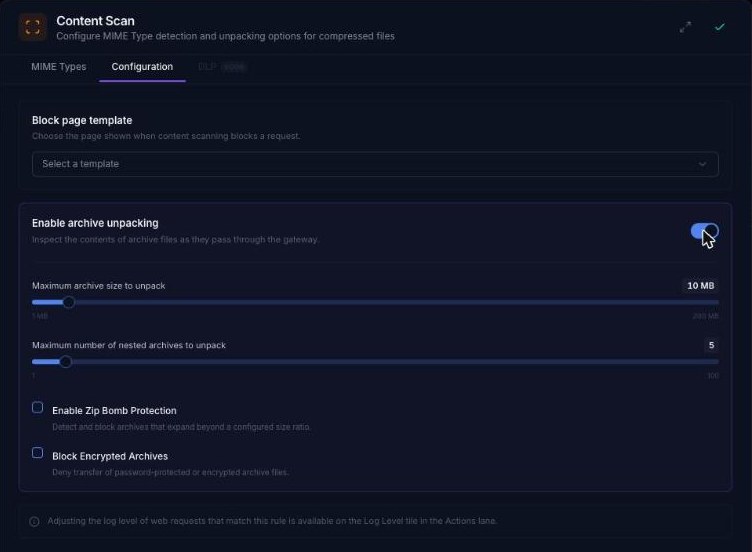
When Enable archive unpacking is turned on, these options are shown:
- Maximum archive size to unpack: from 1 MB to 200 MB (default 10 MB). Increasing this significantly requires additional memory. For the agent, set this to the maximum file size you want to scan. For the gateway, this is the size of the file to be captured in order to attempt classification.
- Maximum number of nested archives to unpack: from 1 to 100 (default 5). This is how many nested archives are unpacked before the unpacker gives up, for example a zip within a zip within a zip.
- Enable Zip Bomb Protection: detects and blocks archives that expand beyond a configured size ratio (Zip Bomb or Zip of Death files designed to consume all available disk space).
- Block Encrypted Archives: denies transfer of password-protected or encrypted archive files.
Templates
There is no longer a separate Template action. Choose the page template in the settings of the Block, Warn or Content Scan tile. Templates are managed in Browse ⟶ Module Settings ⟶ Templates.
Request versus Response scanning
An Action can either be "request-based" - in which case the Action is performed on the user's web request as it's made - or "response-based" (in which case the Action is performed against the web response that is returned when the user's web request has been carried out.
The Rule Builder doesn't mark tiles as request-based or response-based. Response-based actions need the response to be fetched first. For example, the Content Scan action inspects the content that is returned, so it can only be added to rules whose final action is Allow, Warn or Quota.