Custom URLs - Console
 Updated 2 weeks ago
by
admin
Updated 2 weeks ago
by
admin
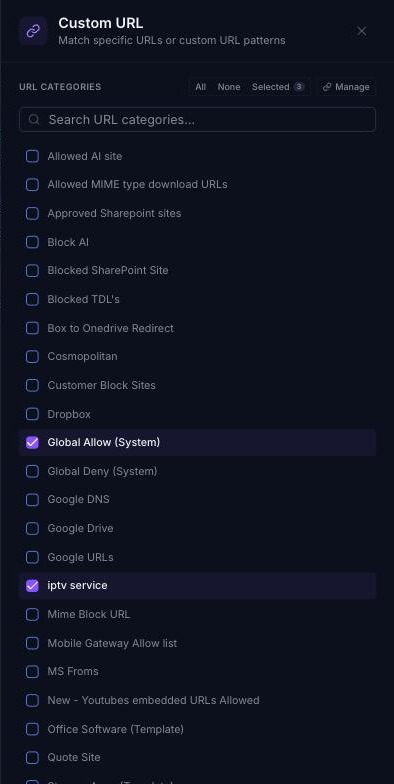
Custom URL Categories are collections of website URLs that you create. They are used with the Custom URL match in the Rule Builder. Typically, they are used to override the system-level Web Categories list, and to maintain your own domains and URLs for use in rules.
Managing Custom URL Categories
In the console, go to Browse ⟶ Categories. The Custom URL tab opens by default.
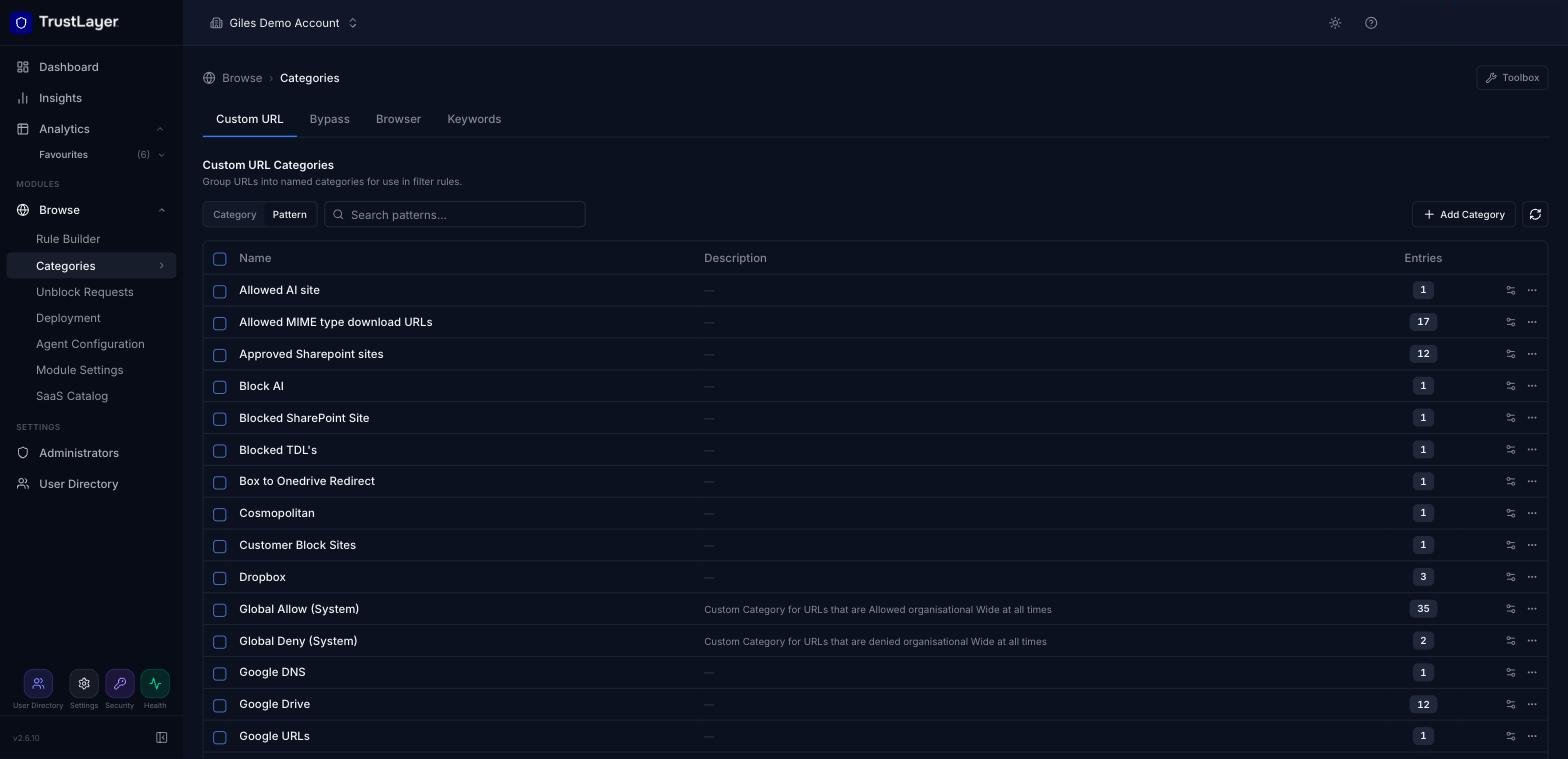
The list shows each Custom URL Category with its description and number of entries. Click the settings icon at the end of a row to see the URL patterns in that category.
Searching
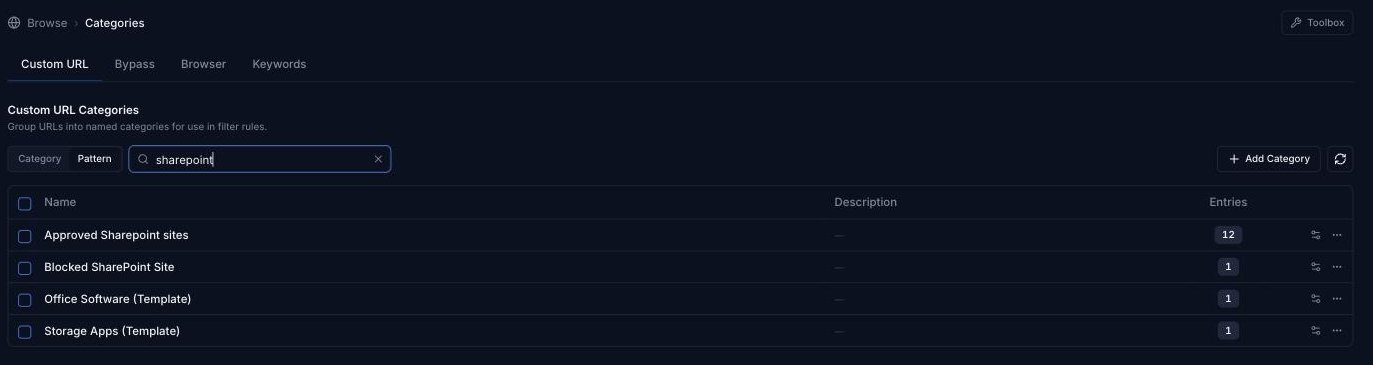
Use the search box above the list. Select Category to search category names, or Pattern to find the categories that contain a matching URL pattern, then press Enter. Clear the search to return to the full list.
Adding a new Custom URL Category
Click Add Category, enter a name (and optional description) in the new row, and click the green + to save.
Renaming and deleting Custom URL Categories
Click the ⋯ menu at the end of the category's row and select Rename or Delete category.
Managing Patterns
In a Custom URL Category, a pattern is a URL plus the protocol it applies to.
Adding Custom URL Patterns
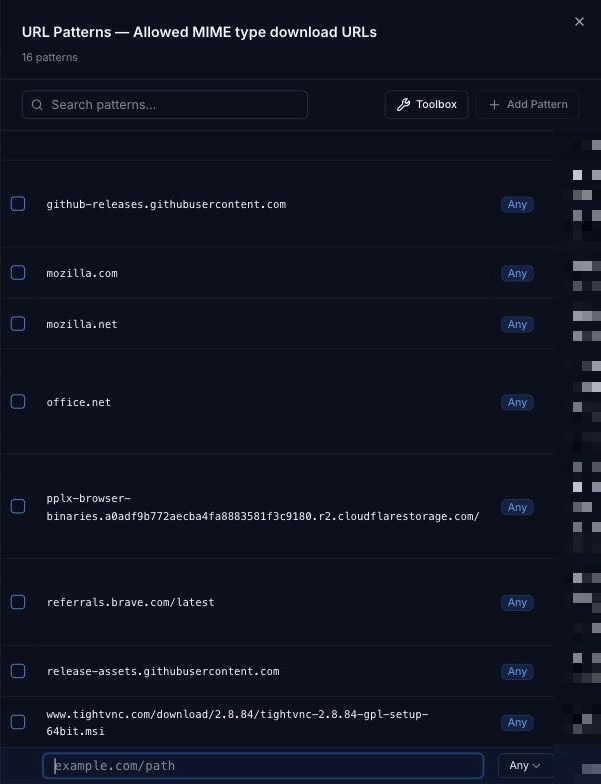
- Click the settings icon at the end of the category's row. The URL Patterns panel opens, listing the existing patterns.
- Click Add Pattern. Fill in the new row at the bottom of the list and click the green +.
Pattern
The pattern must be a valid URL, excluding the http:// or https:// scheme and any query string (text after a ? in the URL). The table below shows how to build a valid pattern.
Pattern text | Valid? |
| ✓ Yes |
| ✓ Yes |
| ❌ No |
| ❌ No |
| ❌ No |
https://www.examplesite.com/browse/timewasting?game=pacman&level=8, add the pattern www.examplesite.com/browse/timewasting.Protocol
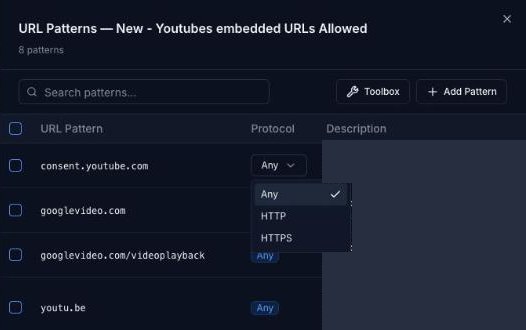
Whether the pattern matches HTTP only, HTTPS only, or Any (both). The default is Any.
Comment
An optional note about the pattern.
Deleting Patterns
Hover over the pattern in the URL Patterns panel and click the delete (bin) icon at the end of its row.
Editing Patterns
Click a pattern in the URL Patterns panel to edit it in place, then press Enter to save it. To change a pattern's protocol, click its Protocol badge and choose Any, HTTP or HTTPS.
Using Custom URLs in Rules
Add the Custom URL match to a rule in the Rule Builder and tick the categories to use. Click Manage in the match's settings panel to jump to the Custom URL tab. For example, you might block social media using the system web category but allow Facebook for a particular user or group.