Branding - Console
 Updated 2 weeks ago
by
admin
Updated 2 weeks ago
by
admin
The Branding tab lets you customise the console to match your organisation's branding, colours and logo. This is also known as 'white labelling'.
If you have a partner account, any new accounts you provision will inherit the theme of your own account. This can be changed later for each account if required.
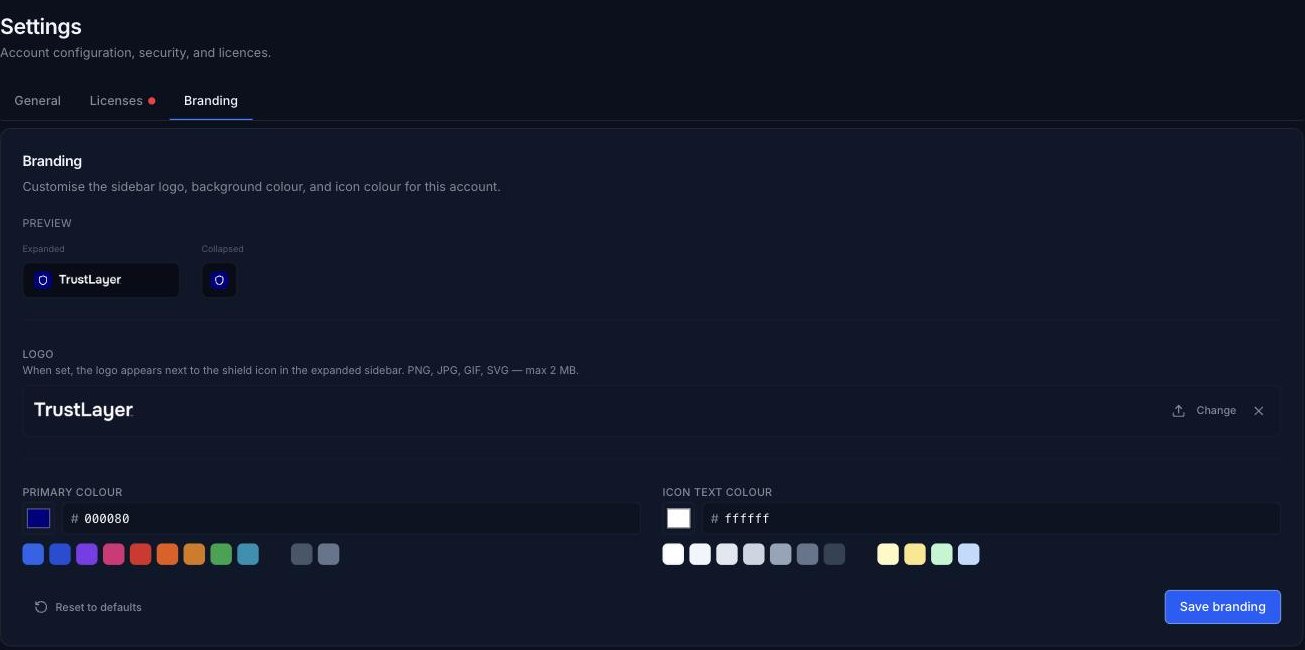
To change your branding, In the console, click Settings (the cog icon at the bottom of the left-hand menu) and open the Branding tab. The Preview shows how the sidebar will look when it is expanded and collapsed.
Logo
The logo appears next to the shield icon in the expanded sidebar. Click Change to upload your own logo, or the X to remove it.
PNG, JPG, GIF or SVG images up to 2 MB can be used.Primary Colour
The background colour used for the shield icon and other branded elements. Click one of the colours in the palette, or enter a hexadecimal colour (e.g. 000080) in the box.
Icon Text Colour
The colour of the icon on top of the primary colour. Click one of the colours in the palette, or enter a hexadecimal colour.
Click Save branding to apply your changes, or Reset to defaults to go back to the standard TrustLayer branding.