CASB - Blocking File Uploads to ChatGPT - Console
 Updated 2 weeks ago
by
admin
Updated 2 weeks ago
by
admin
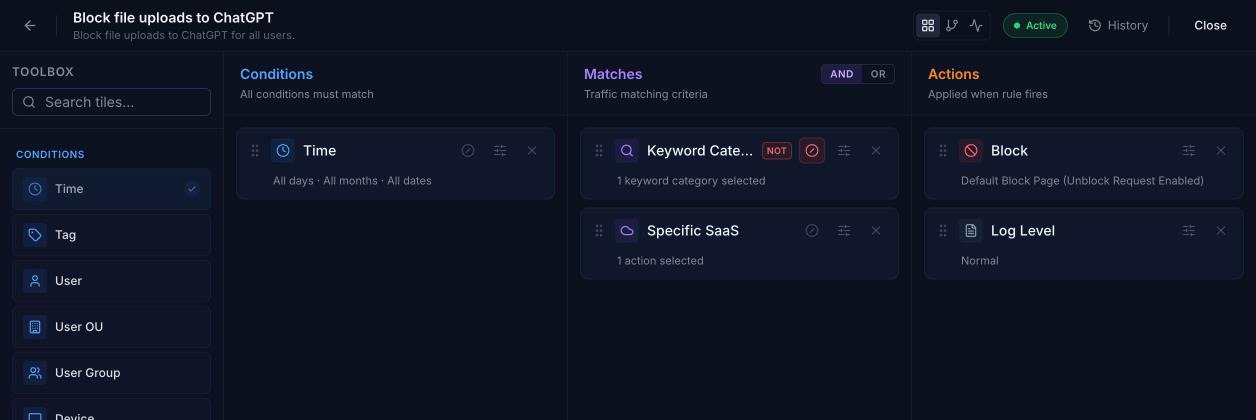
CASB uses the same Rule Builder as Web Security to control cloud application activity. A rule is made up of three columns of tiles: Conditions (when and to whom the rule applies), Matches (the traffic to look for) and Actions (what happens when the rule fires). This article shows how to use the Specific SaaS match to block file uploads to ChatGPT only, without affecting any other app or any other ChatGPT activity.
How the rule works
Conditions
A Time condition set to all days, all months and all dates, so the rule is always in effect.
Matches
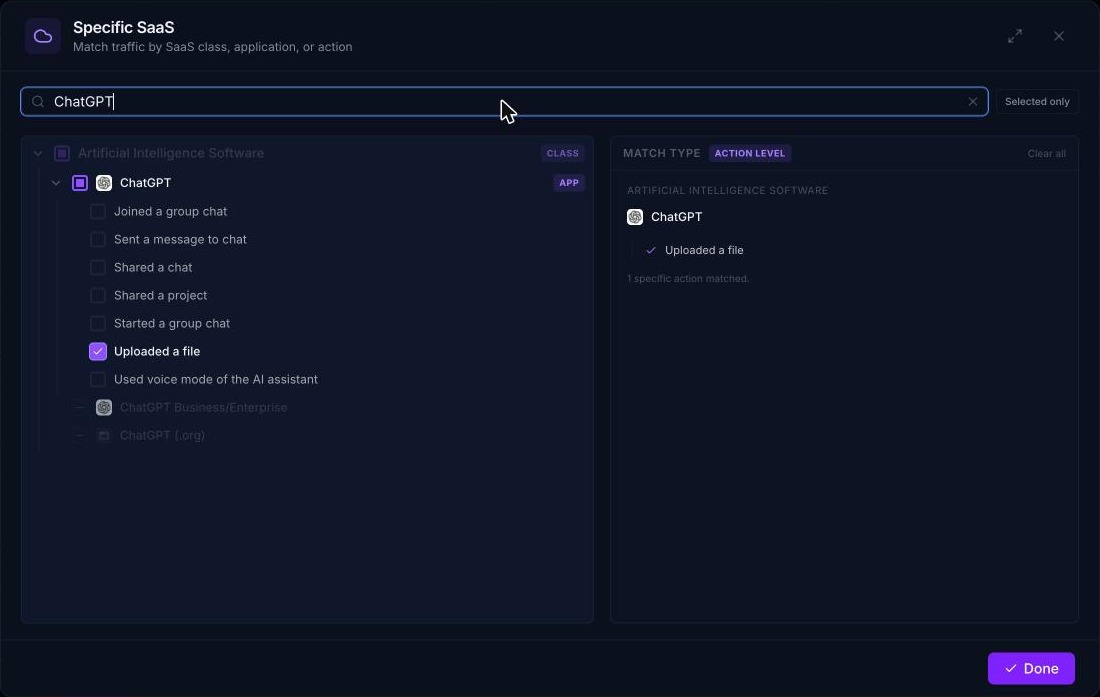
A single Specific SaaS tile. This replaces the separate Specific Class, Specific App and Specific Action matches in the old dashboard. Inside one tile you pick the class (Artificial Intelligence Software), the app (ChatGPT) and the action (Uploaded a file). Because an action is selected, the Match type shows as Action Level.
Searching for ChatGPT shows three separate apps: ChatGPT, ChatGPT Business/Enterprise and ChatGPT (.org). Expand an app to see its trackable actions: Joined a group chat, Sent a message to chat, Shared a chat, Shared a project, Started a group chat, Uploaded a file and Used voice mode of the AI assistant.
Actions
- Block: stops the request and shows the chosen block page template.
- Log Level: defaults to
Normal.
Configuration steps
Step 1: Create the rule
- In the console, go to Browse ⟶ Rule Builder.
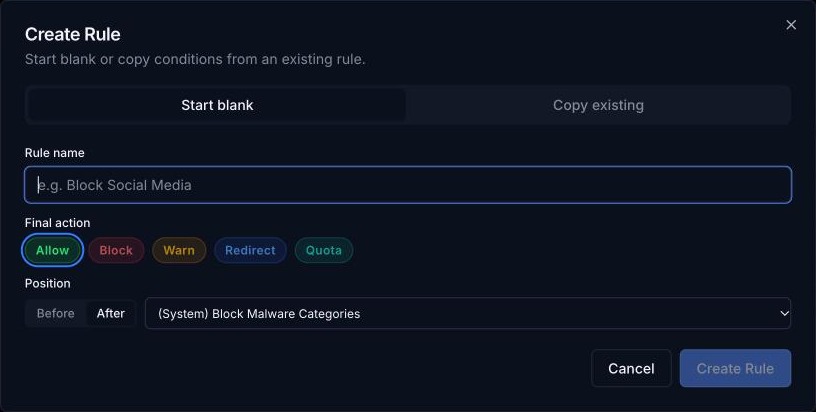
- Click Create Rule.
- Leave Start blank selected and enter a Rule name, e.g.
Block file uploads to ChatGPT. - Under Final action, select Block.
- Under Position, choose where the rule sits in the list (Before or After an existing rule). Rules are processed from top to bottom, so place it above any rule that would otherwise allow ChatGPT.
- Click Create Rule. The rule editor opens.
Step 2: Add the condition
In the Toolbox on the left, double-click Time (or drag it onto the Conditions column). Click the settings icon on the tile to change the schedule if needed; the default is all days, all months and all dates.
Step 3: Add the Specific SaaS match
- In the Toolbox, scroll to Matches and double-click Specific SaaS (or drag it onto the Matches column).
- Click the settings icon on the Specific SaaS tile.
- In the search box, type
ChatGPT. - Expand ChatGPT and tick Uploaded a file. The selection appears on the right, under Match type: Action Level.
- Click Done.
Step 4: Set the actions
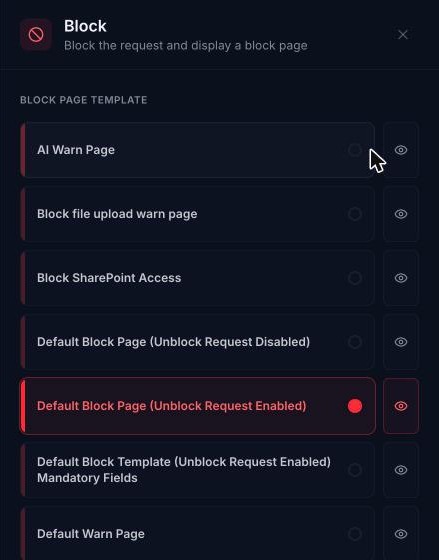
- If there isn't already a Block tile in the Actions column, add one from the Toolbox. Click its settings icon and choose the Block page template users should see. Click the eye icon to preview a template.
- Optionally add a Log Level tile from the Toolbox (default
Normal).
Step 5: Activate the rule
Make sure the rule shows as Active at the top of the editor. If it shows Inactive, click the badge to activate it. Then click Apply Changes to save the rule.
The finished rule looks like this:
Verifying the rule
- On a device and user in scope, try to upload a file to ChatGPT. It should be blocked.
- Check that other ChatGPT activity (for example sending a message) still works. Only uploads should be blocked.
- Go to Analytics ⟶ SaaS Activity to check the rule is logging matches as expected. This also shows which ChatGPT variant (
ChatGPT,ChatGPT Business/EnterpriseorChatGPT (.org)) your users are actually using.