Account Security Guidelines - Console
 Updated 2 weeks ago
by
admin
Updated 2 weeks ago
by
admin
Password Strength
This article describes the Password Strength requirements when setting administrator and end-user passwords for access to the TrustLayer console.
Passwords for administrator users and those including the End User role (or any Custom Role) are subject to password strength checking. Password strength is determined by measuring its entropy. Entropy is a measure of randomness and unpredictability that indicates how difficult it is to guess a particular password. Recognisable character passwords have low entropy and require very little computing power to guess so these are not allowed. Character strings, especially sentences, that can only be guessed by trying every possible character combination have high entropy and will take much longer to guess. These are required when setting passwords.
Tips for selecting a strong password:
- Create a password that is at least sixteen characters long (for Super User) or ten characters long for a non-super user role. Longer passwords make it more difficult for an attacker to guess (human or computer)
- Be unpredictable with your use of:
- Capital letters (e.g. capiTAl instead of Capital)
- Symbols and numbers (e.g. work^^sfor&&me instead of w0rks4me)
- Word choices and sentence strings
- Don't use common replacement of letters with symbols e.g. e@t or t34m
- Don't use repeated or consecutive numbers or letters e.g. aaaa, qwerty, 12345, 888, 666
- Don't use common passwords such as passw0rd, letmein or abc123
Changing your password and enabling two-factor authentication
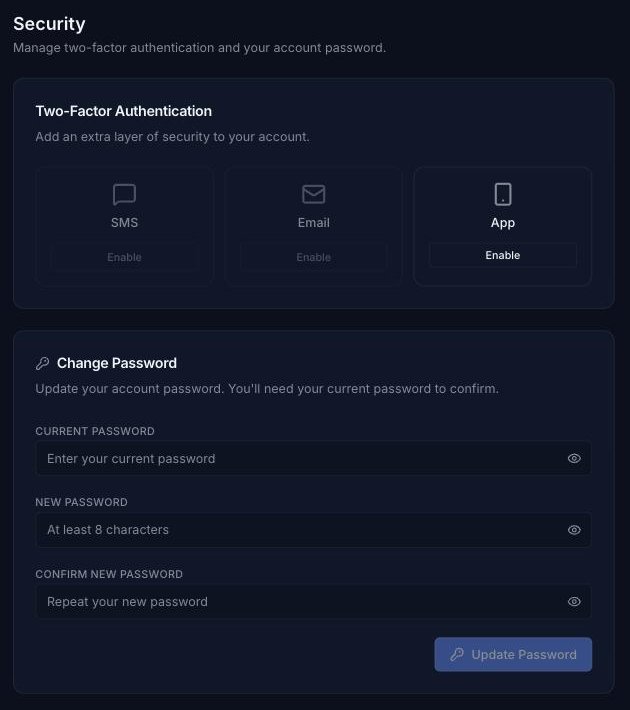
In the console, click Security (the key icon at the bottom of the left-hand menu).
- Under Two-Factor Authentication, click Enable under SMS, Email or App and follow the prompts.
- Under Change Password, enter your Current Password, then your New Password twice, and click Update Password.
Signing in
You can sign in to the console at console.clouduss.com with your username and password, or click Sign in with Microsoft Entra ID if your organisation uses Microsoft single sign-on. Single sign-on is set up by an administrator under Administrators > Enterprise SSO (see Administrators). If two-factor authentication is enabled on your account, you will then be asked for your SMS, email or authenticator app code.
Account Lock-Out
If you trigger multiple incorrect password attempts within a set period of time then your account will be locked temporarily. An increasing number of incorrect password attempts will increase the temporary lock time until it becomes permanent. If your account becomes locked, entering a valid username and password will trigger an email to be be sent to your username with a temporary unlock link (unless your username is not a valid email address, in which case you will need to contact your Service Provider). This will allow you to unlock your account.
This also applies to multiple incorrect OTP tokens when Multi-Factor Authentication is enabled.
Forgotten / Reset Password
You can trigger a Forgotten Password flow from the console sign-in page (click Forgotten Password?), unless your username is not a valid email address, in which case you will need to contact your Service Provider. Password reset links are valid for 1 hour.