CASB - Blocking Microsoft Online Logins to Non-Company Domains - Console
 Updated 2 weeks ago
by
admin
Updated 2 weeks ago
by
admin
CASB uses the same Rule Builder as Web Security to control cloud application activity. A rule is made up of Conditions, Matches (the traffic to look for, combined with AND or OR) and Actions (what happens when the rule fires). This article shows how to combine a Keyword Category match and a Specific SaaS match with AND logic, so that only Microsoft Online logins using an @companydomain address are allowed and every other Microsoft Online login attempt is blocked.
Rule Matches
Two matches are added to the same rule so they can be ANDed together.
Keyword Category
A Keyword Category (Browse ⟶ Categories ⟶ Keywords) matches on the content of the request: in this case, the @companydomain domain string. Keyword categories have their own match logic (Match Any or Match All) across their patterns, independent of the AND/OR logic used between matches on the rule.
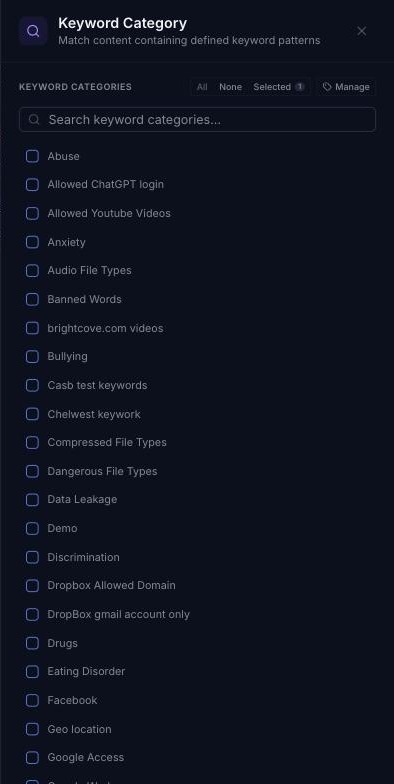
In this rule the Keyword Category match is set to NOT (inverse match), so it matches when the request does not contain your company domain.
Specific SaaS
The Specific SaaS match targets an app and action from the SaaS Catalog (for example, "Uploaded a file" or "Attempted to log in"). For this rule the app is Microsoft (class Cloud Services) and the action is Attempted to log in. The SaaS Catalog is updated as apps and actions are added, so check the exact action name in your own console before building the rule.
Rule Logic
The AND / OR toggle at the top of the Matches column controls how the matches combine:
- AND: every match must be true at the same time for the rule to fire.
- OR: any single match being true is enough.
With AND, the rule only fires when a Microsoft Online login attempt is seen and the request does not contain @companydomain. Logins from your domain never satisfy the NOT keyword match, so the rule doesn't fire for them and they pass through normally.
Rule Actions
With a Block action, any Microsoft Online login attempt that matches both matches is stopped and shown the configured block page template.
Configuration Steps
Step 1: Create the Keyword Category
- Go to Browse ⟶ Categories and open the Keywords tab.
- Click Add Category. A new row appears at the top of the list.
- Enter:
- Name:
M365 Allowed Domains - Match Logic:
Match Any - Content Match:
URL & App Action
- Name:
- Click the green + to save the category.

- Click the settings icon at the end of the new category's row to open its Keyword Patterns panel, then click Add Pattern:
- Pattern:
@companydomain - Match Type:
Contains - Comment:
Matches company email domain for CASB login rule
- Pattern:
- Click the green + to save the pattern.
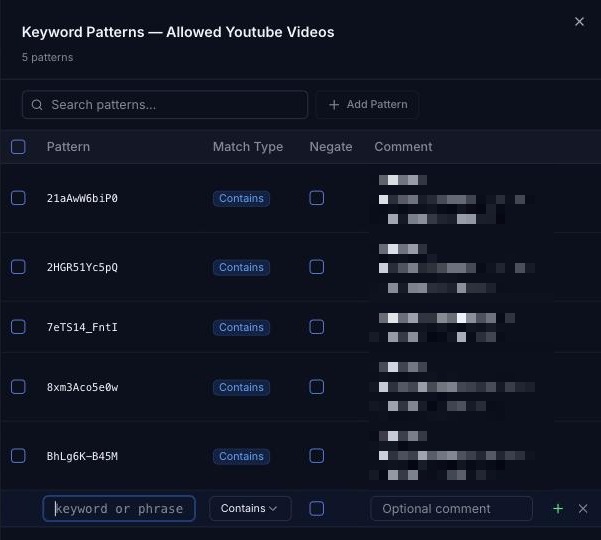
Step 2: Create the CASB Rule
- Go to Browse ⟶ Rule Builder and click Create Rule.
- Enter a name (e.g.
Block Microsoft Login – Non-Company Domain), choose the final action Block, and use Position to place it ahead of any existing Office 365 allow rule. Otherwise this rule will never be evaluated. - Click Create Rule to open the rule editor.
- Add the required Condition(s), for example Time.
- From the Matches section of the Toolbox, add:
- Keyword Category: click its settings icon, tick
M365 Allowed Domains, then click the Enable inverse match (NOT) icon. A red NOT label shows on the tile. - Specific SaaS: click its settings icon, search for
Microsoft, expand the Microsoft app (class Cloud Services), tick Attempted to log in and click Done.
- Keyword Category: click its settings icon, tick
- Set the toggle at the top of the Matches column to AND.
- Click the settings icon on the Block action and choose the block page template.
- Make sure the rule is Active (if it shows Inactive, click the badge to activate it), then click Apply Changes.
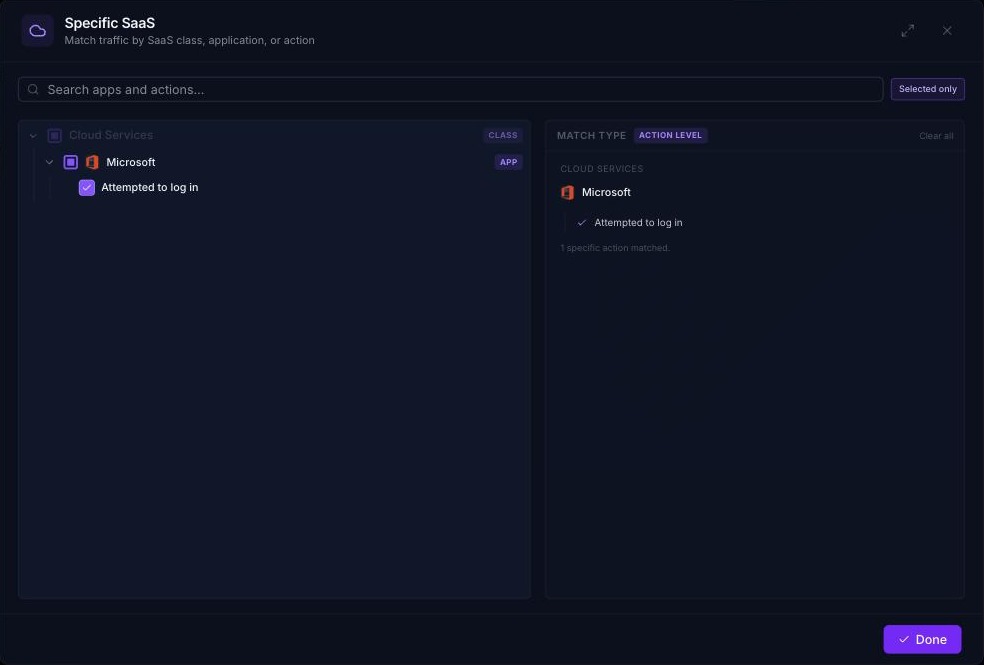
The finished rule looks like this. (This example also has a Sanctioned App condition, which is optional.)

Verifying the Rule
- On a device and user in scope, try a Microsoft Online login with a non-
@companydomainaccount. It should be blocked. - Try a Microsoft Online login with a
@companydomainaccount. It should succeed. - Check Analytics ⟶ SaaS Activity to confirm the rule is logging matches as expected.