Configuration options for the Windows agent type - Console
 Updated 2 weeks ago
by
admin
Updated 2 weeks ago
by
admin
- Settings
- Identification
- Bypass Categories
- Agent Anti-Malware
- Network Detection
- Advanced
The Agent Configuration page lets you create or modify agent profiles for Windows agents.
In the console, go to Browse ⟶ Agent Configuration and open the Windows tab. Click the settings (cog) icon next to a profile to open it. The profile editor has a menu on the left for each section described below. When you have made your changes, click Apply Changes at the top right.
Settings
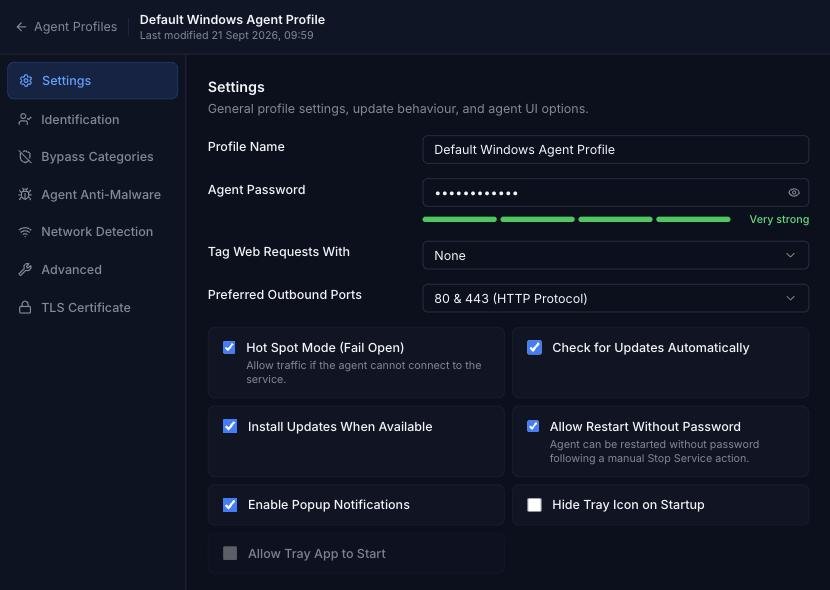
Profile Name
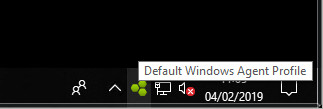
A friendly name for the profile to make it easier to manage. The name is also displayed in the tooltip for the agent icon.
Agent Password
The tamper-proof password which secures the configuration and start/stop options on the agent. This password is automatically generated when the profile is created but can be changed.
Tag Web Requests With
The Tag to assign to this agent. Tags are used to identify the agent in the Rule Builder. Select a tag to use, or choose None if a tag is not required. Tags are managed in Browse ⟶ Module Settings ⟶ Tags.
Preferred Outbound Ports
The agent will connect to the Browse service on ports 1344 & 1345 or 80 & 443. Select the preferred ports here and they will be tried first. If a connection is not established, the agent will try the remaining ports.
Hot Spot Mode (Fail Open)
If enabled, the agent will provide unfiltered access if for any reason the Browse service ports are inaccessible. If not enabled, web access will be blocked until the cloud service becomes available again.
Check for Updates Automatically
If enabled, the agent will poll for new software updates.
Install Updates When Available
If enabled, the agent will install new software updates as soon as they are available.
Allow Restart Without Password
If enabled, the agent can be started without a password as long as it was previously stopped using the password.
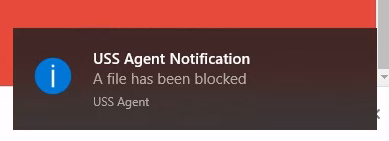
Enable Popup Notifications
If enabled, the agent will attempt to display a notification message from the tray app when a download is blocked by a response scanner e.g. MIME type. Example:
Hide Tray Icon on Startup
If enabled, the agent tray icon will not be visible on startup and cannot be started manually. The icon will be hidden on next restart.
Allow Tray App to Start
If ticked, the tray app can be started manually by the user by locating it in the Start menu.
Identification
The Identification section lets you control what information to log about your users and their devices.
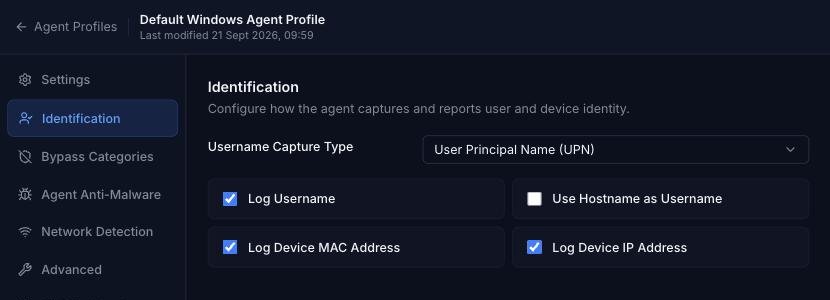
Log Username
Enables the capture of Active Directory or local user credentials. This captures the Active Directory domain and username if the user has logged into a Windows domain, or falls back to capturing the local username if this is not possible.
Username Capture Type
The type of username to attempt to capture.
Type | Behaviour |
SAMAccountname | For use when the agent is part of an on-premise or hybrid Active Directory domain and the SAM Account name is available. The active user will be captured in the format |
UPN | For use when the agent is part of an Azure Active Directory environment and is signed in to an Entra ID domain. The active user will be captured in the format |
FQDN | For use when the agent is part of an Azure Active Directory environment. The active user will be captured in the format If the user is not part of a domain, the |
Use Hostname as Username
Use the device's hostname instead of the captured username. Useful for deployments where no user identification mechanism is provided, or for device-based policy control.
Log Device MAC Address
Enable capture of the device MAC address for the primary network interface.
Log Device IP Address
Enable capture of the device IP address for the primary network interface.
Bypass Categories
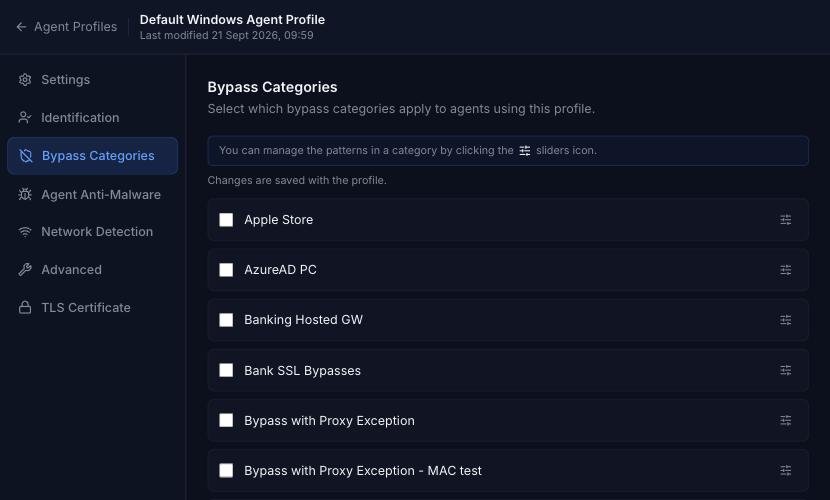
The Bypass Categories section contains a list of available categories, created in Browse ⟶ Categories ⟶ Bypass. Tick the categories to apply to this profile. You can manage the patterns in a category by clicking its sliders icon. Bypass categories provide a way for the agents to trust particular network resources, so that matching traffic does not get filtered by the Browse service. A number of pre-defined categories are provided as a starting point for common services.
Agent Anti-Malware
upgrade.bitdefender.com and delta updates will be downloaded hourly.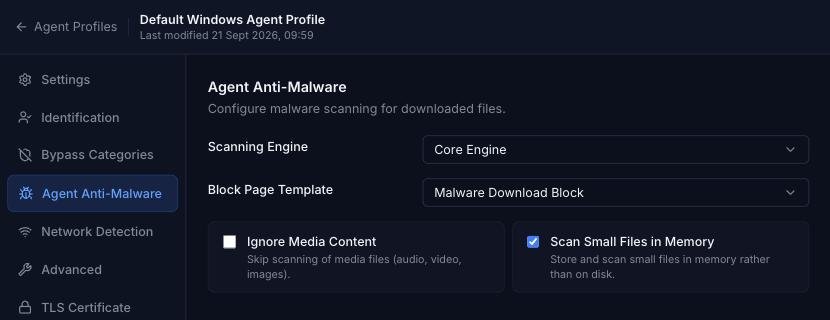
Scanning Engine
Select the preferred Scanning Engine to use. Selecting none will disable anti-malware scanning.
Block Page Template
Select the block page template to show if malware is detected. Templates are managed in Browse ⟶ Module Settings ⟶ Templates.
Ignore Media Content
Check this box to ignore content that cannot be scanned such as streaming video and audio.
Scan Small Files in Memory
Checking this option will allow the agent to store files in memory that are less than 100Mb in size. Files greater than 100Mb will be written to disk before scanning.
Network Detection
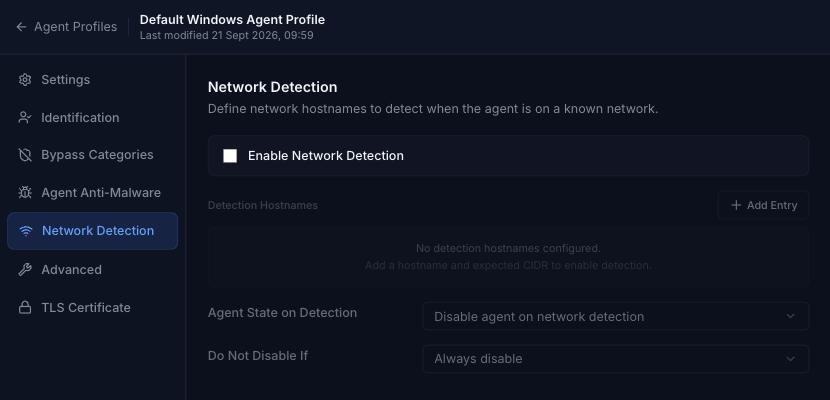
Tick Enable Network Detection to turn the feature on.
The Network Detection feature provides added flexibility when using a combination of the gateway and agent software on the same network. Using Network Detection, you can automatically disable Windows agents when the agent detects a new connection to a recognised network.
For example, you might have a gateway agent deployed at your Head Office, along with a number of remote workers each running a Windows agent. If a remote worker visits Head Office with their Windows device, you could instruct that their filtering is handled by the gateway rather than the local Windows agent.
If the agent detects a "known" network, the system tray icon will change to an orange and green icon, and an alert will be displayed.
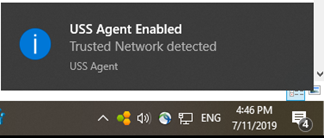
If the icon is orange and grey, the USS Agent is currently disabled.
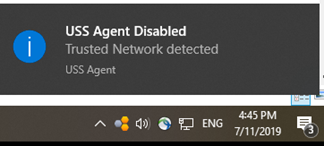
Detection Hostnames
Click Add Entry to add a hostname and its expected CIDR. The Windows agent will then monitor for that hostname. If the Expected IP is set to 0.0.0.0/0 then the agent state will change as long as the hostname can be resolved to an IP. If you want to only change state if a specific IP is resolved (recommended), specify the IP in CIDR format.
Agent State on Detection
Choose what should happen to the Windows agent if a recognised network is detected (either disable or enable the agent).
Do Not Disable If
In certain scenarios you may not want to automatically disable the agent if the device default gateway or network adaptor matches a certain IP (for example, the IP of a VPN router or network range). Choose the detection method from the drop-down (the default is Always disable) and then add the IP address or CIDR exceptions.
For matching the Default Gateway, an explicit IP address must be provided.
For matching a Network Adaptor, a CIDR should be entered. All network adaptors on the device will be checked to see if their IP falls within the CIDR range.
Multiple Networks
If the Windows agent is installed on a device with multiple network interfaces, the Network Detection configuration will be applied to each interface separately.
Advanced
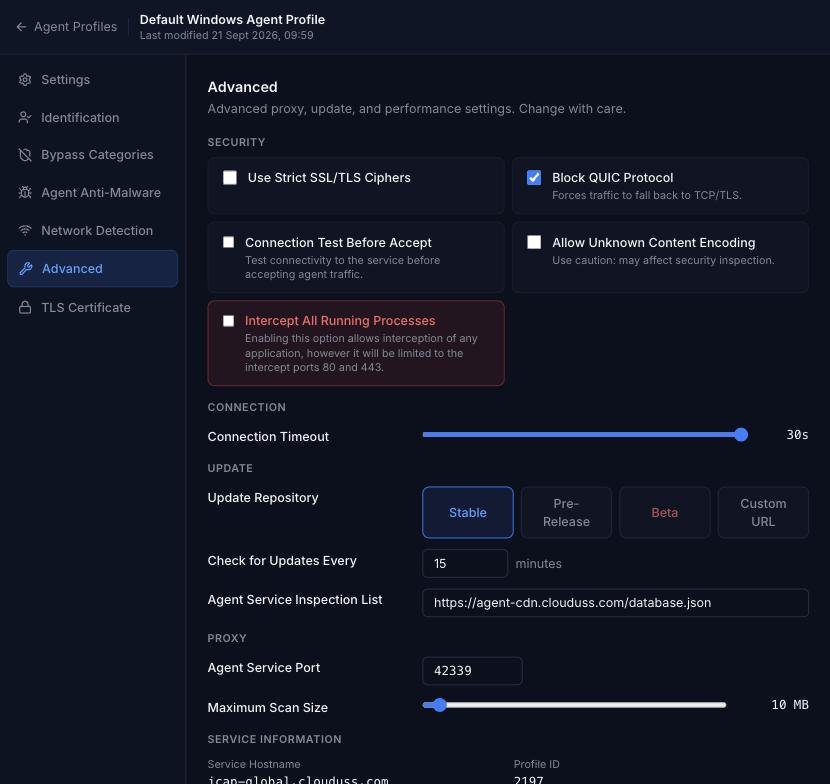
The Advanced section is split into Security, Connection, Update, Proxy and Service Information groups.
Use Strict SSL/TLS Ciphers
If enabled, the agent will reject connections to Web servers that are configured to use old, deprecated or insecure ciphers (such as rc4 and rc4-md5). This may cause third-party services to stop working. Generally, a web browser will always try and negotiate at the highest possible cipher level supported by the web server.
Block QUIC Protocol
The QUIC protocol is developed by Google, and is used by many of their services, such as Google Search and GSuite (when accessed via the Google Chrome browser). As QUIC is a variation of HTTP/S over UDP, it can bypass filtering. Enabling this option ensures the protocol is blocked, and therefore the services fall back to using HTTP/S over TCP and can be filtered appropriately.
Intercept All Running Processes
The agent has the capability to intercept HTTP/S traffic from any running process, but by default this is limited to set of known browser-based applications (listed below). Enabling this option allows interception of any application, however it will be limited to the intercept ports 80 and 443.
Known browser-based applications intercepted by default
- Internet Explorer
- Chrome
- Firefox
- Edge
- Safari
- Vivaldi
- Opera
- Brave
- Google Earth
- UC Browser
- Xperience
- Gwproxy
- Cyberghost
- AVGBrowser
Connection Test Before Accept
On by default for new configuration profiles. This feature uses advanced connection handling to avoid conflicts with other endpoint security software. In some cases, it is necessary to disable this feature otherwise it is safe to leave it on.
With this option turned on, the service picks a new port from the dynamic range (49152 to 65535) for each browser's incoming connection. It does this in order ot process many browser's connections simultaneously. You may see a spike in port usage via the netstat command, however in normal operation the port should be freed once the connction test is complete or the incoming browser's connection is closed. If you see stale ports left open, this suggests a conflict or other problem. Please experiment by disabling this option and contacting your Service Provider for assistance.
Prior to this option being available it would be set via the registry using the test_connect_before_accept registry key in HKEY_LOCAL_MACHINE\SOFTWARE\USSAgent. Setting this option here overrides the registry setting if it exists.
Allow Unknown Content Encoding
Allows content with an unrecognised encoding to pass through the agent. Use with caution, as it may affect security inspection.
Connection Timeout
Used in conjunction with Connection Test Before Accept this is the amount of time to wait before assuming a connection has timed out. The default is 30 seconds and there should be no need to change this.
Update Repository
Select the preferred repository for software updates: Stable, Pre-Release, Beta or Custom URL.
Check for Updates Every
Specify how often, in minutes, to check for new software updates.
Agent Service Inspection List
This can be used to create a custom list of applications for the agent to intercept, and should be used as an alternative to the Intercept All Running Processes option detailed above. A version of the json file should be hosted on a public web server and must follow the same format as the original.
Agent Service Port
Specify the port that the agent service should use to receive web requests after they have been intercepted.
Maximum Scan Size
The maximum file size that will be scanned by active response scanning modules, i.e. MIME Type.
Service Hostname
Shown under Service Information. The service hostname is determined by the region chosen for the Browse service, and cannot be changed directly.
Profile ID
Shown under Service Information. An internal ID of the agent profile which may be requested by the Service Provider during a troubleshooting session. This ID cannot be changed.
TLS Certificate
The TLS Certificate section lets you to add your own certificate (Bring-Your-Own-Certificate) or generate a certificate that all Windows agents will use that share this configuration profile. This will replace the self-signed certificate that is unique to each agent (default behaviour).
When no certificate is configured, the section shows Using the default agent certificate.
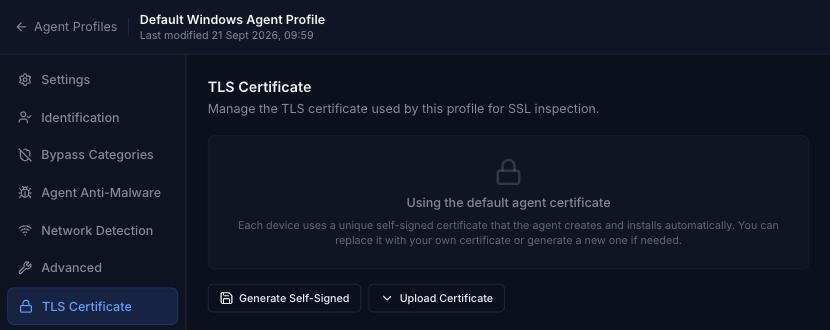
The following options are available:
- Upload Certificate - paste your own PEM-encoded certificate and private key, then click Verify. All agents using this profile will use it.
- Generate Self-Signed - generate a new self-signed certificate that all agents using this profile will use
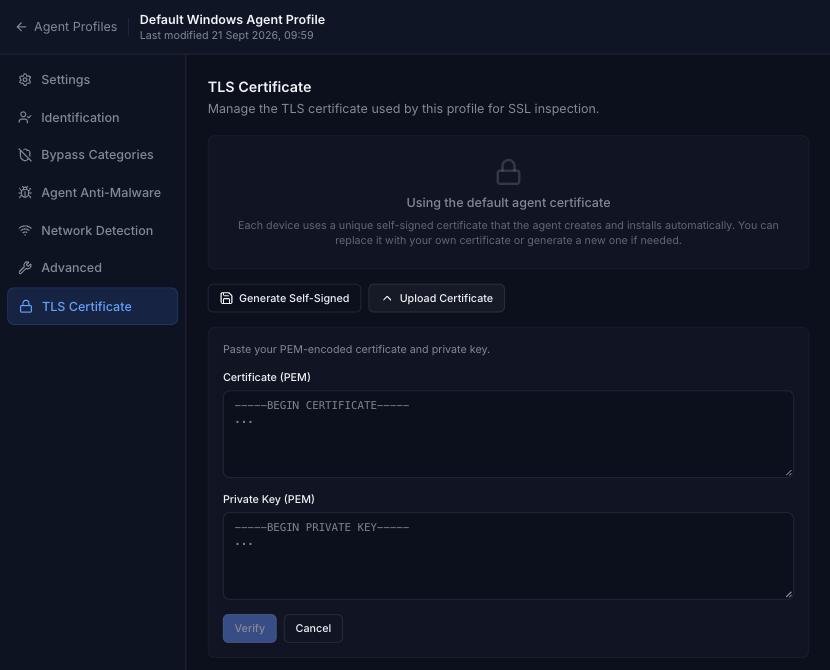
Once a certificate is configured, the section shows its details (subject, issuer and validity dates) and the current certificate, with these extra options:
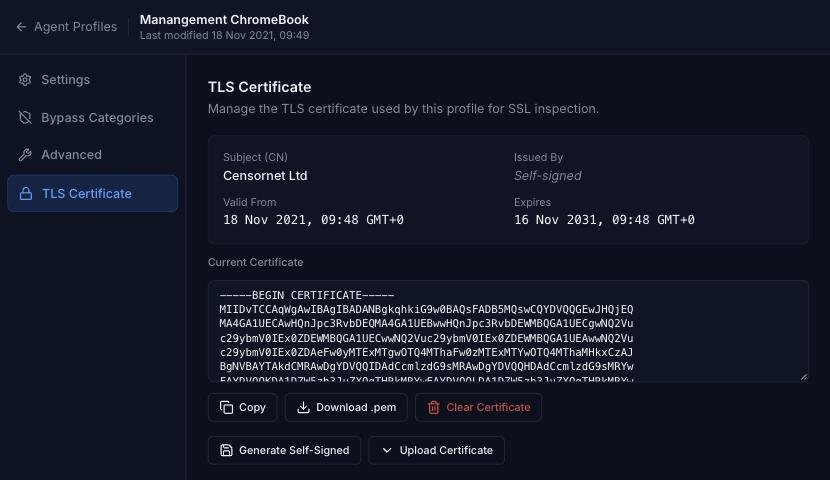
- Copy - copy the public key to the clipboard for ease of transferring to the local certificate store or MDM software
- Download .pem - download the public key for ease of transferring to the local certificate store or MDM software
- Clear Certificate - remove the custom or self-signed certificate. The agent will revert to using its own self-signed certificate which will be different for all agents using this configuration profile