How to submit a URL reclassification request - Console
 Updated 2 weeks ago
by
admin
Updated 2 weeks ago
by
admin
Browse uses many techniques to ensure a URL is classified correctly however from time to time an existing URLs may require reclassifying. You can request a URL reclassification from the TrustLayer console in a number of ways.
Submit a reclassification during URL lookup
- Open any Browse page (for example Rule Builder).
- Click Toolbox in the top right corner and open the URL Lookup tab.
- Enter the URL that has been incorrectly classified and press Enter.
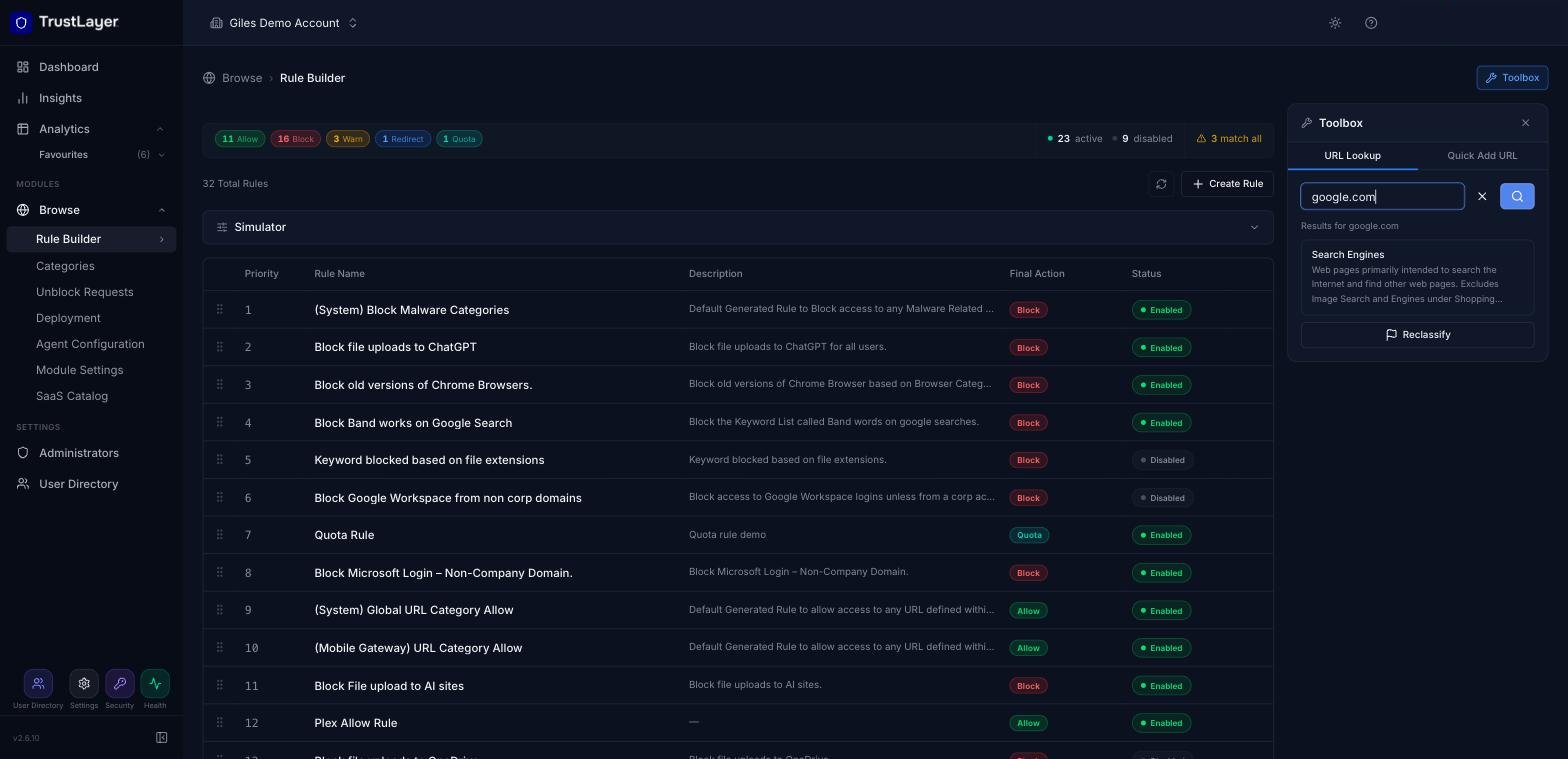
- Confirm the category, or categories listed, is incorrect. If you believe the displayed category is incorrect, click Reclassify.
- Complete the Send Reclassification Request form as detailed below, then click Submit:
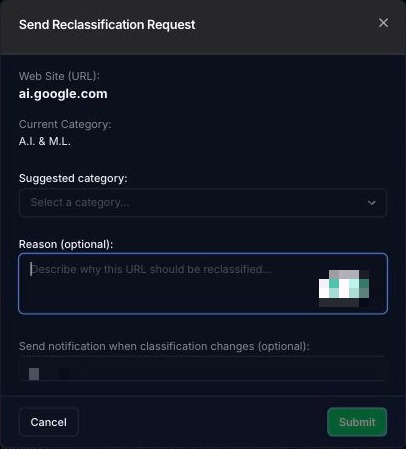
- Suggested Category - select the new category that you think the URL belongs to.
- Reason - optionally enter a reason for requesting a reclassification - this helps the reclassification team process the request.
- Send notification when classification changes - ensure that your email address is entered correctly in order to receive an email update when your reclassification has been processed.
The Toolbox is also available inside the Custom URL and Bypass pattern panels (Browse ⟶ Categories).
Submit a reclassification from the Web Activity report
- Go to Analytics ⟶ Web Activity, choose a timespan and click Run Report.
- Find the URL with the incorrect classification. Use Filters to search for the URL if you need to. The current category is shown in the Web Category column.
- Click the ⋮ menu at the end of the row and select Request Reclassification.

- Complete the reclassification form as detailed below:
- Suggested Category - select the new category that you think the URL belongs to.
- Reason - optionally enter a reason for requesting a reclassification - this helps the reclassification team process the request.
- Send notification when classification changes - ensure that your email address is entered correctly in order to receive an email update when your reclassification has been processed.